설명
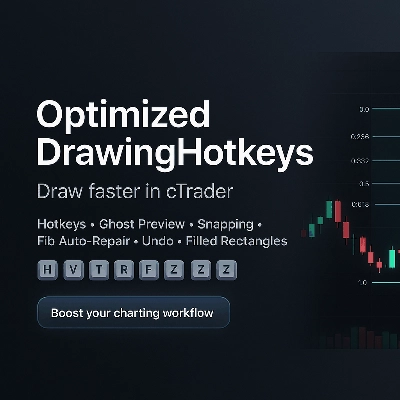
OptimizedDrawingHotkeys는 키보드 단축키와 마우스 클릭을 통해 드로잉 도구를 생성하여 차트 주석 작업을 빠르게 해주는 cTrader Automate cBot입니다. 라이브 “고스트” 배치 미리보기, 스내핑(바의 고가/저가 또는 OHLC에 틱 반올림 옵션 포함), 차트 내 HUD, 마지막 드로잉 실행 취소, 자리수에 맞는 가격 라벨, 바 단위의 오른쪽 확장, 그리고 시간대 변경 후 누락된 피보나치 레벨 선/라벨(및 채워진 사각형 레이어)을 자동으로 재구성할 수 있는 맞춤형 피보나치 되돌림 시스템을 포함합니다.
OptimizedDrawingHotkeys cBot — 사용자 매뉴얼
이 cBot의 기능
OptimizedDrawingHotkeys는 cTrader 차트용 드로잉 보조 도구입니다. 키보드 단축키 + 마우스 클릭을 사용해 일반적인 드로잉 객체를 빠르게 배치할 수 있으며, 선택적으로 고스트 미리보기, 스내핑, 차트 내 HUD, 실행 취소, 그리고 시간대 변경 후 사라진 피보나치 레벨 선/라벨(및 채워진 사각형 레이어)을 자동 복구하는 자체 치유 시스템을 제공합니다.
- 거래를 실행하지 않습니다 (AccessRights.None).
- 차트 객체를 그리고 관련된 “자식” 객체(라벨, 피보나치 레벨, 사각형 채우기 레이어 등)를 관리합니다.
빠른 시작 (일반적인 작업 흐름)
- cBot을 차트에 연결합니다 (cTrader Automate).
- 단축키를 누릅니다 (예: Fib는 F, Rectangle은 R).
- 차트에서 필요한 지점을 클릭하여 배치합니다.
- 진행 중인 드로잉을 취소하려면 Esc를 누릅니다.
- 마지막 완료된 드로잉을 실행 취소하려면 Z(기본값)를 누릅니다.
- HUD를 표시하거나 숨기려면 U(기본값)를 누릅니다.
단축키 및 드로잉 모드
기본 단축키
- H = 수평선 (1회 클릭)
- V = 수직선 (1회 클릭)
- T = 추세선 (2회 클릭)
- R = 사각형 (2회 클릭)
- E = 타원 (2회 클릭)
- F = 피보나치 되돌림 (2회 클릭)
- A = 화살표 (2회 클릭)
- X = 텍스트 (1회 클릭)
- C = 등거리 채널 (3회 클릭)
- Z = 마지막 드로잉 실행 취소
- U = HUD 토글
- Esc = 현재 드로잉 모드 취소 (배치 중)
단축키 매개변수가 비어 있거나 공백이면 해당 단축키는 사실상 비활성화됩니다.
각 도구가 필요한 클릭 수
- 1회 클릭 도구: 수평, 수직, 텍스트
- 2회 클릭 도구: 추세선, 사각형, 타원, 피보나치 되돌림, 화살표
- 3회 클릭 도구: 채널
-
- 클릭 1: 시작점
- 클릭 2: 끝점 (기준선)
- 클릭 3: 높이 점 (기준선으로부터 거리; 높이는 절대 거리 사용)
HUD (차트 내 상태 표시)
활성화된 경우 HUD는 다음을 표시합니다:
- 현재 모드 (또는 대기 상태)
- 배치 중 진행 상황 (예: 1/2)
- 현재 스타일 프로필 및 스내핑 모드
- 단축키 알림
제어:
- Show HUD 매개변수는 초기 표시 상태를 설정합니다.
- Toggle HUD 단축키는 HUD를 켜거나 끕니다.
배치 미리보기 (“고스트 미리보기”)
Enable Placement Preview가 true이면, 다중 점 도구는 클릭 사이에 마우스를 움직일 때 실시간 미리보기를 표시합니다:
- 추세선, 사각형, 타원, 화살표: 첫 번째 클릭 후 미리보기
- 채널: 클릭 1 후 미리보기, 클릭 2 후 채널 미리보기
- 피보나치: 첫 번째 클릭 후 기준선 + 레벨 미리보기
임시 미리보기 객체는 완료하거나 취소할 때 자동으로 제거됩니다.
스내핑
스내핑은 점을 배치하기 전에 클릭한 Y-가격을 조정합니다.
스내핑 모드
- 없음: 스내핑 없음
- 틱: (코드에서 직접 모드로 사용되지 않음; Snap이 None이 아닐 때 “Snap Then Tick”을 통해 반올림이 발생)
- HighLow: 클릭 시간에 가장 가까운 바의 고가 또는 저가에 스냅
- OHLC: 해당 바의 가장 가까운 시가/고가/저가/종가에 스냅
Snap Then Tick
Snap Then Tick가 true이고 Snap 모드가 None이 아니면, 스냅된 가격은 추가로 가장 가까운 Symbol.TickSize로 반올림됩니다.
스타일 시스템
스타일 프로필
스타일 프로필은 기본 두께/색상 동작을 변경합니다:
- 사용자 지정: 기본 색상과 기본 두께를 사용
- 스캘핑: 더 얇고 더 어두운 기본값 (빠르고 깔끔함)
- 스윙: 더 두꺼운 기본값 (더 잘 보임)
도구 색상
각 도구는 자체 “도구 색상” 매개변수를 통해 색상을 선택적으로 재정의할 수 있습니다.
- 비워두면 프로필/기본 색상을 사용합니다.
- 색상 이름이 유효하지 않으면 프로필/기본으로 대체됩니다.
라벨 및 확장
자리수에 맞는 가격
가격 라벨은 Symbol.Digits 형식을 사용합니다 (예: 5자리 심볼은 1.23456).
오른쪽 확장 (바 단위)
오른쪽 확장 (바 단위)은 “오른쪽 라벨”과 확장된 피보나치 선이 도달하는 위치를 제어합니다.
- cBot은 현재 시간대의 바 간격을 사용하여 “바”를 시간으로 변환합니다.
사각형 채우기 (색상 + 불투명도)
채워진 사각형과 윤곽선 사각형
- Rectangle Filled가 false이면 일반 윤곽선 사각형이 그려집니다.
- Rectangle Filled가 true이면 cBot은 두 개의 사각형을 그립니다:
-
- 채우기 배경 (*_fill): 비상호작용, 채워짐, 반투명
- 테두리 오버레이 (*_border): 상호작용 가능, 윤곽선만
이는 cTrader의 사각형 객체 스타일링이 단일 객체 내에서 독립적인 테두리/채우기 스타일링을 안정적으로 지원하지 않기 때문입니다.
채우기 색상 / 채우기 불투명도 %
- 채우기 색상: 색상 이름 (예: DodgerBlue)
- 채우기 불투명도 %: 0–100
-
- 0 = 완전 투명
- 100 = 완전 불투명
중요한 동작:
- 드래그/크기 조정은 테두리 레이어(상호작용 가능)를 통해 수행됩니다.
- 채우기 또는 테두리 레이어 중 하나를 삭제하면 cBot은 고아 레이어 방지를 위해 전체 채워진 사각형 그룹을 제거합니다.
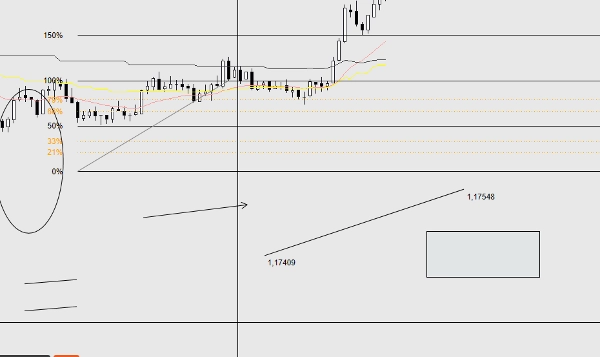
피보나치 되돌림 도구 (맞춤 구현)
생성되는 항목
피보나치를 배치하면:
- 기준선 추세선이 생성됩니다: ..._base (상호작용 가능)
- 활성화된 각 레벨에 대해:
-
- 선 객체(..._lvl_i)와 텍스트 라벨(..._lvl_i_lab)이 자식로 생성됩니다
- 자식은 설계상 비상호작용입니다 (기준선이 이동 대상임)
피보나치 레벨 확장
- Extend Fib Levels가 true이면: 각 레벨은 기준선 시작부터 계산된 오른쪽 확장 시간까지 추세선으로 그려집니다.
- Extend Fib Levels가 false이면: 각 레벨은 수평선입니다.
cBot은 “확장 여부”를 피보나치 그룹별로 기억하므로, 이전 피보나치도 나중에 매개변수를 변경해도 스타일을 유지합니다.
피보나치 라벨 왼쪽 오프셋 (바 단위)
피보나치 백분율 라벨을 기준선 시작점 왼쪽으로 N 바만큼 이동시킵니다 (첫 번째 바보다 이전으로는 이동하지 않도록 제한됨).
자동 복구 / 자체 치유 동작
시간대 변경 시 사라지는 피보나치 레벨
일부 cTrader 빌드는 시간대 변경 시 특정 비상호작용/자식 객체를 제거합니다. 이 cBot은 이를 재구성할 수 있습니다.
- Auto-Repair Fib Levels로 제어됩니다.
- 다음 시점에 실행됩니다:
-
- OnStart
- 대기 중일 때 매 1초마다 (새 드로잉 배치 중이 아닐 때)
핵심 규칙:
- 해당 피보나치에 대해 레벨 선이 하나도 존재하지 않을 때만 피보나치 레벨 선/라벨을 재생성합니다.
이렇게 하면 사용자가 의도적으로 단일 레벨 선을 삭제한 경우와 같은 수동 삭제와 충돌하지 않습니다.
채워진 사각형 레이어 복구
채워진 사각형도 확인 및 복구됩니다:
- 테두리는 존재하지만 채우기가 없으면 → 채우기를 재생성합니다.
- 채우기는 존재하지만 테두리가 없으면 → 테두리를 재생성합니다 (현재 사각형 테두리 색상/두께 매개변수를 사용).
실행 취소 및 삭제 동작
마지막 드로잉 실행 취소
- 단축키: 마지막 실행 취소 (기본값 Z)
- 마지막 생성된 “소유자 그룹”을 제거합니다:
-
- 단일 객체: 직접 제거
- 추세선 라벨: 선과 함께 제거
- 피보나치: 기준선 + 모든 레벨 + 모든 피보나치 라벨을 함께 제거
- 채워진 사각형: 채우기와 테두리를 함께 제거
실행 취소는 “스택 기반”입니다: cBot이 마지막으로 생성한 것만 제거하며 임의의 수동 편집은 제거하지 않습니다.
객체를 수동으로 삭제하기
- “소유자” 객체를 삭제하면 해당 자식도 가능한 경우 함께 삭제됩니다.
- 채워진 사각형의 경우, 어느 한 레이어를 삭제하면 cBot이 다른 레이어도 함께 제거합니다.
매개변수 참조 (그룹별)
단축키
- 수평, 수직, 추세선, 사각형, 타원, 피보나치 되돌림, 화살표, 텍스트, 채널
- 마지막 실행 취소
- HUD 토글
UX
- HUD 표시 (초기 HUD 상태)
- 배치 미리보기 활성화
- 자동 복구 피보나치 레벨
스타일
- 스타일 프로필 (사용자 지정, 스캘핑, 스윙)
- 기본 두께
- 기본 색상
도구 색상
도구별 선택적 재정의 (비워두면 프로필/기본 사용):
- 수평, 수직, 추세선, 사각형, 타원, 화살표, 텍스트, 채널, 피보나치 기준선
텍스트
- 텍스트 내용
- 텍스트 글꼴 크기
참고: 피보나치 라벨, 선 끝점 라벨 등 다양한 라벨에도 사용됩니다.
사각형
- 사각형 채우기 여부
- 채우기 색상
- 채우기 불투명도 %
시간/라벨
- 오른쪽 확장 (바 단위)
스내핑
- 스내핑 모드 (없음, HighLow, OHLC)
- Snap Then Tick
피보나치
- 피보나치 레벨 확장
- 피보나치 라벨 왼쪽 오프셋 (바 단위)
피보나치 레벨
각 레벨에 대해:
- 표시 토글
- 백분율 값
- 색상
- 선 스타일
팁, 주의사항, 문제 해결
단축키가 작동하지 않을 때
- 차트에 포커스가 있는지 확인하세요 (차트를 한 번 클릭).
- 중복된 단축키가 없는지 확인하세요 (같은 키에 두 개의 동작이 바인딩되면 예측 불가능한 동작이 발생할 수 있습니다).
- 단축키는 단일 문자로 사용해 보세요.
매개변수를 변경한 후 피보나치 레벨/라벨이 변경됨
- 기존 피보나치 그룹은 “확장 여부”를 기억하지만:
-
- 레벨이 완전히 사라져 재생성해야 하는 경우, cBot은 현재 피보나치 레벨 설정(색상/스타일/가시성)을 사용합니다.
- 이는 예상된 동작으로, 현재 구성에서 “재수화”됩니다.
채워진 사각형 색상/불투명도가 전역으로 보임
- 전역입니다: 채우기 색상과 채우기 불투명도 %는 매개변수이며, 사각형별로 저장되지 않습니다.
- 채우기 레이어가 사라졌다가 나중에 재생성되면, 현재 채우기 설정을 사용합니다.
시간대 변경 시 객체가 여전히 사라짐
- Auto-Repair Fib Levels가 true인지 확인하세요.
- 참고: 봇은 피보나치에 대해 모든 레벨 선이 사라진 경우에만 피보나치 레벨을 재구성합니다.
요약
Key features include a live “ghost” preview of drawings before placement, snapping options to bar High/Low or OHLC prices with optional tick rounding, and an on-chart heads-up display (HUD) that shows current mode, progress, style profile, snapping mode, and hotkey reminders. The cBot offers undo functionality for the last drawing and manages related child objects such as labels and filled rectangle layers.
The Fibonacci retracement tool is a custom implementation that creates interactive baselines with non-interactive child level lines and labels. It includes an auto-repair system that rebuilds missing Fibonacci levels and filled rectangle layers after timeframe changes, ensuring chart annotations remain intact.
Users can configure style profiles (Custom, Scalping, Swing), colors, line thickness, fill opacity, snapping modes, and hotkeys. The cBot does not execute trades; it solely facilitates efficient and precise chart drawing across markets including Forex, indices, commodities, crypto, and stocks.
고객 리뷰
5 | 0 % | |
4 | 100 % | |
3 | 0 % | |
2 | 0 % | |
1 | 0 % |