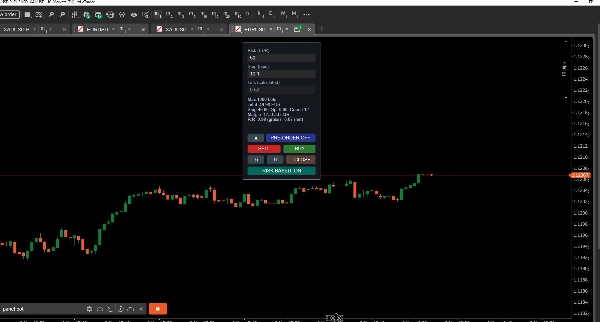

Description
TRADE PANEL — build the trade on the chart, then place it
This bot places no trades of its own. It reads no signals and predicts
nothing. You decide where the trade goes; the panel does the arithmetic and
guards the two things that cost most: the wrong position size, and a losing
day that is allowed to keep running.
PRE-ORDER — THE TRADE BEFORE THE TRADE
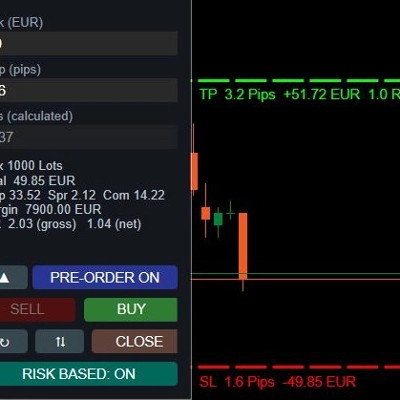
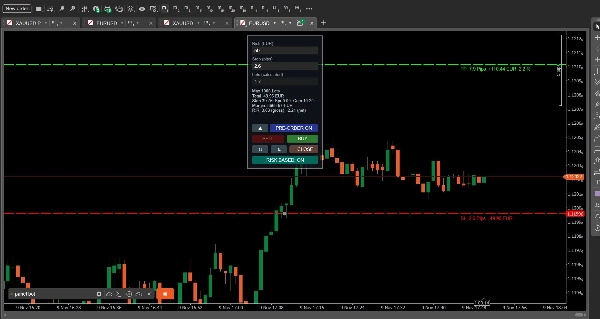
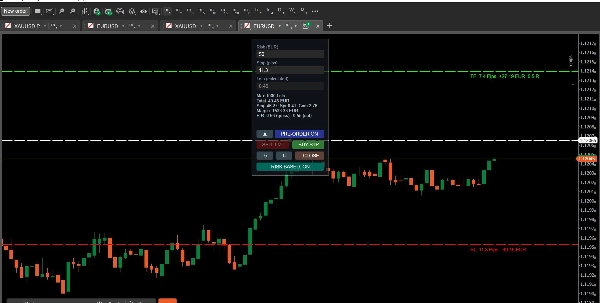
Switch Pre-Order on and three lines appear on the chart: entry, stop and
target. Nothing has been sent yet. You drag them to where the trade belongs,
and everything recalculates while you drag — the lot size, the risk, the
amount at each line, the reward-to-risk ratio.
The entry line follows the market until you touch it for the first time. From
then on it stays at your level. That matters for the size: the stop distance
is measured from the ENTRY LINE, not from the current price, so the lots fit
the trade you are planning and not the one the market happens to offer right
now.
When it looks right, you click BUY or SELL and exactly what you drew is sent.
PENDING ORDERS, WITHOUT CHOOSING THE TYPE
Turn on Entry Order and the same click places a pending order at the entry
line instead of a market order. You never choose between stop and limit — the
geometry decides, and the button says in advance what your click will produce:
BUY LMT or BUY STP. The label appears only after you have moved the line,
because before that the line sits at the market and the spread alone would
already suggest an answer to a question you have not asked yet.
While your order rests, the lines stay live. Drag one and the order follows —
entry, stop and target, sent once you let go, never during the movement. Only
this panel's own order is ever touched, never one you placed yourself in
cTrader. RESET pulls the entry line back to the market and cancels the order.
Once you are filled, cTrader draws the real stop and target of the position.
The preview lines step aside so they do not cover them, and the numbers you
typed stay — switch Pre-Order back on for the next trade and the lines return
at the same distances.
EVERYTHING IS NET
Spread and commission are counted into the lot calculation, into the amounts
on the lines and into the break-even stop. The number you read is the number
your account will see. On symbols not quoted in your account currency the
platform's own converter is used — and when no rate can be had, the panel
shows a question mark rather than a wrong number.
Targets can be set in pips or as a reward-to-risk multiple, gross or net. Net
places the target further out so that your ratio survives the costs: with a
10 pip stop, 3 pips of cost and R = 2, the target goes to 29 pips, not 20.
THE DAY'S LIMIT LATCHES
Set a daily loss limit and the panel locks the day when it is reached,
counting realised and open loss across the whole account. The lock survives a
restart, a reload, and even setting the limit back to zero. It ends with the
next trading day, not before. Optionally it closes everything and cancels this
panel's pending orders.
NO PERMISSIONS NEEDED
The bot needs no access rights at all. It writes no files and loads no
indicators. It calculates and it draws, nothing else.
PRE-ORDER
• Entry, stop and target as draggable lines — the whole trade visible before
anything is sent
• Size, risk, amounts and R recalculate while you drag
• The entry line follows the market until you touch it, then stays at your level
• Stop distance is measured from the entry line, so the lots fit your level and
not the current price
• One click sends exactly what you drew
• Optional: pending order at the entry line instead of a market order
• Limit or stop is decided by the geometry — the button shows BUY LMT or BUY STP
before you press it
• Dragging a line updates a resting order: entry, stop and target, on release
• Only this panel's own order is ever changed, never one you placed yourself
• RESET returns the entry line to the market and cancels the order
• Preview lines step aside when the position opens, and return with the same
distances for the next trade
SIZE AND COST
• Position size from risk and stop distance, or a fixed lot — switchable live
• Risk is the TOTAL cost of a stop out: price loss plus spread plus commission
• Commission charged once or on both sides, your choice
• Amounts converted to your account currency; a question mark instead of a wrong
number when no rate is available
• Labels on the lines: net amount, pips, and R multiple on the target
TARGET AND STOP
• Target as a pip distance or as a reward-to-risk multiple
• R:R gross, or net — the net target sits further out so the ratio survives costs
• Break even by amount, by pips or by R multiple
• Break-even stop at the entry, or at true zero including spread and commission
PROTECTION
• Daily loss limit for the whole account, realised plus open
• The lock latches: survives restart, reload and a limit set back to zero
• Optional close-all and cancel of this panel's pending orders when the day locks
• Two sanity checks always on: stop and target must match the direction, and the
stop may not sit further away than your risk allows
PANEL
• Full layout or compact (BUY, SELL, CLOSE ALL), switched with one button
• Eight panel positions, free width, font size, and every colour configurable
• Line labels movable from the chart middle out past the last candle; they hold
their position when you zoom
• Refresh rate adjustable; one cycle costs about 30 ms
• No access rights required — no file access, no indicator loading
TRADE PANEL — complete guide
This bot places no trades of its own. It reads no signals and predicts
nothing. You decide where the trade goes; the panel does the arithmetic, draws
the order on the chart, and guards the two things that cost most: the wrong
position size, and a losing day that is allowed to keep running.
Everything it shows is NET. Spread and commission are counted into the lot
calculation, into the amounts on the lines and into the break-even stop. On
symbols not quoted in your account currency the platform's own converter is
used — and when no rate can be had, the panel shows a question mark rather
than a wrong number.
─────────────────────────────────────────────────────────────────────
THE PANEL
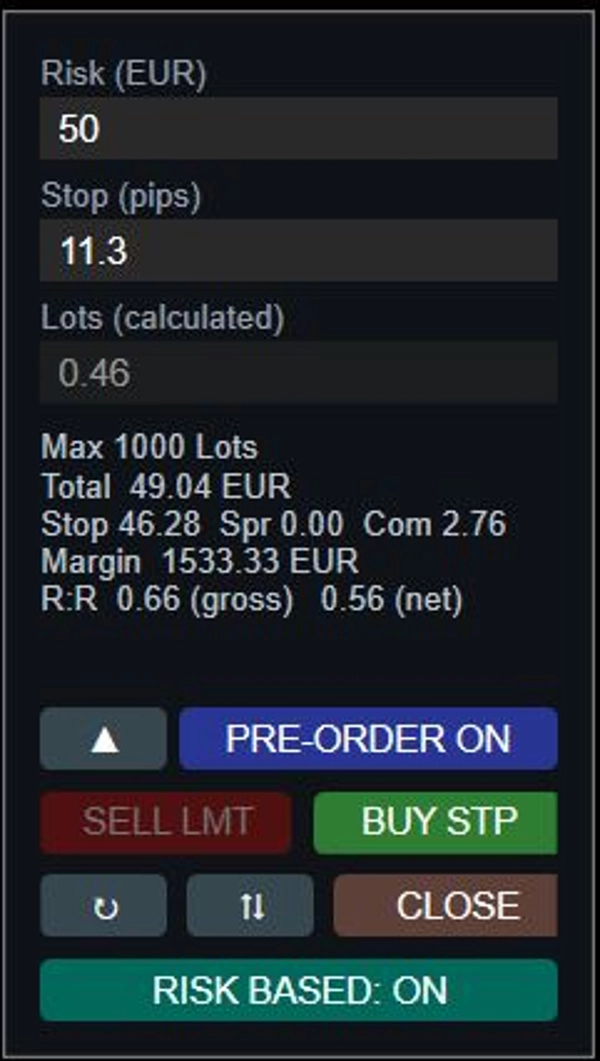
Full layout, top to bottom:
Risk (your currency) what a stop out may cost you in total
Stop (pips) distance from the entry line
Lots (calculated) the result — or your own number in fixed-lot mode
PRE-ORDER preview lines on or off, with the layout arrow
BUY / SELL sends the trade
CLOSE / ↻ / ⇄ close all, reset the lines, mirror the arrangement
sizing toggle risk-based or fixed lot
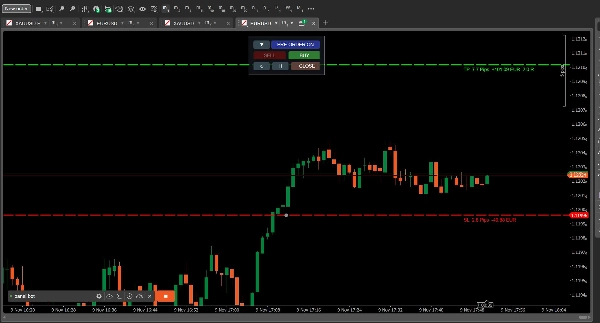
Compact layout: PRE-ORDER, BUY, SELL, CLOSE ALL. Nothing else. The preview
lines carry the stop and target, so nothing is lost — only the numbers are
hidden. Switch between the two with the arrow next to PRE-ORDER.
↻ RESET pulls the entry line back to the market and cancels a pending
order placed from this panel
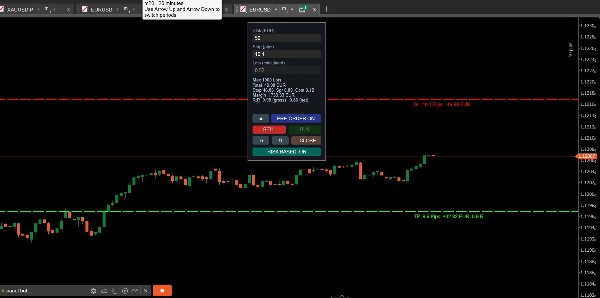
⇄ SHIFT mirrors stop and target to the other side. The panel assumes
long; one press builds the short arrangement
─────────────────────────────────────────────────────────────────────
HOW A TRADE IS BUILT
Switch Pre-Order on and three lines appear: entry, stop and target. Nothing
has been sent. You drag them to where the trade belongs, and everything
recalculates while you drag — lots, risk, the amount at each line, the ratio.
The entry line follows the market until you touch it for the first time. From
then on it stays at your level. That matters for the size: the stop distance
is always measured from the ENTRY LINE, not from the current price, so the
lots fit the trade you are planning and not the one the market happens to
offer right now.
When it looks right, you click BUY or SELL and exactly what you drew is sent.
With Entry Order switched on, the same click places a pending order at the
entry line instead. You never choose between stop and limit — the geometry
decides, and the button says in advance what your click will produce: BUY LMT
or BUY STP. That label appears only after you have moved the line, because
before that the line sits at the market and the spread alone would already
suggest an answer to a question you have not asked yet.
While the order rests, the lines stay live: drag one and the order follows.
Once you are filled, cTrader draws the real stop and target of the position,
and the preview lines step aside so they do not cover them.
─────────────────────────────────────────────────────────────────────
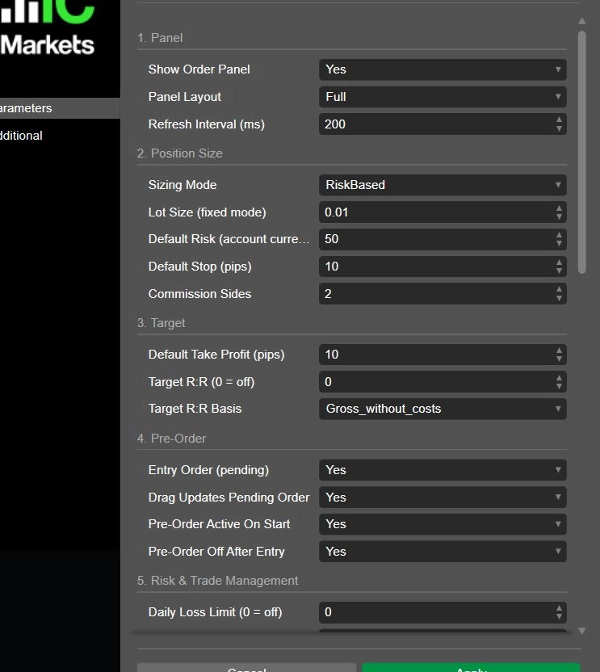
1. PANEL
Show Order Panel (on)
Draws the panel. Switching it off keeps the bot running — the lines, the
daily loss limit and the break-even stop all keep working. Useful on a
second chart where you only want the protection.
Panel Layout (Full)
Starting layout only. Switch it later with the arrow button next to
PRE-ORDER — a layout is a matter of view and should not need a dialog.
Refresh Interval (ms) (200)
How often lines and figures are redrawn. One cycle costs about 30 ms on a
normal machine, so 200 ms uses about 15 percent of the thread. Lower values
look tempting but do not help: the screen only redraws every 16 ms anyway,
and below about 50 ms your button presses start queuing behind the
recalculation.
─────────────────────────────────────────────────────────────────────
2. POSITION SIZE
Sizing Mode (Risk based)
Risk based derives the lots from your risk amount and the stop distance.
Fixed lot uses the number you type. Starting value only — the button at the
bottom of the panel switches it live.
Lot Size (fixed mode) (0.01)
The lots used in fixed-lot mode. A calculated lot number is never silently
carried into this field.
Default Risk (account currency) (50)
What a stop out may cost you in TOTAL — price loss plus spread plus
commission, not just the price distance. The lots follow from it.
Default Stop (pips) (10)
The stop distance. With preview lines on, the LINE is the truth and this
field follows it.
Commission Sides (2)
Most brokers charge on entry and on exit. Set 1 if yours charges once.
This feeds every net figure in the panel.
─────────────────────────────────────────────────────────────────────
3. TARGET
Default Take Profit (pips) (10)
Target distance in pips. 0 means no target at all, and then no target line
is drawn — you pull one in by hand if you want it.
Target R:R (0 = off) (0)
Above 0 the target hangs on the stop: target distance = stop distance times
this number. THE RATIO ALWAYS WINS — while it is above 0, the pip value
above is ignored. It is not lost: set the ratio back to 0 and your pip value
applies again. Without a stop there is no ratio to refer to, and the panel
shows a dash.
Drag the target line by hand and the panel adopts the ratio you just set as
the new working value. cTrader cannot write it back into the dialog, so the
field keeps your original number.
Target R:R Basis (Gross)
Gross is pure geometry: target = stop times ratio. What reaches your account
is less, because costs come off the profit and go onto the risk.
Net places the target far enough out that your ratio survives the costs.
With a 10 pip stop, 3 pips of cost and R = 2, that is 29 pips instead of 20.
This setting also decides what R means for the break-even trigger in
group 5.
─────────────────────────────────────────────────────────────────────
4. PRE-ORDER
Entry Order (pending) (off)
A pending order at the entry line instead of a market order. Both trade
buttons stay grey until you have dragged the line, because until then there
is no level to work from. Deliberately a dialog setting and not a panel
button: whether you trade at market or at a level is a decision you make
once, not in the heat of the moment.
Drag Updates Pending Order (on)
While your order rests, dragging a line changes the order itself — entry,
stop and target. The change is sent when you let go, not during the
movement. Only orders placed from this panel are touched, never one you
placed yourself in the cTrader window. Switch it off if you do not want a
mouse movement on the chart to reach your broker.
Pre-Order Active On Start (on)
Whether the preview lines are there when the bot starts. The PRE-ORDER
button switches them later.
Pre-Order Off After Entry (on)
Once a position is open, cTrader draws its real stop and target lines. The
preview lines sit at almost the same place and would cover them, so they are
removed. Your typed values stay, so switching Pre-Order back on for the next
trade recreates the lines at the same distances. A pending order keeps its
lines until it fills.
─────────────────────────────────────────────────────────────────────
5. RISK & TRADE MANAGEMENT
Daily Loss Limit (0 = off) (0)
The most you are willing to lose today, as a fixed amount in your account
currency. It covers the WHOLE ACCOUNT, not just this chart, and it counts
realised and open loss together — otherwise the limit could be dodged by
letting losers run, which is exactly when it matters most. A winning day
counts as a loss of zero, never negative.
When the limit is reached, BUY and SELL are locked and the panel states why.
THE LOCK LATCHES:
· it stays even if an open loss recovers afterwards
· it survives Apply, a restart of the bot and closing cTrader
· it is released only by RAISING this value, or by the broker's next
trading day
Close All On Daily Loss (off)
Also closes every open position and cancels this panel's pending orders when
the limit is hit, and keeps doing so while the day is locked. Off by default
on purpose: this reaches into running trades and should be switched on
deliberately. Without it, the limit only prevents NEW trades.
Break Even Trigger (Off)
When the stop is pulled to break even.
Amount from a fixed amount in account currency, net of commission
and swap
R_multiple from a multiple of the risk, taken from the position's current
stop plus costs. Whether that R counts costs is decided by
Target R:R Basis in group 3
Pips from a pure price gain, independent of size
A position without a stop has no R, so nothing happens there.
Break Even Trigger Value (1.5)
The threshold. Its unit follows the trigger above: currency, multiple, or
pips.
Break Even Stop Level (incl. spread and commission)
WHERE the stop goes — this applies to all three triggers.
Without costs exactly the entry price. Being stopped there still leaves
spread and commission as a loss: gross zero, net a minus
Incl. costs far enough beyond the entry that being stopped out really
comes to zero
─────────────────────────────────────────────────────────────────────
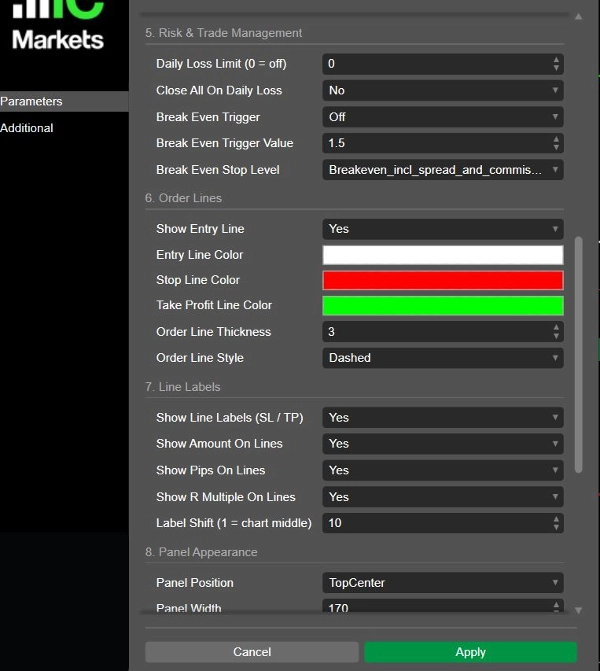
6. ORDER LINES
Show Entry Line (on)
Only the drawing is switched off. The line itself always exists — it is the
reference every distance is measured from, and the whole lot calculation
hangs on it. In Entry Order mode it stays visible regardless, because there
it is the level you drag.
Entry Line Color (black) / Stop Line Color (red) / Take Profit Line Color
(green)
The first two digits of each value are the opacity.
Order Line Thickness (3)
1 to 5.
Order Line Style (Dashed)
The style of all three lines. They are told apart by colour, not by stroke,
which keeps the chart calm. Takes effect when the lines are created: after
Apply, or by switching Pre-Order off and on.
─────────────────────────────────────────────────────────────────────
7. LINE LABELS
Show Line Labels (SL / TP) (on)
Master switch for the text beside the stop and target lines.
Show Amount On Lines (on)
What the planned trade really costs or earns at exactly that price, in your
account currency, NET. At the stop the costs are added on — you lose more
than the price distance. At the target they come off. The plain price amount
would be too optimistic, so it is not what you see.
Show Pips On Lines (on)
The distance from the entry. Shown even when no amount can be calculated,
for instance when no conversion rate is available.
Show R Multiple On Lines (off)
The reward-to-risk ratio, on the TARGET line only — at the stop it is 1 R by
definition. Always the NET ratio, because costs hit twice: off the profit
and onto the risk. With tight stops the difference is considerable: a
geometric 2.0 R can be 1.4 R net. That is precisely what you want to see
before you click.
Label Shift (1 = chart middle) (12)
Where the labels sit. 1 puts them in the middle of the chart, 11 at the
right edge of the bars, higher values out into the free space beyond. One
step is 5 percent of the visible width, so the labels hold their position
when you zoom.
─────────────────────────────────────────────────────────────────────
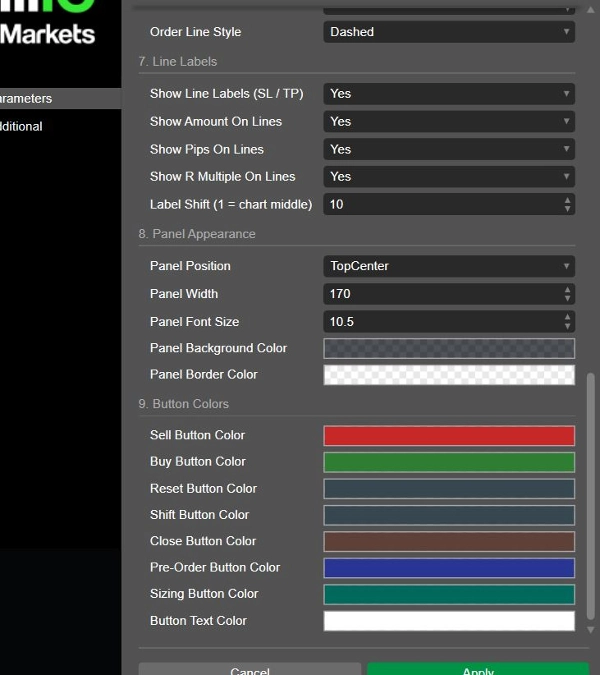
8. PANEL APPEARANCE
Panel Position (Top centre)
Eight fixed anchors. cTrader positions interface elements by alignment, not
by coordinates, so the panel cannot be dragged with the mouse.
Panel Width (170) / Panel Font Size (10.5)
Labels are drawn one step smaller than the input fields.
Panel Background Color (BE14181E)
The first two digits are the opacity:
BE the default — the candles shimmer through
FF fully opaque
00 invisible, only the buttons stand on the chart
A colour rather than a yes/no switch, so the panel can also be matched to a
light chart scheme.
Panel Border Color (78FFFFFF)
─────────────────────────────────────────────────────────────────────
9. BUTTON COLOURS
Sell, Buy, Reset, Shift, Close, Pre-Order and Sizing button colours, plus the
button text colour. They apply to both layouts. A locked button is additionally
dimmed by cTrader, but its colour stays recognisable.
─────────────────────────────────────────────────────────────────────
ALWAYS ON
Two checks cannot be switched off, because they are about your own input and
not about any trading opinion:
· stop and target must match the direction of the trade
· the stop may not sit further away than your entered risk allows
NO PERMISSIONS NEEDED
The bot needs no access rights at all. It writes no files and loads no
indicators. It calculates and it draws, nothing else. Whatever is left of a
rejected order is printed to the bot instance's log in cTrader.
Summary
The entry line initially tracks the market price until manually set, ensuring stop distances and lot sizes correspond precisely to the planned trade level rather than current market fluctuations. Traders can place immediate market orders or pending orders at the entry line, with the panel automatically determining order type (limit or stop) based on line geometry and displaying the appropriate action on the trade button.
The panel includes risk management features such as a daily loss limit that locks trading when reached, persisting through restarts and counting both realized and open losses. Optional automatic closing of all positions and cancellation of pending orders upon hitting the daily limit is available. Break-even stop adjustments can be configured based on amount, pips, or risk multiples.
Customizable interface options include full or compact layouts, adjustable panel position, size, colors, and refresh rates. The bot requires no special permissions, writes no files, and loads no indicators, functioning solely as a calculation and drawing tool integrated into the trading chart.