Descrizione
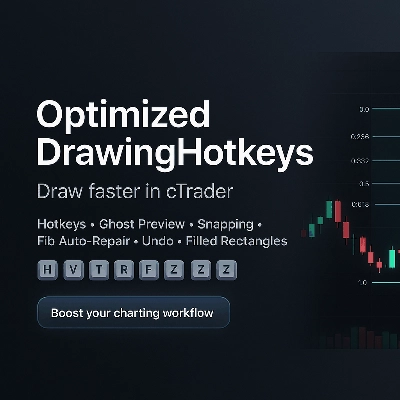
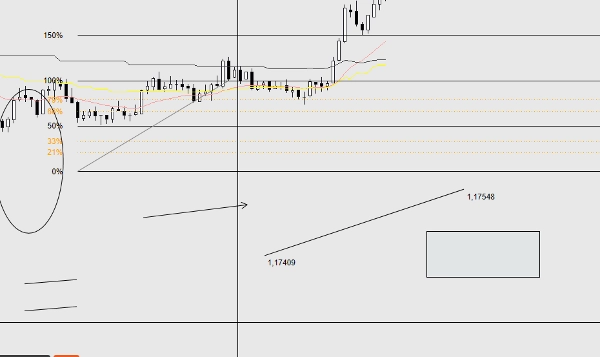
OptimizedDrawingHotkeys è un cBot cTrader Automate che accelera l'annotazione dei grafici permettendoti di creare strumenti di disegno tramite scorciatoie da tastiera e clic del mouse. Include un'anteprima di posizionamento “fantasma” in tempo reale, aggancio (a High/Low della barra o OHLC con arrotondamento tick opzionale), un HUD sul grafico, annulla l'ultima annotazione, etichette di prezzo con cifre corrette, estensione a destra in barre e un sistema personalizzato di ritracciamento Fib che può ricostruire automaticamente le linee/etichette dei livelli fib mancanti (e i livelli di rettangolo riempito) dopo i cambiamenti di timeframe.
OptimizedDrawingHotkeys cBot — Manuale Utente
Cosa fa questo cBot
OptimizedDrawingHotkeys è un assistente di disegno per i grafici cTrader. Ti permette di posizionare rapidamente oggetti di disegno comuni usando scorciatoie da tastiera + clic del mouse, con opzionali anteprime fantasma, aggancio, un HUD sul grafico, Annulla e un sistema auto-riparante che ricostruisce le linee/etichette dei livelli Fib (e i livelli di rettangolo riempito) se scompaiono dopo i cambi di timeframe.
- Non effettua operazioni di trading (AccessRights.None).
- Disegna oggetti sul grafico e gestisce gli oggetti “figli” correlati (etichette, livelli fib, livello di riempimento rettangolo, ecc.).
Avvio rapido (flusso di lavoro tipico)
- Collega il cBot a un grafico (cTrader Automate).
- Premi una scorciatoia (es. F per Fib, R per Rettangolo).
- Clicca sul grafico per posizionare i punti richiesti.
- Premi Esc per annullare un disegno in corso.
- Premi Z (default) per annullare l'ultimo disegno completato.
- Premi U (default) per mostrare/nascondere l'HUD.
Scorciatoie e modalità di disegno
Scorciatoie predefinite
- H = Linea orizzontale (1 clic)
- V = Linea verticale (1 clic)
- T = Linea di tendenza (2 clic)
- R = Rettangolo (2 clic)
- E = Ellisse (2 clic)
- F = Ritracciamento Fib (2 clic)
- A = Freccia (2 clic)
- X = Testo (1 clic)
- C = Canale equidistante (3 clic)
- Z = Annulla ultimo disegno
- U = Attiva/disattiva HUD
- Esc = Annulla modalità di disegno corrente (durante il posizionamento)
Se un parametro scorciatoia è vuoto/spazio bianco, quella scorciatoia è effettivamente disabilitata.
Quanti clic richiede ogni strumento
- Strumenti a 1 clic: Orizzontale, Verticale, Testo
- Strumenti a 2 clic: Linea di tendenza, Rettangolo, Ellisse, Ritracciamento Fib, Freccia
- Strumenti a 3 clic: Canale
-
- Clic 1: punto di partenza
- Clic 2: punto finale (linea base)
- Clic 3: punto di altezza (distanza dalla linea base; l'altezza usa distanza assoluta)
HUD (stato sul grafico)
Se abilitato, l'HUD mostra:
- Modalità corrente (o Inattivo)
- Progresso tipo (1/2) durante il posizionamento
- Profilo stile corrente e modalità di aggancio
- Promemoria scorciatoie
Controlli:
- Il parametro Mostra HUD imposta la visibilità iniziale.
- La scorciatoia Toggle HUD la attiva/disattiva.
Anteprima posizionamento (“anteprima fantasma”)
Se Abilita Anteprima Posizionamento = true, gli strumenti multi-punto mostrano un'anteprima in tempo reale mentre muovi il mouse tra i clic:
- Linea di tendenza, Rettangolo, Ellisse, Freccia: anteprima dopo il primo clic
- Canale: anteprima dopo il clic 1, poi anteprima canale dopo il clic 2
- Fib: anteprima linea base + livelli dopo il primo clic
Gli oggetti di anteprima temporanei vengono rimossi automaticamente quando finisci o annulli.
Aggancio
L'aggancio regola il prezzo Y cliccato prima di posizionare i punti.
Modalità di aggancio
- Nessuno: nessun aggancio
- Tick: (non usato direttamente come modalità nel codice; l'arrotondamento avviene tramite “Aggancia poi Tick” quando Aggancio != Nessuno)
- HighLow: aggancia al massimo o minimo più vicino della barra più vicina al tempo del clic
- OHLC: aggancia al più vicino Open/High/Low/Close di quella barra
Aggancia poi Tick
Se Aggancia poi Tick = true e la modalità di aggancio non è Nessuno, il prezzo agganciato viene ulteriormente arrotondato al Symbol.TickSize più vicino.
Sistema di stile
Profilo stile
Il Profilo stile modifica il comportamento predefinito di spessore/colore:
- Personalizzato: usa il tuo Colore Predefinito e Spessore Base
- Scalping: predefiniti più sottili + più spenti (veloce/pulito)
- Swing: predefiniti più spessi (più visibili)
Colori degli strumenti
Ogni strumento può opzionalmente sovrascrivere il colore tramite il proprio parametro “Colori Strumento”.
- Lascia vuoto per usare il colore del profilo/predefinito.
- Se un nome colore non è valido, si torna al profilo/predefinito.
Etichette ed estensioni
Prezzi con cifre corrette
Le etichette di prezzo usano la formattazione Symbol.Digits (es. simboli a 5 cifre mostrano 1.23456).
Estensione a destra (Barre)
L'Estensione a destra (Barre) controlla fino a dove arrivano le “etichette sul lato destro” e le linee fib estese.
- Il cBot converte le “barre” in tempo usando l'intervallo barra corrente sul tuo timeframe.
Riempimento rettangolo (colore + opacità)
Rettangoli riempiti vs contorno
- Se Rettangolo Riempito = false: viene disegnato un normale rettangolo con solo contorno.
- Se Rettangolo Riempito = true: il cBot disegna due rettangoli:
-
- Riempimento sottostante (*_fill): non interattivo, riempito, semi-trasparente
- Sovrapposizione bordo (*_border): interattivo, solo contorno
Questo è fatto perché lo stile dell'oggetto rettangolo di cTrader non supporta in modo affidabile uno stile indipendente di bordo/riempimento in un singolo oggetto.
Colore riempimento / Opacità riempimento %
- Colore riempimento: nome colore (es. DodgerBlue)
- Opacità riempimento %: 0–100
-
- 0 = completamente trasparente
- 100 = completamente opaco
Comportamento importante:
- Trascinare/ridimensionare avviene tramite lo strato bordo (interattivo).
- Se elimini lo strato di riempimento o quello di bordo, il cBot rimuoverà l'intero gruppo di rettangolo riempito (per evitare livelli orfani).
Strumento ritracciamento Fib (implementazione personalizzata)
Cosa viene creato
Quando posizioni un Fib:
- Viene creata una linea di tendenza base: ..._base (interattiva)
- Per ogni livello abilitato:
-
- Viene creato un oggetto linea (..._lvl_i) e un'etichetta di testo (..._lvl_i_lab) come figli
- I figli sono non interattivi per design (la linea base è ciò che si muove)
Estendi livelli Fib
- Se Estendi livelli Fib = true: ogni livello è disegnato come una Linea di tendenza dalla partenza della linea base al tempo di estensione destra calcolato.
- Se Estendi livelli Fib = false: ogni livello è una Linea orizzontale.
Il cBot ricorda “estendi vs non estendi” per gruppo fib (così i fib più vecchi mantengono il loro stile anche se cambi il parametro dopo).
Offset etichetta Fib a sinistra (Barre)
Sposta le etichette percentuali fib a sinistra della partenza della linea base di N barre (limitato in modo che non vada prima della prima barra).
Comportamento di auto-riparazione / auto-riparazione
Livelli Fib che scompaiono al cambio di timeframe
Alcune versioni di cTrader rimuovono certi oggetti non interattivi/figli al cambio di timeframe. Questo cBot può ricostruirli.
- Controllato da Auto-Ripara Livelli Fib
- Esegue:
-
- All'avvio
- Ogni 1 secondo quando inattivo (non mentre stai posizionando un nuovo disegno)
Regola chiave:
- Ricrea le linee/etichette dei livelli fib solo se nessuna delle linee di livello esiste per quel fib.
Questo evita conflitti con le tue cancellazioni manuali (es. se hai rimosso intenzionalmente una singola linea di livello).
Riparazione livello rettangolo riempito
Anche i rettangoli riempiti vengono controllati e riparati:
- Se il bordo esiste ma il riempimento manca → il riempimento viene ricreato.
- Se il riempimento esiste ma il bordo manca → il bordo viene ricreato (usando i parametri di colore/spessore bordo rettangolo correnti).
Comportamento di annulla e cancellazione
Annulla ultimo disegno
- Scorciatoia: Annulla ultimo (default Z)
- Rimuove l'ultimo “gruppo proprietario” creato:
-
- Oggetti singoli: rimossi direttamente
- Etichette Linea di tendenza: rimosse con la linea
- Fib: linea base + tutti i livelli + tutte le etichette fib rimosse insieme
- Rettangolo riempito: sia riempimento che bordo rimossi insieme
L'annulla è “basato su stack”: rimuove solo ciò che il cBot ha creato per ultimo, non modifiche manuali arbitrarie.
Cancellazione manuale degli oggetti
- Cancellare un oggetto “proprietario” cancella i suoi figli dove applicabile.
- Per i rettangoli riempiti, cancellare uno dei due livelli fa sì che il cBot rimuova anche l'altro livello.
Riferimento parametri (per gruppo)
Scorciatoie
- Orizzontale, Verticale, Linea di tendenza, Rettangolo, Ellisse, Ritracciamento Fib, Freccia, Testo, Canale
- Annulla ultimo
- Attiva/disattiva HUD
UX
- Mostra HUD (stato iniziale HUD)
- Abilita Anteprima Posizionamento
- Auto-Ripara Livelli Fib
Stile
- Profilo stile (Personalizzato, Scalping, Swing)
- Spessore base
- Colore predefinito
Colori strumenti
Sovrascritture opzionali per ogni strumento (vuoto = usa profilo/predefinito):
- Orizzontale, Verticale, Linea di tendenza, Rettangolo, Ellisse, Freccia, Testo, Canale, Base Fib
Testo
- Contenuto testo
- Dimensione font testo
Nota: usato anche per varie etichette (etichette fib, etichette endpoint linea, ecc.).
Rettangolo
- Rettangolo riempito
- Colore riempimento
- Opacità riempimento %
Tempo/Etichette
- Estensione a destra (Barre)
Aggancio
- Modalità aggancio (Nessuno, HighLow, OHLC)
- Aggancia poi Tick
Fib
- Estendi livelli Fib
- Offset etichetta Fib a sinistra (Barre)
Livelli Fib
Per ogni livello:
- Interruttore visibilità
- Valore percentuale
- Colore
- Stile linea
Consigli, problemi comuni, risoluzione problemi
Le scorciatoie non funzionano
- Assicurati che il grafico sia attivo (clicca una volta sul grafico).
- Verifica che nessuna scorciatoia sia duplicata (due azioni assegnate allo stesso tasto possono comportarsi in modo imprevedibile).
- Prova a usare caratteri singoli per le scorciatoie.
I livelli/etichette Fib sono cambiati dopo aver modificato i parametri
- I gruppi fib esistenti ricordano “estendi vs non estendi”, ma:
-
- Se i livelli erano completamente mancanti e dovevano essere ricreati, il cBot usa le tue impostazioni correnti dei livelli fib (colori/stili/visibilità).
- Questo è previsto: “reidrata” dalla tua configurazione attuale.
Il colore/opacità del rettangolo riempito sembra globale
- È globale: Colore riempimento e Opacità riempimento % sono parametri, non memorizzati per rettangolo.
- Se uno strato di riempimento scompare e viene ricreato dopo, userà le tue impostazioni di riempimento correnti.
Gli oggetti continuano a scomparire al cambio di timeframe
- Conferma che Auto-Ripara Livelli Fib = true.
- Nota: il bot ricostruisce i livelli fib solo se tutte le linee di livello sono mancanti per un fib.
Riepilogo
Key features include a live “ghost” preview of drawings before placement, snapping options to bar High/Low or OHLC prices with optional tick rounding, and an on-chart heads-up display (HUD) that shows current mode, progress, style profile, snapping mode, and hotkey reminders. The cBot offers undo functionality for the last drawing and manages related child objects such as labels and filled rectangle layers.
The Fibonacci retracement tool is a custom implementation that creates interactive baselines with non-interactive child level lines and labels. It includes an auto-repair system that rebuilds missing Fibonacci levels and filled rectangle layers after timeframe changes, ensuring chart annotations remain intact.
Users can configure style profiles (Custom, Scalping, Swing), colors, line thickness, fill opacity, snapping modes, and hotkeys. The cBot does not execute trades; it solely facilitates efficient and precise chart drawing across markets including Forex, indices, commodities, crypto, and stocks.
Recensioni dei clienti
5 | 0 % | |
4 | 100 % | |
3 | 0 % | |
2 | 0 % | |
1 | 0 % |