説明
OptimizedDrawingHotkeys は、キーボードのホットキーとマウスクリックで描画ツールを作成することでチャート注釈を高速化する cTrader Automate cBot です。ライブの「ゴースト」配置プレビュー、スナッピング(バーの高値/安値または OHLC へのスナップ、オプションでティック丸め付き)、チャート上の HUD、最後の描画の元に戻す機能、桁数に正確な価格ラベル、バー単位の右方向拡張、および時間枠変更後に欠落したフィボナッチレベルのライン/ラベル(および塗りつぶし矩形レイヤー)を自動的に再構築できるカスタムのフィボナッチリトレースメントシステムが含まれています。
OptimizedDrawingHotkeys cBot — ユーザーマニュアル
この cBot の機能
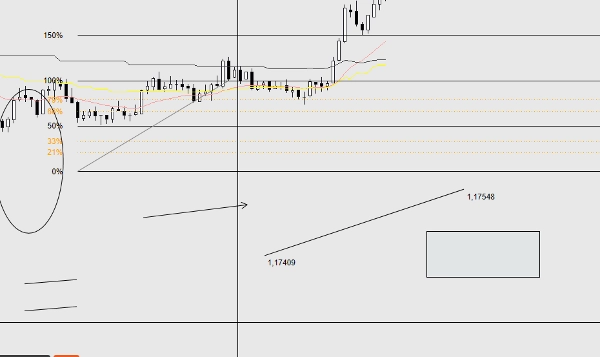
OptimizedDrawingHotkeys は cTrader チャート用の 描画アシスタント です。キーボードの ホットキー + マウスクリック を使って一般的な描画オブジェクトを素早く配置でき、オプションで ゴーストプレビュー、スナッピング、チャート上の HUD、元に戻す 機能、および時間枠変更後に消えたフィボナッチレベルのライン/ラベル(および塗りつぶし矩形レイヤー)を再構築する自己修復システムを備えています。
- 取引は 行いません(AccessRights.None)。
- チャートオブジェクトを描画し、関連する「子」オブジェクト(ラベル、フィボレベル、矩形塗りつぶしレイヤーなど)を管理します。
クイックスタート(典型的なワークフロー)
- cBot をチャートにアタッチします(cTrader Automate)。
- ホットキーを押します(例:Fib は F、矩形は R)。
- 必要なポイントを配置するためにチャートをクリックします。
- 進行中の描画をキャンセルするには Esc を押します。
- 最後に完了した描画を元に戻すには Z(デフォルト)を押します。
- HUD の表示/非表示を切り替えるには U(デフォルト)を押します。
ホットキーと描画モード
デフォルトのホットキー
- H = 水平線(1クリック)
- V = 垂直線(1クリック)
- T = トレンドライン(2クリック)
- R = 矩形(2クリック)
- E = 楕円(2クリック)
- F = フィボナッチリトレースメント(2クリック)
- A = 矢印(2クリック)
- X = テキスト(1クリック)
- C = 等距離チャネル(3クリック)
- Z = 最後の描画を元に戻す
- U = HUD の切り替え
- Esc = 現在の描画モードをキャンセル(配置中)
ホットキーのパラメータが空白または空白文字の場合、そのホットキーは実質的に無効になります。
各ツールに必要なクリック数
- 1クリックツール: 水平、垂直、テキスト
- 2クリックツール: トレンドライン、矩形、楕円、フィボナッチリトレースメント、矢印
- 3クリックツール: チャネル
-
- クリック1:開始点
- クリック2:終了点(基準線)
- クリック3:高さの点(基準線からの距離;高さは絶対距離を使用)
HUD(チャート上のステータス)
有効にすると、HUD は以下を表示します:
- 現在のモード(またはアイドル状態)
- 配置中の進行状況(例:1/2)
- 現在のスタイルプロファイルとスナップモード
- ホットキーのリマインダー
操作:
- Show HUD パラメータは初期の表示状態を設定します。
- Toggle HUD ホットキーで表示/非表示を切り替えます。
配置プレビュー(「ゴーストプレビュー」)
Enable Placement Preview = true の場合、複数ポイントのツールはクリック間にマウスを動かすとライブプレビューを表示します:
- トレンドライン、矩形、楕円、矢印:最初のクリック後にプレビュー
- チャネル:クリック1後にプレビュー、クリック2後にチャネルプレビュー
- フィボナッチ:最初のクリック後に基準線+レベルのプレビュー
一時的なプレビューオブジェクトは、完了またはキャンセル時に自動的に削除されます。
スナッピング
スナッピングはポイント配置前にクリックした Y 価格を調整します。
スナップモード
- None:スナップなし
- Tick:(コード内でモードとして直接使用されない;Snap != None の場合に「Snap Then Tick」で丸めが行われる)
- HighLow:クリック時間に最も近いバーの高値または安値にスナップ
- OHLC:そのバーの最も近い始値/高値/安値/終値にスナップ
Snap Then Tick
Snap Then Tick = true かつ Snap モードが None でない場合、スナップされた価格はさらに最も近い Symbol.TickSize に丸められます。
スタイルシステム
スタイルプロファイル
スタイルプロファイルはデフォルトの太さ/色の動作を変更します:
- カスタム:デフォルトの色と基本の太さを使用
- スキャルピング:より細く、より薄いデフォルト(高速/クリーン)
- スイング:より太いデフォルト(より見やすい)
ツールカラー
各ツールはオプションで独自の「ツールカラー」パラメータで色を上書きできます。
- 空白のままにするとプロファイル/デフォルトの色を使用します。
- 色名が無効な場合はプロファイル/デフォルトにフォールバックします。
ラベルと拡張
桁数に正確な価格
価格ラベルは Symbol.Digits フォーマットを使用します(例:5桁のシンボルは 1.23456)を表示します。
右方向拡張(バー単位)
右方向拡張(バー単位)は「右側ラベル」と拡張されたフィボナッチラインの到達点を制御します。
- cBot は現在の時間枠のバー間隔を使って「バー」を時間に変換します。
矩形の塗りつぶし(色 + 不透明度)
塗りつぶし矩形とアウトライン矩形
- Rectangle Filled = false の場合:通常のアウトライン矩形が描画されます。
- Rectangle Filled = true の場合:cBot は 2つの矩形 を描画します:
-
- 塗りつぶしの下地 (*_fill):非インタラクティブ、塗りつぶし、半透明
- 境界線のオーバーレイ (*_border):インタラクティブ、アウトラインのみ
これは、cTrader の矩形オブジェクトのスタイリングが単一オブジェクト内で独立した境界線/塗りつぶしスタイルを確実にサポートしていないためです。
塗りつぶし色 / 塗りつぶし不透明度 %
- 塗りつぶし色:色名(例:DodgerBlue)
- 塗りつぶし不透明度 %:0–100
-
- 0 = 完全に透明
- 100 = 完全に不透明
重要な動作:
- ドラッグ/サイズ変更は 境界線レイヤー(インタラクティブ)を介して行われます。
- 塗りつぶしまたは境界線レイヤーのいずれかを削除すると、cBot は孤立したレイヤーを防ぐために塗りつぶし矩形グループ全体を削除します。
フィボナッチリトレースメントツール(カスタム実装)
作成されるもの
フィボナッチを配置すると:
- 基準線のトレンドラインが作成されます:..._base(インタラクティブ)
- 有効な各レベルについて:
-
- ラインオブジェクト(..._lvl_i)とテキストラベル(..._lvl_i_lab)が 子 として作成されます
- 子は設計上非インタラクティブです(基準線が移動されます)
フィボレベルの拡張
- Extend Fib Levels = true の場合:各レベルは基準線の開始から計算された右方向拡張時間までの トレンドライン として描画されます。
- Extend Fib Levels = false の場合:各レベルは 水平線 です。
cBot はフィボグループごとに「拡張するかしないか」を記憶します(後でパラメータを変更しても古いフィボはスタイルを保持します)。
フィボラベル左オフセット(バー単位)
フィボパーセントラベルを基準線の開始位置の左に N バー分移動します(最初のバーより前には行かないように制限されます)。
自動修復 / 自己修復動作
時間枠変更時に消えるフィボレベル
一部の cTrader ビルドは時間枠変更時に特定の非インタラクティブ/子オブジェクトを削除します。この cBot はそれらを再構築できます。
- Auto-Repair Fib Levels で制御されます
- 実行タイミング:
-
- OnStart
- アイドル時に毎秒1回 (新しい描画を配置中は実行されません)
重要なルール:
- フィボレベルのライン/ラベルは そのフィボのレベルラインが一つも存在しない場合のみ 再作成されます。
これにより手動削除との競合を避けます(例:意図的に単一レベルラインを削除した場合など)。
塗りつぶし矩形レイヤーの修復
塗りつぶし矩形もチェックされ修復されます:
- 境界線が存在し塗りつぶしが欠落している場合 → 塗りつぶしが再作成されます。
- 塗りつぶしが存在し境界線が欠落している場合 → 境界線が再作成されます(現在の矩形境界線の色/太さパラメータを使用)。
元に戻すと削除の動作
最後の描画を元に戻す
- ホットキー:Undo Last(デフォルト Z)
- 最後に作成された「所有グループ」を削除します:
-
- 単一オブジェクト:直接削除
- トレンドラインのラベル:ラインと一緒に削除
- フィボナッチ:基準線+全レベル+全フィボラベルを一緒に削除
- 塗りつぶし矩形:塗りつぶしと境界線を一緒に削除
Undo は「スタックベース」です:cBot が最後に作成したものだけを削除し、任意の手動編集は削除しません。
オブジェクトを手動で削除する場合
- 「所有者」オブジェクトを削除すると、該当する場合はその子も削除されます。
- 塗りつぶし矩形の場合、どちらかのレイヤーを削除すると cBot はもう一方のレイヤーも削除します。
パラメータリファレンス(グループ別)
ホットキー
- 水平、垂直、トレンドライン、矩形、楕円、フィボナッチリトレースメント、矢印、テキスト、チャネル
- 最後の元に戻す
- HUD の切り替え
UX
- HUD の表示(初期 HUD 状態)
- 配置プレビューを有効にする
- フィボレベルの自動修復
スタイル
- スタイルプロファイル(カスタム、スキャルピング、スイング)
- 基本の太さ
- デフォルトカラー
ツールカラー
ツールごとのオプションの上書き(空白 = プロファイル/デフォルトを使用):
- 水平、垂直、トレンドライン、矩形、楕円、矢印、テキスト、チャネル、フィボ基準
テキスト
- テキスト内容
- テキストフォントサイズ
注:フィボラベル、ラインの端点ラベルなど、さまざまなラベルにも使用されます。
矩形
- 矩形の塗りつぶし
- 塗りつぶし色
- 塗りつぶし不透明度 %
時間/ラベル
- 右方向拡張(バー単位)
スナッピング
- スナップモード(None、HighLow、OHLC)
- Snap Then Tick
フィボナッチ
- フィボレベルの拡張
- フィボラベル左オフセット(バー単位)
フィボレベル
各レベルについて:
- 表示切替
- パーセント値
- 色
- ラインスタイル
ヒント、注意点、トラブルシューティング
ホットキーが動作しない
- チャートにフォーカスがあることを確認してください(チャートを一度クリック)。
- ホットキーが重複していないことを確認してください(同じキーに2つのアクションが割り当てられていると予期しない動作をすることがあります)。
- ホットキーには単一文字を使用してみてください。
パラメータ変更後にフィボレベル/ラベルが変わった
- 既存のフィボグループは「拡張するかしないか」を記憶しますが:
-
- レベルが完全に欠落して再作成が必要な場合、cBot は 現在の フィボレベル設定(色/スタイル/表示)を使用します。
- これは期待される動作で、現在の設定から「再構築」されます。
塗りつぶし矩形の色/不透明度がグローバルに見える
- これはグローバルです:塗りつぶし色と塗りつぶし不透明度 % は パラメータ であり、矩形ごとに保存されません。
- 塗りつぶしレイヤーが消えて後で再作成される場合、現在の塗りつぶし設定が使用されます。
時間枠変更時にオブジェクトがまだ消える
- Auto-Repair Fib Levels = true であることを確認してください。
- 注意:ボットはフィボのすべてのレベルラインが欠落している場合にのみフィボレベルを再構築します。
概要
Key features include a live “ghost” preview of drawings before placement, snapping options to bar High/Low or OHLC prices with optional tick rounding, and an on-chart heads-up display (HUD) that shows current mode, progress, style profile, snapping mode, and hotkey reminders. The cBot offers undo functionality for the last drawing and manages related child objects such as labels and filled rectangle layers.
The Fibonacci retracement tool is a custom implementation that creates interactive baselines with non-interactive child level lines and labels. It includes an auto-repair system that rebuilds missing Fibonacci levels and filled rectangle layers after timeframe changes, ensuring chart annotations remain intact.
Users can configure style profiles (Custom, Scalping, Swing), colors, line thickness, fill opacity, snapping modes, and hotkeys. The cBot does not execute trades; it solely facilitates efficient and precise chart drawing across markets including Forex, indices, commodities, crypto, and stocks.
カスタマーレビュー
5 | 0 % | |
4 | 100 % | |
3 | 0 % | |
2 | 0 % | |
1 | 0 % |