
Description
# Backtest OHLC Exporter
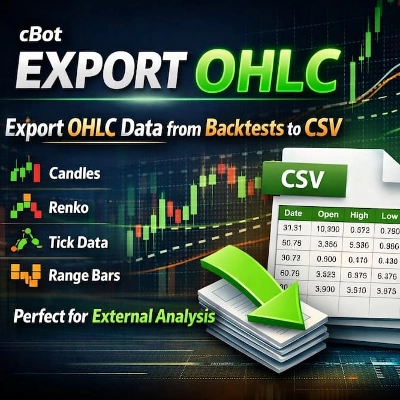
**Export OHLC data from any backtest to CSV.** Analyze your backtest results externally with Excel, Python, R, or any other analysis tool.
## 🔹 WHAT IT DOES
This cBot exports Open, High, Low, Close (OHLC) and Volume data from your backtest directly to a CSV file. No more manual copying or limited data export.
## 🔹 KEY FEATURES
✔ **OHLC Data Export** – Timestamp, Open, High, Low, Close, Volume
✔ **Works on ANY chart type** – Candles (M1 to Monthly), Renko (any brick size), Tick, Range, Volume, Point & Figure, Kagi
✔ **Configurable settings** – File prefix, separator (comma or semicolon), decimal format
✔ **Automatic file naming** – Unique filenames with symbol and timestamp
✔ **Periodic save** – Saves every 1000 bars (prevents data loss)
✔ **Clean CSV format** – Ready for external analysis
✔ **No special permissions required** – Safe to use, no system access
## 🔹 WHY YOU NEED IT
• cTrader doesn't export OHLC data natively – this solves it
• Analyze backtest data in Excel, Python, R, or MATLAB
• Perform custom statistical analysis on your strategy
• Keep a permanent record of your backtest data
• Validate your strategy with external tools
## 🔹 HOW TO USE
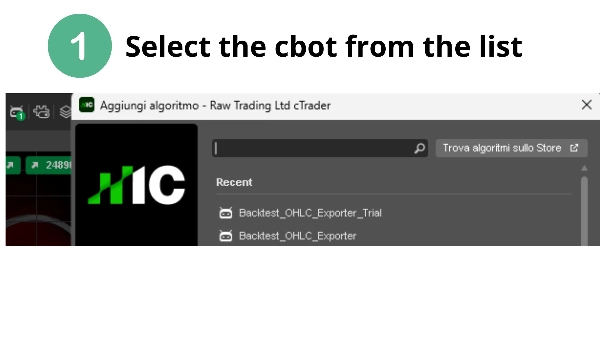
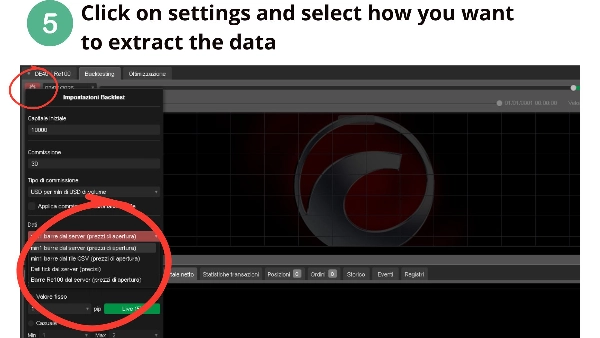
1. Add this cBot to any chart
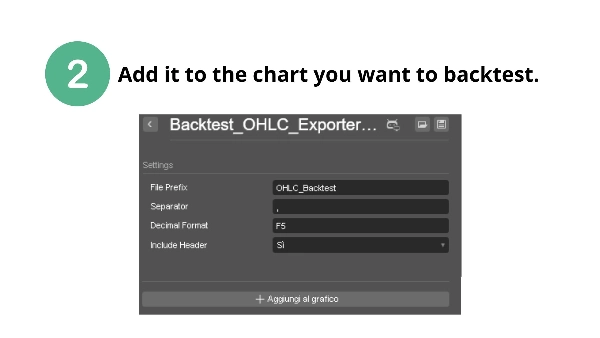
2. Configure file prefix and separator (optional)
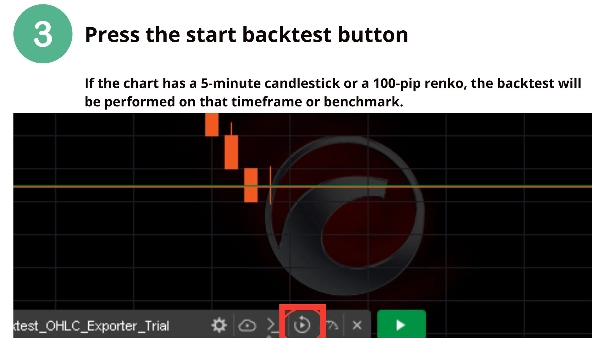
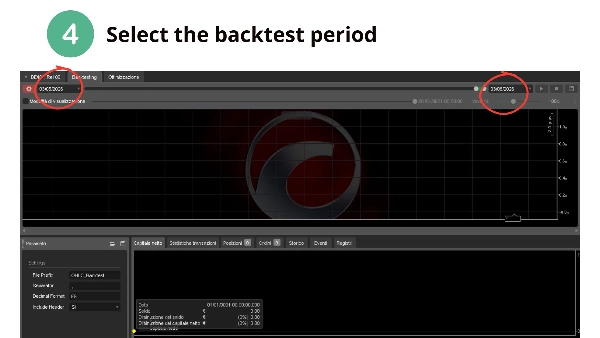
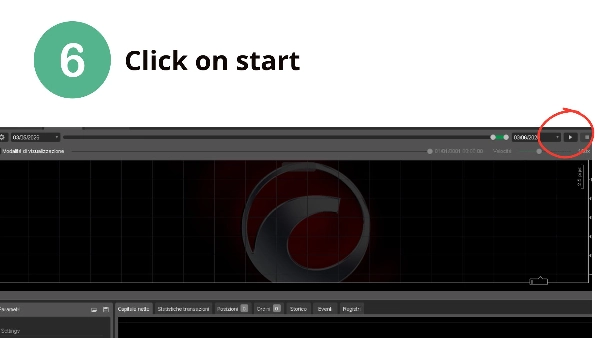
3. Run your backtest normally
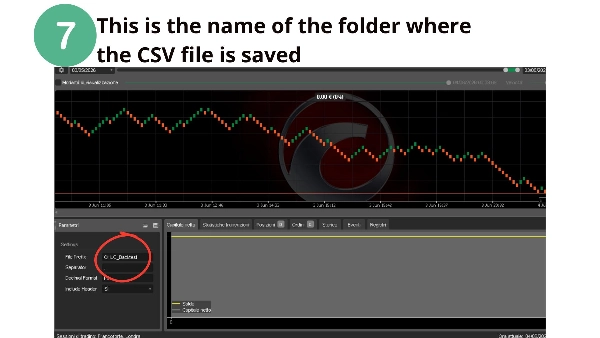
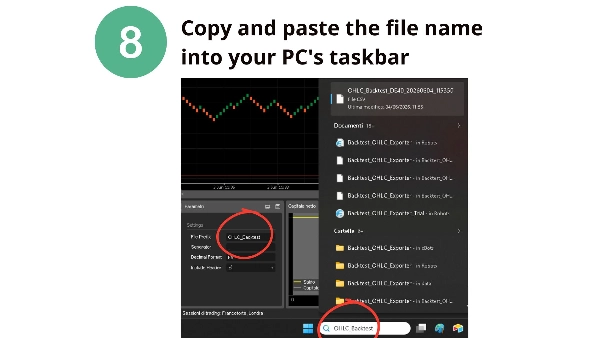
4. Find your CSV file in the cBot data folder:
`Documents\cAlgo\Data\cBots\BacktestOHLCExporter\`
## 🔹 OUTPUT FORMAT
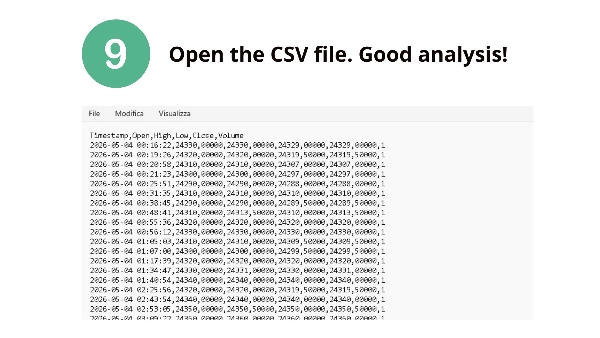
```csv
Timestamp,Open,High,Low,Close,Volume
2025-06-01 00:00:00,1.08950,1.08960,1.08940,1.08955,1245
...
## 🔹 SETTINGS
| Parameter | Default | Description |
|-----------|---------|-------------|
| File Prefix | OHLC_Backtest | Prefix for filenames |
| Separator | , | CSV separator (comma or semicolon) |
| Decimal Format | F5 | Number of decimal places |
| Include Header | True | Include column headers |
⚠️ **DISCLAIMER**: Trading involves risk of loss. This tool exports data for external analysis. Past performance does not guarantee future results.
📌 **Questions or feature requests?** Contact me through the cTrader Store.
**Happy backtesting! – CapitalMente**
Summary
Key features include configurable file prefix, CSV separator (comma or semicolon), decimal formatting, and automatic unique file naming with symbol and timestamp. The bot saves data periodically every 1000 bars to prevent data loss. It operates without requiring special system permissions, ensuring safe usage.
To use, add the cBot to any chart, optionally configure settings, run the backtest, and retrieve the CSV file from the designated cBot data folder. This tool addresses the lack of native OHLC export in cTrader, enabling users to keep permanent backtest records and perform custom statistical or validation analyses externally.