Açıklama
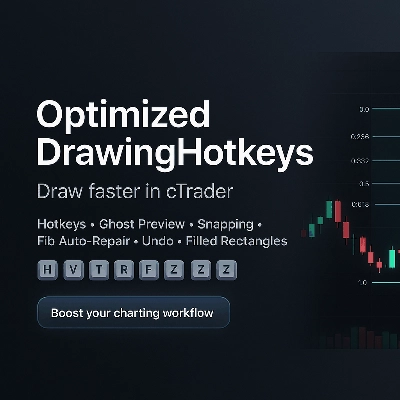
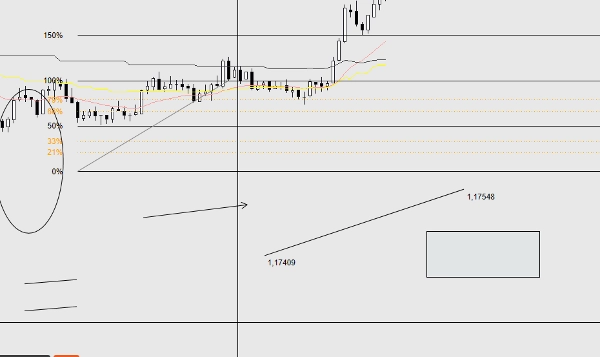
OptimizedDrawingHotkeys, klavye kısayolları ve fare tıklamalarıyla çizim araçları oluşturmanıza olanak tanıyarak grafik notlandırmayı hızlandıran bir cTrader Automate cBot'tur. Canlı bir “hayalet” yerleştirme önizlemesi, yakalama (bar Yüksek/Düşük veya OHLC'ye isteğe bağlı tik yuvarlaması ile), grafik üzerinde bir HUD, son çizim için geri al, basamaklı doğru fiyat etiketleri, barlarda sağa uzatma ve zaman dilimi değişikliklerinden sonra eksik fib seviye çizgilerini/etiketlerini (ve dolu dikdörtgen katmanlarını) otomatik olarak yeniden oluşturabilen özel bir Fib geri çekilme sistemi içerir.
OptimizedDrawingHotkeys cBot — Kullanıcı Kılavuzu
Bu cBot ne yapar
OptimizedDrawingHotkeys, cTrader grafikleri için bir çizim asistanıdır. Klavye kısayolları + fare tıklamaları kullanarak yaygın çizim nesnelerini hızlıca yerleştirmenizi sağlar, isteğe bağlı olarak hayalet önizlemeler, yakalama, grafik üzerinde bir HUD, Geri Al ve zaman dilimi değişikliklerinden sonra kaybolan fib seviye çizgilerini/etiketlerini (ve dolu dikdörtgen katmanlarını) yeniden oluşturan kendi kendini onaran bir sistem içerir.
- İşlem açmaz (AccessRights.None).
- Grafik nesneleri çizer ve ilgili “alt” nesneleri (etiketler, fib seviyeleri, dikdörtgen dolgu katmanı vb.) yönetir.
Hızlı başlangıç (tipik iş akışı)
- cBot'u bir grafiğe ekleyin (cTrader Automate).
- Bir kısayol tuşuna basın (örneğin, Fib için F, Dikdörtgen için R).
- Gerekli noktaları yerleştirmek için grafiğe tıklayın.
- Devam eden çizimi iptal etmek için Esc tuşuna basın.
- Son tamamlanan çizimi geri almak için Z (varsayılan) tuşuna basın.
- HUD'yi göster/gizle için U (varsayılan) tuşuna basın.
Kısayol tuşları ve çizim modları
Varsayılan kısayol tuşları
- H = Yatay çizgi (1 tıklama)
- V = Dikey çizgi (1 tıklama)
- T = Trend çizgisi (2 tıklama)
- R = Dikdörtgen (2 tıklama)
- E = Elips (2 tıklama)
- F = Fib geri çekilme (2 tıklama)
- A = Ok (2 tıklama)
- X = Metin (1 tıklama)
- C = Eşit aralıklı kanal (3 tıklama)
- Z = Son çizimi geri al
- U = HUD'yi aç/kapa
- Esc = Mevcut çizim modunu iptal et (yerleştirirken)
Bir kısayol parametresi boş/boşluksa, o kısayol tuşu etkili bir şekilde devre dışı bırakılır.
Her aracın kaç tıklama gerektirdiği
- 1 tıklamalı araçlar: Yatay, Dikey, Metin
- 2 tıklamalı araçlar: TrendÇizgisi, Dikdörtgen, Elips, FibGeriÇekilme, Ok
- 3 tıklamalı araçlar: Kanal
-
- Tıklama 1: başlangıç noktası
- Tıklama 2: bitiş noktası (temel çizgi)
- Tıklama 3: yükseklik noktası (temel çizgiden mesafe; yükseklik mutlak mesafe kullanır)
HUD (grafik üzeri durum)
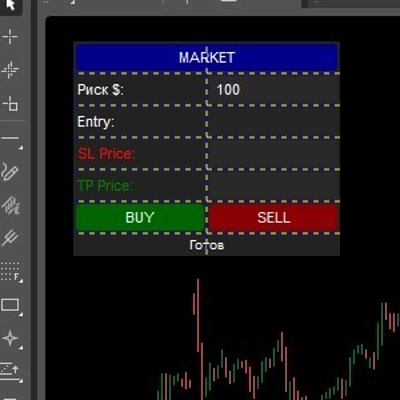
Etkinleştirilirse, HUD şunları gösterir:
- Mevcut mod (veya Boşta)
- Yerleştirme sırasında ilerleme (1/2 gibi)
- Mevcut stil profili ve yakalama modu
- Kısayol hatırlatıcıları
Kontroller:
- HUD Göster parametresi başlangıç görünürlüğünü ayarlar.
- HUD kısayol tuşu açıp kapatır.
Yerleştirme önizlemesi (“hayalet önizleme”)
Yerleştirme Önizlemesini Etkinleştir = true ise, çok noktalı araçlar tıklamalar arasında fareyi hareket ettirirken canlı önizleme gösterir:
- TrendÇizgisi, Dikdörtgen, Elips, Ok: ilk tıklamadan sonra önizleme
- Kanal: 1. tıklamadan sonra önizleme, 2. tıklamadan sonra kanal önizlemesi
- Fib: ilk tıklamadan sonra temel çizgi + seviyeler önizlemesi
Geçici önizleme nesneleri, işlemi bitirdiğinizde veya iptal ettiğinizde otomatik olarak kaldırılır.
Yakalama
Yakalama, noktaları yerleştirmeden önce tıklanan Y-fiyatını ayarlar.
Yakalama modları
- Yok: yakalama yok
- Tik: (kodda doğrudan mod olarak kullanılmaz; yuvarlama “Önce Yakala Sonra Tik” ile Snap != Yok olduğunda gerçekleşir)
- YüksekDüşük: tıklama zamanınıza en yakın barın en yüksek veya en düşük değerine yakalar
- OHLC: o barın en yakın Açılış/Yüksek/Düşük/Kapanış değerine yakalar
Önce Yakala Sonra Tik
Önce Yakala Sonra Tik = true ve Yakalama modu Yok değilse, yakalanan fiyat ayrıca en yakın Symbol.TickSize değerine yuvarlanır.
Stil sistemi
Stil Profili
Stil Profili, varsayılan kalınlık/renk davranışını değiştirir:
- Özel: Varsayılan Renk ve Temel Kalınlığı kullanır
- Scalping: daha ince + daha sönük varsayılanlar (hızlı/temiz)
- Swing: daha kalın varsayılanlar (daha görünür)
Araç Renkleri
Her araç isteğe bağlı olarak kendi “Araç Renkleri” parametresiyle rengi geçersiz kılabilir.
- Boş bırakılırsa profil/varsayılan renk kullanılır.
- Geçersiz bir renk adı varsa, profil/varsayılan renge geri döner.
Etiketler ve uzantılar
Basamaklı doğru fiyatlar
Fiyat etiketleri Symbol.Digits biçimlendirmesi kullanır (örneğin, 5 basamaklı semboller 1.23456) gösterir.
Sağa Uzatma (Barlar)
Sağa Uzatma (Barlar), “sağ taraf etiketlerinin” ve uzatılmış fib çizgilerinin ne kadar uzağa ulaşacağını kontrol eder.
- cBot, zaman diliminizdeki mevcut bar aralığını kullanarak “barları” zamana dönüştürür.
Dikdörtgen dolgu (renk + opaklık)
Dolu ve konturlu dikdörtgenler
- Dikdörtgen Dolu = false ise: normal bir konturlu dikdörtgen çizilir.
- Dikdörtgen Dolu = true ise: cBot iki dikdörtgen çizer:
-
- Alt dolgu (*_fill): etkileşimli olmayan, dolu, yarı saydam
- Üst sınır (*_border): etkileşimli, sadece kontur
Bu, cTrader'ın dikdörtgen nesne stilinin tek bir nesnede bağımsız sınır/dolgu stilini güvenilir şekilde desteklememesi nedeniyle yapılır.
Dolgu Rengi / Dolgu Opaklığı %
- Dolgu Rengi: renk adı (örneğin, DodgerBlue)
- Dolgu Opaklığı %: 0–100
-
- 0 = tamamen şeffaf
- 100 = tamamen opak
Önemli davranış:
- Sürükleme/yeniden boyutlandırma sınır katmanı (etkileşimli) üzerinden yapılır.
- Dolgu veya sınır katmanlarından biri silinirse, cBot tüm dolu dikdörtgen grubunu kaldırır (yetim katmanları önlemek için).
Fib geri çekilme aracı (özel uygulama)
Neler oluşturulur
Bir Fib yerleştirdiğinizde:
- Bir temel trend çizgisi oluşturulur: ..._base (etkileşimli)
- Etkinleştirilen her seviye için:
-
- Bir çizgi nesnesi (..._lvl_i) ve bir metin etiketi (..._lvl_i_lab) alt nesne olarak oluşturulur
- Alt nesneler tasarım gereği etkileşimli değildir (temel çizgi hareket ettirilen nesnedir)
Fib Seviyelerini Uzat
- Fib Seviyelerini Uzat = true ise: her seviye, temel çizgi başlangıcından hesaplanan sağa uzatma zamanına kadar bir TrendÇizgisi olarak çizilir.
- Fib Seviyelerini Uzat = false ise: her seviye bir YatayÇizgi olur.
cBot, “uzat vs uzatma” durumunu her fib grubu için hatırlar (böylece eski fibler parametreyi daha sonra değiştirseniz bile stilini korur).
Fib Etiket Sol Ofseti (Barlar)
Fib yüzde etiketlerini temel çizgi başlangıcının soluna N bar kaydırır (ilk bardan daha erken gitmemesi için sınırlandırılır).
Otomatik onarım / kendi kendini iyileştirme davranışı
Zaman dilimi değişiminde kaybolan fib seviyeleri
Bazı cTrader sürümleri, zaman dilimi değişikliklerinde belirli etkileşimli olmayan/alt nesneleri kaldırır. Bu cBot onları yeniden oluşturabilir.
- Otomatik Onarım Fib Seviyeleri ile kontrol edilir
- Çalıştırılır:
-
- Başlangıçta
- Her 1 saniyede bir boşta iken (yeni bir çizim yaparken değil)
Ana kural:
- Fib seviye çizgilerini/etiketlerini yalnızca o fib için hiçbir seviye çizgisi yoksa yeniden oluşturur.
Bu, manuel silmelerinizle çatışmayı önler (örneğin, kasıtlı olarak tek bir seviye çizgisini kaldırdıysanız).
Dolu dikdörtgen katmanı onarımı
Dolu dikdörtgenler de kontrol edilir ve onarılır:
- Sınır varsa ama dolgu eksikse → dolgu yeniden oluşturulur.
- Dolgu varsa ama sınır eksikse → sınır yeniden oluşturulur (mevcut dikdörtgen sınır rengi/kalınlığı parametreleri kullanılarak).
Geri alma ve silme davranışı
Son çizimi geri al
- Kısayol tuşu: Son Geri Al (varsayılan Z)
- Son oluşturulan “sahip grup” kaldırılır:
-
- Tek nesneler: doğrudan kaldırılır
- TrendÇizgisi etiketleri: çizgi ile birlikte kaldırılır
- Fib: temel çizgi + tüm seviyeler + tüm fib etiketleri birlikte kaldırılır
- Dolu dikdörtgen: dolgu ve sınır birlikte kaldırılır
Geri alma “yığın tabanlıdır”: yalnızca cBot'un son oluşturduğu nesneleri kaldırır, rastgele manuel düzenlemeleri değil.
Nesneleri manuel silme
- Bir “sahip” nesneyi silmek, varsa alt nesnelerini de siler.
- Dolu dikdörtgenlerde, katmanlardan birini silmek cBot'un diğer katmanı da kaldırmasına neden olur.
Parametre referansı (gruplara göre)
Kısayol Tuşları
- Yatay, Dikey, Trend Çizgisi, Dikdörtgen, Elips, Fib Geri Çekilme, Ok, Metin, Kanal
- Son Geri Al
- HUD Aç/Kapa
UX
- HUD Göster (başlangıç HUD durumu)
- Yerleştirme Önizlemesini Etkinleştir
- Otomatik Onarım Fib Seviyeleri
Stil
- Stil Profili (Özel, Scalping, Swing)
- Temel Kalınlık
- Varsayılan Renk
Araç Renkleri
Araç başına isteğe bağlı geçersiz kılmalar (boş = profil/varsayılan kullan):
- Yatay, Dikey, TrendÇizgisi, Dikdörtgen, Elips, Ok, Metin, Kanal, Fib Temel
Metin
- Metin İçeriği
- Metin Yazı Tipi Boyutu
Not: ayrıca çeşitli etiketler için de kullanılır (fib etiketleri, çizgi uç noktası etiketleri vb.).
Dikdörtgen
- Dikdörtgen Dolu
- Dolgu Rengi
- Dolgu Opaklığı %
Zaman/Etiketler
- Sağa Uzatma (Barlar)
Yakalama
- Yakalama Modu (Yok, YüksekDüşük, OHLC)
- Önce Yakala Sonra Tik
Fib
- Fib Seviyelerini Uzat
- Fib Etiket Sol Ofseti (Barlar)
Fib Seviyeleri
Her seviye için:
- Gösterme aç/kapa
- Yüzde değeri
- Renk
- Çizgi stili
İpuçları, dikkat edilmesi gerekenler, sorun giderme
Kısayol tuşları çalışmıyor
- Grafiğin odaklandığından emin olun (grafiğe bir kez tıklayın).
- Hiçbir kısayol tuşunun çoğaltılmadığından emin olun (aynı tuşa bağlı iki eylem öngörülemeyen davranışlara neden olabilir).
- Kısayol tuşları için tek karakterler kullanmayı deneyin.
Parametreleri değiştirdikten sonra fib seviyeleri/etiketleri değişti
- Mevcut fib grupları “uzat vs uzatma” durumunu hatırlar, ancak:
-
- Seviyeler tamamen eksikse ve yeniden oluşturulması gerekiyorsa, cBot mevcut fib seviye ayarlarınızı (renkler/stiller/görünürlük) kullanır.
- Bu beklenen bir durumdur: mevcut yapılandırmanızdan “yeniden canlandırılır”.
Dolu dikdörtgen renk/opaklığı global görünüyor
- Globaldir: Dolgu Rengi ve Dolgu Opaklığı % parametrelerdir, dikdörtgen başına saklanmaz.
- Bir dolgu katmanı kaybolur ve sonra yeniden oluşturulursa, mevcut dolgu ayarlarınızı kullanır.
Zaman dilimi değişikliklerinde nesneler hala kayboluyor
- Otomatik Onarım Fib Seviyeleri = true olduğundan emin olun.
- Not: bot, fib için tüm seviye çizgileri eksikse fib seviyelerini yeniden oluşturur.
Özet
Key features include a live “ghost” preview of drawings before placement, snapping options to bar High/Low or OHLC prices with optional tick rounding, and an on-chart heads-up display (HUD) that shows current mode, progress, style profile, snapping mode, and hotkey reminders. The cBot offers undo functionality for the last drawing and manages related child objects such as labels and filled rectangle layers.
The Fibonacci retracement tool is a custom implementation that creates interactive baselines with non-interactive child level lines and labels. It includes an auto-repair system that rebuilds missing Fibonacci levels and filled rectangle layers after timeframe changes, ensuring chart annotations remain intact.
Users can configure style profiles (Custom, Scalping, Swing), colors, line thickness, fill opacity, snapping modes, and hotkeys. The cBot does not execute trades; it solely facilitates efficient and precise chart drawing across markets including Forex, indices, commodities, crypto, and stocks.
Müşteri değerlendirmeleri
5 | 0 % | |
4 | 100 % | |
3 | 0 % | |
2 | 0 % | |
1 | 0 % |