经纪商和自营
面向企业
00
Days
:
00
Hours
:
00
Minutes
:
00
Seconds
cBot
Indices
Breakout
Commodities
Stocks
Forex
Signal
Crypto
Scalping
CustomHotKeys
07/01/2026
Desktop, Mobile, Web
注册日期 11/12/2025
"CustomHotKeys" 已上传图片

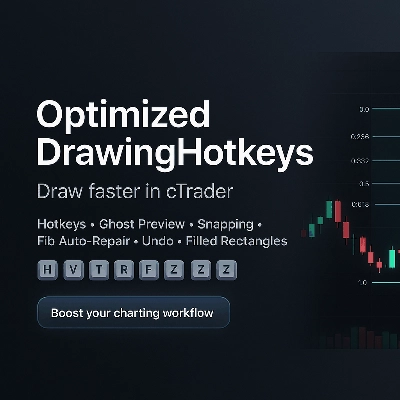
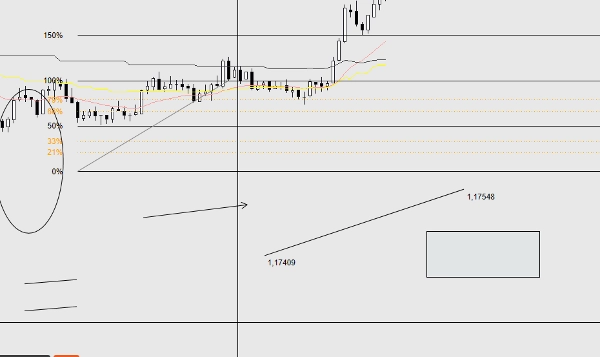
OptimizedDrawingHotkeys is a cTrader Automate cBot that speeds up chart annotation by letting you create drawing tools via keyboard hotkeys and mouse clicks. It includes a live “ghost” placement preview, snapping (to bar High/Low or OHLC with optional tick rounding), an on-chart HUD, undo for the last drawing, digits-correct price labels, right-extension in bars, and a custom Fib retracement system that can automatically rebuild missing fib level lines/labels (and filled-rectangle layers) after timeframe changes.

OptimizedDrawingHotkeys cBot — User Manual

What this cBot does

OptimizedDrawingHotkeys is a drawing assistant for cTrader charts. It lets you quickly place common drawing objects using keyboard hotkeys + mouse clicks, with optional ghost previews, snapping, an on-chart HUD, Undo, and a self-healing system that rebuilds Fib level lines/labels (and filled-rectangle layers) if they disappear after timeframe changes.

  • It does not place trades (AccessRights.None).
  • It draws chart objects and manages related “child” objects (labels, fib levels, rectangle fill layer, etc.).


Quick start (typical workflow)

  1. Attach the cBot to a chart (cTrader Automate).
  2. Press a hotkey (e.g., F for Fib, R for Rectangle).
  3. Click on the chart to place the required points.
  4. Press Esc to cancel an in-progress drawing.
  5. Press Z (default) to undo the last completed drawing.
  6. Press U (default) to show/hide the HUD.


Hotkeys and drawing modes

Default hotkeys

  • H = Horizontal line (1 click)
  • V = Vertical line (1 click)
  • T = Trend line (2 clicks)
  • R = Rectangle (2 clicks)
  • E = Ellipse (2 clicks)
  • F = Fib retracement (2 clicks)
  • A = Arrow (2 clicks)
  • X = Text (1 click)
  • C = Equidistant channel (3 clicks)
  • Z = Undo last drawing
  • U = Toggle HUD
  • Esc = Cancel current drawing mode (while placing)

If a hotkey parameter is blank/whitespace, that hotkey is effectively disabled.

How many clicks each tool needs

  • 1-click tools: Horizontal, Vertical, Text
  • 2-click tools: TrendLine, Rectangle, Ellipse, FibRetracement, Arrow
  • 3-click tools: Channel
    • Click 1: start point
    • Click 2: end point (baseline)
    • Click 3: height point (distance from baseline; height uses absolute distance)


HUD (on-chart status)

If enabled, the HUD shows:

  • Current mode (or Idle)
  • Progress like (1/2) while placing
  • Current style profile & snapping mode
  • Hotkey reminders

Controls:

  • Show HUD parameter sets initial visibility.
  • Toggle HUD hotkey toggles it on/off.


Placement preview (“ghost preview”)

If Enable Placement Preview = true, multi-point tools show a live preview while you move the mouse between clicks:

  • TrendLine, Rectangle, Ellipse, Arrow: preview after the first click
  • Channel: preview after click 1, then channel preview after click 2
  • Fib: preview baseline + levels after the first click

Temporary preview objects are automatically removed when you finish or cancel.


Snapping

Snapping adjusts the clicked Y-price before placing points.

Snap modes

  • None: no snapping
  • Tick: (not used directly as a mode in code; rounding happens via “Snap Then Tick” when Snap != None)
  • HighLow: snaps to nearest High or Low of the bar nearest your click time
  • OHLC: snaps to nearest Open/High/Low/Close of that bar

Snap Then Tick

If Snap Then Tick = true and Snap mode is not None, the snapped price is additionally rounded to the nearest Symbol.TickSize.


Style system

Style Profile

Style Profile changes default thickness/color behavior:

  • Custom: uses your Default Color and Base Thickness
  • Scalping: thinner + dimmer defaults (fast/clean)
  • Swing: thicker defaults (more visible)

Tool Colors

Each tool can optionally override color via its own “Tool Colors” parameter.

  • Leave blank to use the profile/default color.
  • If a color name is invalid, it falls back to the profile/default.


Labels and extensions

Digits-correct prices

Price labels use Symbol.Digits formatting (e.g., 5-digit symbols show 1.23456).

Right Extension (Bars)

Right Extension (Bars) controls where “right-side labels” and extended fib lines reach.

  • The cBot converts “bars” into time using the current bar spacing on your timeframe.


Rectangle fill (color + opacity)

Filled vs outline rectangles

  • If Rectangle Filled = false: a normal outline rectangle is drawn.
  • If Rectangle Filled = true: the cBot draws two rectangles:
    1. Fill underlay (*_fill): non-interactive, filled, semi-transparent
    2. Border overlay (*_border): interactive, outline only

This is done because cTrader’s rectangle object styling doesn’t reliably support independent border/fill styling in a single object.

Fill Color / Fill Opacity %

  • Fill Color: color name (e.g., DodgerBlue)
  • Fill Opacity %: 0–100
    • 0 = fully transparent
    • 100 = fully opaque

Important behavior:

  • Dragging/resizing is done via the border layer (interactive).
  • If you delete either the fill or border layer, the cBot will remove the whole filled-rectangle group (to prevent orphaned layers).


Fib retracement tool (custom implementation)

What gets created

When you place a Fib:

  • A baseline trendline is created: ..._base (interactive)
  • For each enabled level:
    • A line object (..._lvl_i) and a text label (..._lvl_i_lab) are created as children
    • Children are non-interactive by design (the baseline is what you move)

Extend Fib Levels

  • If Extend Fib Levels = true: each level is drawn as a TrendLine from baseline start to the computed right extension time.
  • If Extend Fib Levels = false: each level is a HorizontalLine.

The cBot remembers “extend vs not extend” per fib group (so older fibs keep their style even if you change the parameter later).

Fib Label Left Offset (Bars)

Moves fib percent labels left of the baseline start by N bars (clamped so it won’t go earlier than the first bar).


Auto-repair / self-healing behavior

Fib levels disappearing on timeframe change

Some cTrader builds remove certain non-interactive/child objects on timeframe changes. This cBot can rebuild them.

  • Controlled by Auto-Repair Fib Levels
  • Runs:
    • OnStart
    • Every 1 second when idle (not while you are placing a new drawing)

Key rule:

  • It recreates fib level lines/labels only if none of the level lines exist for that fib.
    This avoids fighting your manual deletions (e.g., if you intentionally removed a single level line).

Filled rectangle layer repair

Filled rectangles are also checked and repaired:

  • If the border exists but the fill is missing → fill is recreated.
  • If the fill exists but the border is missing → border is recreated (using current rectangle border color/thickness parameters).


Undo and deletion behavior

Undo last drawing

  • Hotkey: Undo Last (default Z)
  • Removes the last created “owner group”:
    • Single objects: removed directly
    • TrendLine labels: removed with the line
    • Fib: baseline + all levels + all fib labels removed together
    • Filled rectangle: both fill and border removed together

Undo is “stack-based”: it only removes what the cBot created last, not arbitrary manual edits.

Deleting objects manually

  • Deleting an “owner” object deletes its children where applicable.
  • For filled rectangles, deleting either layer causes the cBot to remove the other layer as well.


Parameter reference (by group)

Hotkeys

  • Horizontal, Vertical, Trend Line, Rectangle, Ellipse, Fib Retracement, Arrow, Text, Channel
  • Undo Last
  • Toggle HUD

UX

  • Show HUD (initial HUD state)
  • Enable Placement Preview
  • Auto-Repair Fib Levels

Style

  • Style Profile (Custom, Scalping, Swing)
  • Base Thickness
  • Default Color

Tool Colors

Optional per-tool overrides (blank = use profile/default):

  • Horizontal, Vertical, TrendLine, Rectangle, Ellipse, Arrow, Text, Channel, Fib Base

Text

  • Text Content
  • Text Font Size
    Note: also used for various labels (fib labels, line endpoint labels, etc.).

Rectangle

  • Rectangle Filled
  • Fill Color
  • Fill Opacity %

Time/Labels

  • Right Extension (Bars)

Snapping

  • Snap Mode (None, HighLow, OHLC)
  • Snap Then Tick

Fib

  • Extend Fib Levels
  • Fib Label Left Offset (Bars)

Fib Levels

For each level:

  • Show toggle
  • Percent value
  • Color
  • Line style


Tips, gotchas, troubleshooting

Hotkeys don’t work

  • Make sure the chart is focused (click the chart once).
  • Ensure no hotkey is duplicated (two actions bound to the same key can behave unpredictably).
  • Try using single characters for hotkeys.

Fib levels/labels changed after you changed parameters

  • Existing fib groups remember “extend vs not extend”, but:
    • If levels were fully missing and had to be recreated, the cBot uses your current fib level settings (colors/styles/visibility).
    • This is expected: it “rehydrates” from your current configuration.

Filled rectangle color/opacity seems global

  • It is global: Fill Color and Fill Opacity % are parameters, not stored per rectangle.
  • If a fill layer disappears and is recreated later, it will use your current fill settings.

Objects still disappear on timeframe changes

  • Confirm Auto-Repair Fib Levels = true.
  • Note: the bot only rebuilds fib levels if all level lines are missing for a fib.
0.0
评价:0
客户评价
该产品尚无评价。已经试过了?抢先告诉其他人!
猜您喜欢
Trading_stop Plus DEMO
📄 Trading_stop Plus DEMO 🧪 DEMO VERSION – LIMITED TO 48 HOURS This is the demo version of Trading_stop Plus. It works
Nassimi Take Profit
A futuristic digital illustration of a trading chart, showcasing bullish and bearish engulfing patterns with a robot rep
cBot
XAUUSD
Forex
ALPHA Number One Trial Day 15
cBot
Signal
High Profit CADJPY
Bot is based on Price Action strategy to open & manage orders. It is effective capital management and high profitability
cBot
RSI
XAUUSD
Forex
+10
needThaibot with EMA ADX RSI
This Bots come with EMA ADX RSI Strategy for you to Edit
cBot
Indices
Stocks
Forex
+2
VegaXLR - Risk Manager
Automate lot sizing with cTrader Risk Manager cBot for precise risk management in pending and market orders.
cBot
RSI
Breakout
XAUUSD
+13
SmartBar SMA Trader with ATR & Break-Even Protection
This robot is perfect for traders who want a hands-free, rule-based trading strategy with advanced risk management.
cBot
RSI
Forex
Signal
+1
BollingerRsiCombinedBot
This strategy combines two popular technical indicators to identify high‑probability trading opportunities
cBot
NAS100
NZDUSD
Martingale
+26
Presidential Post CBot v2.1
Local Use Only
cBot
Indices
RSI
XAUUSD
+8
needThaiBot Five Soldiers doin' Work
Works well with both Sniping Trade and Low Risk Strategy , Please Enjoy!!
US500 MACD 4H 3
US500 4H TREND trading bot
cBot
XAUUSD
AI
POSITION 5000 PIPS
POSITION 5000 Pips: The Ultimate Algorithm for Gold
cBot
XAUUSD
Breakout
Martingale
+1
Ninja cBot
No holy grail here. No get rich quick scheme. No perfect equity. No guaranteed profits, but a robust breakout system.
RSI_withSourceCode
Start the journey today
cBot
NZDUSD
RSI
XAUUSD
+11
needThaiBot AI Algorithm
The Perfect AI Algorithm Bot you have ever seen, Please ENJOY!!
cBot
Grid
RSI
NZDUSD
+7
DragonRSIcBotDemo
DragonRSIcBot is an RSI-driven grid/martingale cBot
XAU 1H FREE bot
// XAU/USD 1H TIMEFRAME // 5 YEARS BACKTEST, PROFIT 200 USD, DRAWDOWN MAX 37 USD
cBot
Breakout
ORB
Powerfull and Optimized strategy based on the "Opening Range Breakout" on the 15 min chart.