Deskripsi
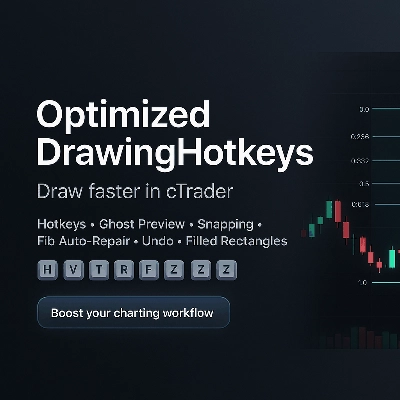
OptimizedDrawingHotkeys adalah cBot cTrader Automate yang mempercepat anotasi grafik dengan membiarkan Anda membuat alat gambar melalui hotkey keyboard dan klik mouse. Ini mencakup pratinjau penempatan “hantu” langsung, snapping (ke High/Low bar atau OHLC dengan pembulatan tick opsional), HUD di grafik, undo untuk gambar terakhir, label harga dengan digit yang benar, ekstensi kanan dalam bar, dan sistem retracement Fib khusus yang dapat secara otomatis membangun kembali garis/label level fib yang hilang (dan lapisan persegi panjang terisi) setelah perubahan timeframe.
OptimizedDrawingHotkeys cBot — Manual Pengguna
Apa yang dilakukan cBot ini
OptimizedDrawingHotkeys adalah asisten gambar untuk grafik cTrader. Ini memungkinkan Anda dengan cepat menempatkan objek gambar umum menggunakan hotkey keyboard + klik mouse, dengan opsional pratinjau hantu, snapping, HUD di grafik, Undo, dan sistem penyembuhan sendiri yang membangun kembali garis/label level Fib (dan lapisan persegi panjang terisi) jika hilang setelah perubahan timeframe.
- Ini tidak menempatkan perdagangan (AccessRights.None).
- Ini menggambar objek grafik dan mengelola objek “anak” terkait (label, level fib, lapisan isi persegi panjang, dll.).
Mulai cepat (alur kerja tipikal)
- Pasang cBot ke grafik (cTrader Automate).
- Tekan hotkey (misalnya, F untuk Fib, R untuk Persegi Panjang).
- Klik pada grafik untuk menempatkan titik yang diperlukan.
- Tekan Esc untuk membatalkan gambar yang sedang berlangsung.
- Tekan Z (default) untuk membatalkan gambar terakhir yang selesai.
- Tekan U (default) untuk menampilkan/menyembunyikan HUD.
Hotkey dan mode gambar
Hotkey default
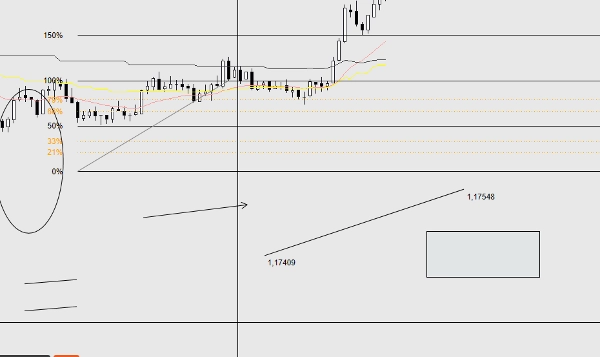
- H = Garis horizontal (1 klik)
- V = Garis vertikal (1 klik)
- T = Garis tren (2 klik)
- R = Persegi panjang (2 klik)
- E = Elips (2 klik)
- F = Retracement Fib (2 klik)
- A = Panah (2 klik)
- X = Teks (1 klik)
- C = Saluran ekuidistan (3 klik)
- Z = Batalkan gambar terakhir
- U = Alihkan HUD
- Esc = Batalkan mode gambar saat ini (saat menempatkan)
Jika parameter hotkey kosong/whitespace, hotkey tersebut secara efektif dinonaktifkan.
Berapa banyak klik yang dibutuhkan setiap alat
- Alat 1 klik: Horizontal, Vertikal, Teks
- Alat 2 klik: Garis Tren, Persegi Panjang, Elips, Retracement Fib, Panah
- Alat 3 klik: Saluran
-
- Klik 1: titik awal
- Klik 2: titik akhir (garis dasar)
- Klik 3: titik tinggi (jarak dari garis dasar; tinggi menggunakan jarak absolut)
HUD (status di grafik)
Jika diaktifkan, HUD menampilkan:
- Mode saat ini (atau Idle)
- Progres seperti (1/2) saat menempatkan
- Profil gaya & mode snapping saat ini
- Pengingat hotkey
Kontrol:
- Parameter Tampilkan HUD mengatur visibilitas awal.
- Hotkey Toggle HUD mengaktifkan/mematikan HUD.
Pratinjau penempatan (“pratinjau hantu”)
Jika Enable Placement Preview = true, alat multi-titik menampilkan pratinjau langsung saat Anda menggerakkan mouse antara klik:
- Garis Tren, Persegi Panjang, Elips, Panah: pratinjau setelah klik pertama
- Saluran: pratinjau setelah klik 1, lalu pratinjau saluran setelah klik 2
- Fib: pratinjau garis dasar + level setelah klik pertama
Objek pratinjau sementara secara otomatis dihapus saat Anda selesai atau membatalkan.
Snapping
Snapping menyesuaikan harga Y yang diklik sebelum menempatkan titik.
Mode Snap
- None: tanpa snapping
- Tick: (tidak digunakan langsung sebagai mode dalam kode; pembulatan terjadi melalui “Snap Then Tick” saat Snap != None)
- HighLow: snapping ke High atau Low terdekat dari bar terdekat dengan waktu klik Anda
- OHLC: snapping ke Open/High/Low/Close terdekat dari bar tersebut
Snap Then Tick
Jika Snap Then Tick = true dan mode Snap bukan None, harga yang di-snap juga dibulatkan ke Symbol.TickSize terdekat.
Sistem gaya
Profil Gaya
Profil Gaya mengubah perilaku ketebalan/warna default:
- Kustom: menggunakan Warna Default dan Ketebalan Dasar Anda
- Scalping: default lebih tipis + redup (cepat/bersih)
- Swing: default lebih tebal (lebih terlihat)
Warna Alat
Setiap alat dapat secara opsional menimpa warna melalui parameter “Warna Alat” sendiri.
- Biarkan kosong untuk menggunakan warna profil/default.
- Jika nama warna tidak valid, akan kembali ke warna profil/default.
Label dan ekstensi
Harga dengan digit yang benar
Label harga menggunakan format Symbol.Digits (misalnya, simbol 5-digit menampilkan 1.23456).
Ekstensi Kanan (Bar)
Ekstensi Kanan (Bar) mengontrol seberapa jauh “label sisi kanan” dan garis fib yang diperpanjang mencapai.
- cBot mengonversi “bar” menjadi waktu menggunakan jarak bar saat ini pada timeframe Anda.
Isi persegi panjang (warna + opasitas)
Persegi panjang terisi vs garis luar
- Jika Rectangle Filled = false: persegi panjang garis luar biasa digambar.
- Jika Rectangle Filled = true: cBot menggambar dua persegi panjang:
-
- Lapisan isi bawah (*_fill): non-interaktif, terisi, semi-transparan
- Lapisan garis luar (*_border): interaktif, hanya garis luar
Ini dilakukan karena styling objek persegi panjang cTrader tidak mendukung styling garis luar/isi independen secara andal dalam satu objek.
Warna Isi / Opasitas Isi %
- Warna Isi: nama warna (misalnya DodgerBlue)
- Opasitas Isi %: 0–100
-
- 0 = sepenuhnya transparan
- 100 = sepenuhnya buram
Perilaku penting:
- Drag/resize dilakukan melalui lapisan garis luar (interaktif).
- Jika Anda menghapus lapisan isi atau garis luar, cBot akan menghapus seluruh grup persegi panjang terisi (untuk mencegah lapisan yatim).
Alat retracement Fib (implementasi khusus)
Apa yang dibuat
Saat Anda menempatkan Fib:
- Garis tren garis dasar dibuat: ..._base (interaktif)
- Untuk setiap level yang diaktifkan:
-
- Objek garis (..._lvl_i) dan label teks (..._lvl_i_lab) dibuat sebagai anak
- Anak-anak tidak interaktif secara desain (garis dasar adalah yang Anda pindahkan)
Perpanjang Level Fib
- Jika Perpanjang Level Fib = true: setiap level digambar sebagai Garis Tren dari awal garis dasar ke waktu ekstensi kanan yang dihitung.
- Jika Perpanjang Level Fib = false: setiap level adalah Garis Horizontal.
cBot mengingat “perpanjang vs tidak perpanjang” per grup fib (jadi fib lama mempertahankan gaya mereka bahkan jika Anda mengubah parameter nanti).
Offset Label Fib Kiri (Bar)
Memindahkan label persentase fib ke kiri dari awal garis dasar sebanyak N bar (dibatasi agar tidak lebih awal dari bar pertama).
Perilaku perbaikan otomatis / penyembuhan sendiri
Level Fib hilang saat perubahan timeframe
Beberapa build cTrader menghapus objek non-interaktif/anak tertentu saat perubahan timeframe. cBot ini dapat membangunnya kembali.
- Dikendalikan oleh Auto-Repair Fib Levels
- Berjalan:
-
- OnStart
- Setiap 1 detik saat idle (tidak saat Anda menempatkan gambar baru)
Aturan utama:
- Ini membuat ulang garis/label level fib hanya jika tidak ada garis level yang ada untuk fib tersebut.
Ini menghindari konflik dengan penghapusan manual Anda (misalnya, jika Anda sengaja menghapus satu garis level).
Perbaikan lapisan persegi panjang terisi
Persegi panjang terisi juga diperiksa dan diperbaiki:
- Jika garis luar ada tetapi isi hilang → isi dibuat ulang.
- Jika isi ada tetapi garis luar hilang → garis luar dibuat ulang (menggunakan parameter warna/ketebalan garis persegi panjang saat ini).
Perilaku undo dan penghapusan
Undo gambar terakhir
- Hotkey: Undo Last (default Z)
- Menghapus “grup pemilik” terakhir yang dibuat:
-
- Objek tunggal: dihapus langsung
- Label Garis Tren: dihapus bersama garis
- Fib: garis dasar + semua level + semua label fib dihapus bersama
- Persegi panjang terisi: isi dan garis luar dihapus bersama
Undo bersifat “berbasis tumpukan”: hanya menghapus apa yang terakhir dibuat cBot, bukan edit manual sembarangan.
Menghapus objek secara manual
- Menghapus objek “pemilik” menghapus anak-anaknya jika berlaku.
- Untuk persegi panjang terisi, menghapus salah satu lapisan menyebabkan cBot menghapus lapisan lainnya juga.
Referensi parameter (berdasarkan grup)
Hotkey
- Horizontal, Vertikal, Garis Tren, Persegi Panjang, Elips, Retracement Fib, Panah, Teks, Saluran
- Undo Terakhir
- Toggle HUD
UX
- Tampilkan HUD (status awal HUD)
- Aktifkan Pratinjau Penempatan
- Perbaikan Otomatis Level Fib
Gaya
- Profil Gaya (Kustom, Scalping, Swing)
- Ketebalan Dasar
- Warna Default
Warna Alat
Penimpaan opsional per alat (kosong = gunakan profil/default):
- Horizontal, Vertikal, Garis Tren, Persegi Panjang, Elips, Panah, Teks, Saluran, Dasar Fib
Teks
- Isi Teks
- Ukuran Font Teks
Catatan: juga digunakan untuk berbagai label (label fib, label titik akhir garis, dll.).
Persegi Panjang
- Rectangle Filled
- Warna Isi
- Opasitas Isi %
Waktu/Label
- Ekstensi Kanan (Bar)
Snapping
- Mode Snap (None, HighLow, OHLC)
- Snap Then Tick
Fib
- Perpanjang Level Fib
- Offset Label Fib Kiri (Bar)
Level Fib
Untuk setiap level:
- Tombol tampil
- Nilai persentase
- Warna
- Gaya garis
Tips, peringatan, pemecahan masalah
Hotkey tidak berfungsi
- Pastikan grafik dalam fokus (klik grafik sekali).
- Pastikan tidak ada hotkey yang duplikat (dua aksi yang terikat pada tombol yang sama dapat berperilaku tidak terduga).
- Coba gunakan karakter tunggal untuk hotkey.
Level/label Fib berubah setelah Anda mengubah parameter
- Grup fib yang ada mengingat “perpanjang vs tidak perpanjang”, tetapi:
-
- Jika level sepenuhnya hilang dan harus dibuat ulang, cBot menggunakan pengaturan level fib Anda yang saat ini (warna/gaya/visibilitas).
- Ini diharapkan: ini “menghidupkan kembali” dari konfigurasi Anda saat ini.
Warna/opasitas persegi panjang terisi tampak global
- Ini global: Warna Isi dan Opasitas Isi % adalah parameter, tidak disimpan per persegi panjang.
- Jika lapisan isi hilang dan dibuat ulang kemudian, itu akan menggunakan pengaturan isi Anda yang saat ini.
Objek masih hilang saat perubahan timeframe
- Pastikan Auto-Repair Fib Levels = true.
- Catatan: bot hanya membangun ulang level fib jika semua garis level hilang untuk sebuah fib.
Ringkasan
Key features include a live “ghost” preview of drawings before placement, snapping options to bar High/Low or OHLC prices with optional tick rounding, and an on-chart heads-up display (HUD) that shows current mode, progress, style profile, snapping mode, and hotkey reminders. The cBot offers undo functionality for the last drawing and manages related child objects such as labels and filled rectangle layers.
The Fibonacci retracement tool is a custom implementation that creates interactive baselines with non-interactive child level lines and labels. It includes an auto-repair system that rebuilds missing Fibonacci levels and filled rectangle layers after timeframe changes, ensuring chart annotations remain intact.
Users can configure style profiles (Custom, Scalping, Swing), colors, line thickness, fill opacity, snapping modes, and hotkeys. The cBot does not execute trades; it solely facilitates efficient and precise chart drawing across markets including Forex, indices, commodities, crypto, and stocks.
Ulasan pelanggan
5 | 0 % | |
4 | 100 % | |
3 | 0 % | |
2 | 0 % | |
1 | 0 % |