



Beschreibung
Benutzerhandbuch
--- Teil 1: Wie man den Bot richtig benutzt ---
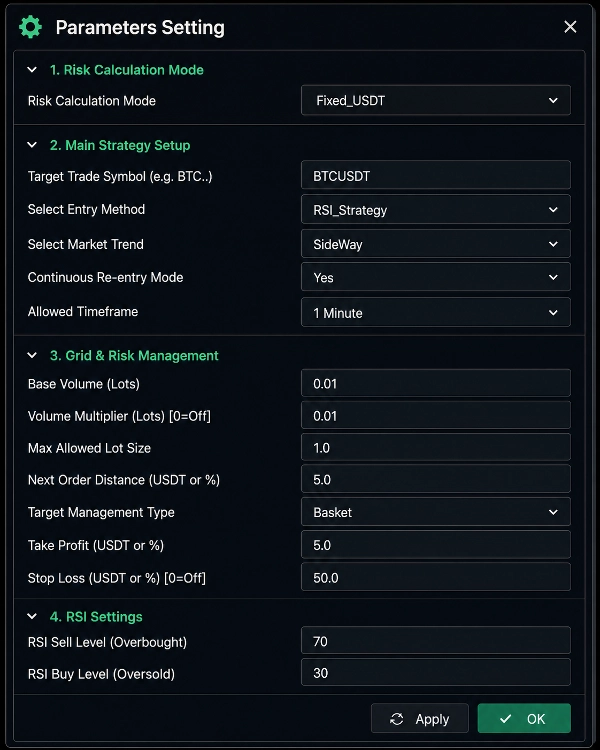
1. Öffnen Sie das Chart: Öffnen Sie im Handel das Chart des spezifischen Paares, das Sie handeln möchten (z. B. BTCUSDT).
2. Fügen Sie den Bot hinzu: Ziehen Sie den Bot per Drag & Drop (oder „Hinzufügen“) auf dieses Chart.
3. Konfigurieren Sie die Einstellungen:
* Ziel-Handelssymbol: Geben Sie den genauen Namen des Paares ein, wie er im Chart erscheint. (Keine Sorge, wenn Sie ihn klein schreiben wie 'BTCUSDT' – der Bot wandelt ihn automatisch in GROSSBUCHSTABEN wie 'BTCUSDT' um!).
* Basisvolumen: Geben Sie die Start-Lotgröße ein, die für dieses spezifische Paar geeignet ist.
* Maximale Lotgröße: Diese MUSS gleich oder größer als Ihr Basisvolumen sein.
* Risikomodus & Gewinn: Legen Sie Ihr gewünschtes Gewinnziel fest (entweder als festen USDT-Betrag oder als Prozentsatz).
4. Starten Sie den Bot: Nachdem Sie alles überprüft haben, klicken Sie auf die „Play“ (Start) Taste.
5. Erfolgreicher Start: Wenn alle Ihre Einstellungen korrekt sind, erscheinen keine Fehler. Stattdessen sehen Sie im Journal die Meldung „[Bot erfolgreich für BTCUSDT gestartet]“. Das war’s! Der Bot wartet nun auf das richtige Strategiesignal und beginnt automatisch mit dem Handel.
--- Teil 2: Keine Panik bei einem Fehler! (Sicherheitsfunktionen) ---
Wenn Sie versehentlich eine falsche Zahl oder einen falschen Paar-Namen in den Einstellungen eingeben, wird der Bot NICHT blind handeln und Ihr Geld riskieren. Stattdessen verhält er sich sehr intelligent, um Ihr Konto zu schützen:
* Sofortige Sperre (Leerlaufmodus): Der Bot friert sich sofort ein und wird keinen einzigen Auftrag platzieren.
* Wo kann man den Fehler überprüfen?
1. Im Chart (Bildschirm): Sobald Sie den Bot starten, erscheint ein großer Roter Text mit „FEHLER“ deutlich in der Mitte Ihres Charts. Er bleibt dort, bis Sie ihn beheben.
2. Im Journal / Protokoll: Öffnen Sie den „Log“ oder „Journal“ Tab unten im Trader (oder den „Events“-Tab in der mobilen App). Dort sehen Sie eine detaillierte Erklärung mit dem Tag [FEHLER] oder [WARNUNG].
--- Teil 3: Welche Fehler könnten auftreten & wie man sie behebt ---
1. Symbol-Abweichungsfehler (Falscher Paar-Name)
* Warum es passiert: Sie haben in den Einstellungen „BTCUSDT“ eingegeben, aber den Bot an ein „EURUSD“-Chart angehängt.
* Die Lösung: Stellen Sie sicher, dass das „Ziel-Handelssymbol“ in Ihren Einstellungen genau mit dem geöffneten Chart übereinstimmt.
2. Min-Lot-Fehler (Mindest-Lotgröße)
* Warum es passiert: Ihr Basisvolumen (z. B. 0.01) ist niedriger als die vom Broker geforderte Mindest-Lotgröße für dieses spezifische Paar (z. B. 10).
* Die Lösung: Der Bot teilt Ihnen die genaue Mindestanforderung in der Fehlermeldung mit (z. B. „Broker Min Lot: 10“). Ändern Sie einfach Ihr Basisvolumen in den Einstellungen auf 10 und starten Sie den Bot erneut.
3. Max-Lot-Fehler (Maximale Lotgröße)
* Warum es passiert: Ihre maximal erlaubte Lotgröße ist kleiner als Ihr Basisvolumen (z. B. Basis 10, Maximal 5).
* Die Lösung: Gehen Sie in die Einstellungen und erhöhen Sie die maximale Lotgröße, sodass sie gleich oder größer als Ihr Basisvolumen ist.
4. Zeitrahmen-Warnung
* Warum es passiert: Die Bot-Einstellungen sind auf „1 Minute“ eingestellt, aber Ihr Chart ist derzeit auf „1 Stunde“ Kerzen eingestellt.
* Die Lösung: Ändern Sie einfach den Zeitrahmen Ihres Charts auf 1 Minute!
Zusammenfassung
The bot incorporates safety features to prevent trading errors: it locks and halts trading if configuration mismatches or invalid inputs occur, displaying clear error messages on the chart and in the log for user correction. Common errors addressed include symbol mismatches, minimum and maximum lot size violations, and timeframe inconsistencies.
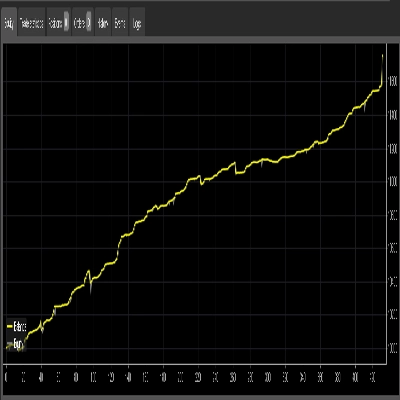
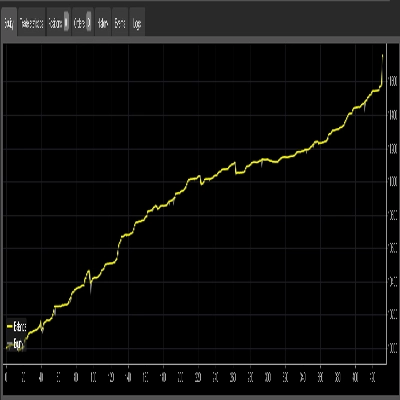
Key indicators used include Exponential Moving Average (EMA), Bollinger Bands, and volume analysis. Position sizing options support fixed lot sizes and fixed risk percentages, with trade management features such as break-even handling. The bot is optimized for medium-frequency scalping on 15-minute charts and supports leverage up to 100x. Recommended starting balance is approximately $1,000 with a risk per trade of 1%, aiming for a 20% return on investment and a profit factor of 1.5 based on backtesting data.
Diskussion
Kundenbewertungen
Häufig gestellte Fragen (FAQ)










Preis