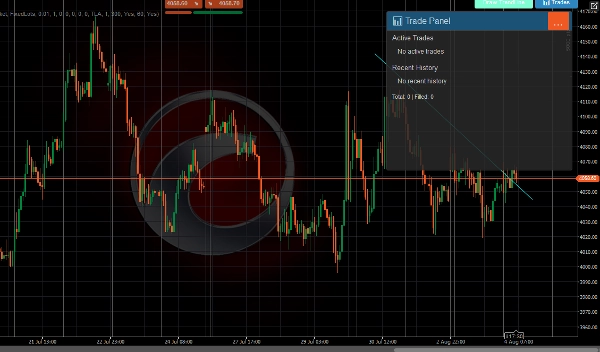
Descripción
Alertas de Línea de Tendencia
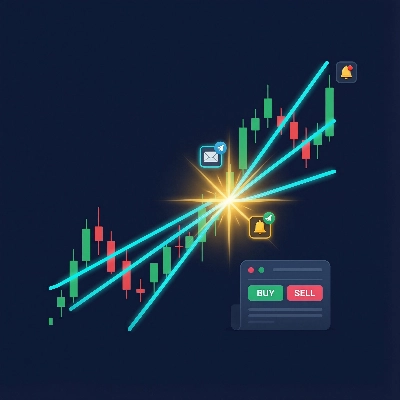
Un indicador que monitorea líneas de tendencia dibujadas a mano en gráficos de precios y dispara alertas multicanal — y opcionalmente realiza operaciones — cuando el precio cruza una línea de tendencia.
Qué Hace
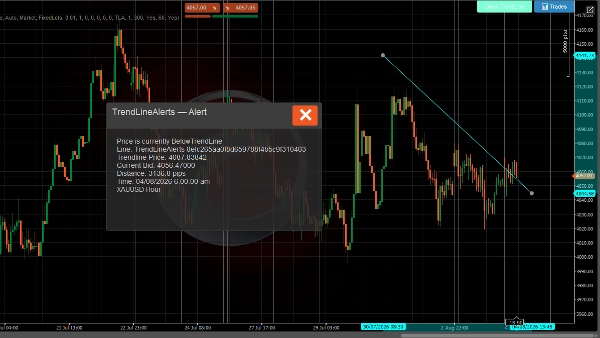
Dibujas líneas de tendencia en tu gráfico. El indicador las observa. Cuando el precio cruza una línea, esto:
- Muestra un popup en el gráfico con los detalles del cruce
- Reproduce una notificación sonora
- Envía un correo electrónico (opcional)
- Envía un mensaje de Telegram a través de un bot (opcional)
- Realiza una operación (opcional — orden de mercado, límite, stop o stop-límite)
Sistema de Alertas
- Detección de cruce de línea de tendencia — se activa en cada tick cuando el precio cruza por encima o por debajo de una línea de tendencia rastreada
- Mensajes enriquecidos — incluye precio de la línea de tendencia, oferta actual, distancia en pips, instrumento y marco temporal
- Limitación de tasa — enfriamiento configurable por línea de tendencia para evitar alertas duplicadas
- Historial de alertas — últimas 500 alertas almacenadas y visibles en el Panel de Operaciones
- Entrega multicanal — popup, sonido, correo electrónico y Telegram simultáneamente
Sistema de Trading
Cuando el trading está habilitado, un evento de cruce también puede realizar una operación:
- Todos los tipos de orden de C-Trader — mercado, límite de compra/venta, stop de compra/venta, stop-límite de compra/venta
- Dirección automática — el precio cruza hacia abajo → vender, cruza hacia arriba → comprar (o se establece manualmente por línea)
- Stop loss y take profit — especificados en pips, convertidos automáticamente a niveles de precio
- Dos modos de volumen — lotes fijos o basado en riesgo (% del saldo de la cuenta)
- Anulaciones por línea de tendencia — cada línea de tendencia puede tener su propia configuración de trading (dirección, volumen, SL / TP, tipo de orden)
- Gestión de operaciones — máximo de operaciones por línea, enfriamiento entre operaciones, cancelación automática de órdenes pendientes cuando se elimina una línea de tendencia
- Monitoreo del ciclo de vida de la operación — rastrea ejecuciones, hits de SL/TP, rechazos y cancelaciones con notificaciones para cada evento
Interfaz de Usuario
Aparece una barra de herramientas en el gráfico (posición configurable) con:
- Dibujar Línea de Tendencia — coloca una nueva línea de tendencia interactiva en el gráfico
- 📊 Operaciones — abre un panel que muestra operaciones activas, historial reciente y estadísticas
Notificaciones
Canal Descripción
Popup Diálogo en el gráfico con encabezado codificado por colores (verde = TP alcanzado, rojo = SL/rechazo, azul = orden colocada)
Sonido Sonido de anuncio de cTrader
Correo electrónico Enviado a través del sistema de correo electrónico integrado de cTrader
Telegram Enviado vía API de Bot de Telegram a canales configurados
Todos los canales reciben el mismo formato de mensaje enriquecido que incluye instrumento, marco temporal, precio actual, detalles de la línea de tendencia, y la información de la operación cuando aplica.
USO
Dibujando Líneas de Tendencia
Usando el botón de la barra de herramientas
- Haz clic Dibujar Línea de Tendencia en la barra de herramientas
- Aparece una línea de tendencia horizontal cian en el gráfico
- Arrastra los extremos para posicionarla en el nivel de precio deseado
- El indicador comienza automáticamente a monitorearla para cruces
Dibujando manualmente
- Dibuja cualquier línea de tendencia usando las herramientas de dibujo de cTrader
- Nómbrala con el prefijo
TrendLineAlertsseguido de un espacio (por ejemplo,TrendLineAlerts support1) - El indicador la detecta y comienza a rastrearla
Configurando Alertas
Ubicación del Botón
- Ubicaciones del Botón grupo → elige en qué esquina aparece la barra de herramientas (SuperiorIzquierda, SuperiorDerecha, InferiorIzquierda, InferiorDerecha)
Notificaciones de Telegram
- Configura Usar Notificaciones de Telegram a
true - Introduce tu Clave del Bot de Telegram (de @BotFather)
- Introduce el Nombre del Canal o Id del Chat (deja en blanco para descubrir automáticamente a partir de interacciones con el bot)
Notificaciones por Correo Electrónico
- Configura Usar Notificaciones por Correo Electrónico a
true(por defecto) - Introduce tu Dirección de Correo Electrónico
- Los correos se envían a través del sistema de notificaciones integrado de cTrader
Enfriamiento de Alerta
- Enfriamiento de Alerta (segundos) — tiempo mínimo entre alertas duplicadas para la misma línea de tendencia (por defecto: 60s)
- Habilitar Historial de Alertas — almacena las últimas 500 alertas (por defecto: true)
Configurando Trading
Habilitar Trading
- Configura Habilitar Trading a
true(por defecto: false) - Configura los valores predeterminados globales a continuación
Tipo de Orden
- Tipo de Orden Predeterminado — qué tipo de orden colocar en el cruce:
-
Market— ejecuta inmediatamente al precio actualLimit— coloca una orden límite pendiente al precio de la línea de tendencia ± offsetStop— coloca una orden stop pendiente al precio de la línea de tendencia ± offsetStopLimit— coloca una orden stop-límite pendiente
Dirección
- Dirección Predeterminada:
-
Auto— el precio cruza por debajo de la línea de tendencia → Vender, cruza por encima → ComprarBuy— siempre comprar en el cruceSell— siempre vender en el cruce
Volumen
- Modo de Volumen:
-
FixedLots— usa directamente el valor de Volumen (lotes) (por ejemplo, 0.01)RiskPercent— calcula el tamaño del lote a partir del saldo de la cuenta, % de riesgo y distancia del stop loss
- Volumen (lotes) — tamaño de lote fijo cuando se usa el modo FixedLots
- Porcentaje de Riesgo — porcentaje del saldo de la cuenta a arriesgar por operación (por ejemplo, 1.0 = 1%)
Stop Loss / Take Profit
- Stop Loss (pips) — distancia desde la entrada en pips (0 = sin SL)
- Take Profit (pips) — distancia desde la entrada en pips (0 = sin TP)
Configuración de Órdenes Pendientes
Solo relevante para tipos de orden Límite, Stop, y StopLímite:
- Desplazamiento de Precio Límite (pips) — distancia desde el precio de la línea de tendencia para órdenes límite
- Desplazamiento de Precio Stop (pips) — distancia desde el precio de la línea de tendencia para órdenes stop
- Expiración (minutos) — cuándo expira la orden pendiente (0 = Hasta Cancelación)
Gestión de Operaciones
- Etiqueta de Orden — prefijo para etiquetas de posiciones (por defecto:
TLA) - Máximo de Operaciones por Línea — máximo de operaciones concurrentes por línea de tendencia (por defecto: 1)
- Enfriamiento (segundos) — tiempo mínimo entre operaciones en la misma línea de tendencia (por defecto: 300)
Notificaciones de Resultados de Operaciones
- Notificar Resultados de Operaciones — envía alertas cuando las operaciones se ejecutan, se alcanza SL/TP o son rechazadas (por defecto: true)
Anulaciones por Línea de Tendencia
Por defecto, todas las líneas de tendencia usan la configuración global de trading arriba.
Visualizando Operaciones
Haz clic en el 📊 Operaciones botón en la barra de herramientas para abrir el Panel de Operaciones:
- Operaciones Activas — muestra todas las posiciones abiertas y órdenes pendientes vinculadas a líneas de tendencia
- Historial Reciente — últimas 5 operaciones cerradas/canceladas/rechazadas con íconos de estado:
-
- 🛑 Stop Loss alcanzado
- 🎯 Take Profit alcanzado
- ❌ Rechazado
- ⚠️ Cancelado
- Estadísticas — total de operaciones y conteo de ejecuciones
Ciclo de Vida de la Línea de Tendencia
Evento Qué Sucede
Línea dibujada/actualizada El indicador calcula el estado del precio, reinicia la alerta a Pendiente
El precio cruza la línea La alerta se activa (popup + sonido + correo + Telegram), se realiza la operación si está habilitada
Línea eliminada Los datos de seguimiento se borran, cualquier orden pendiente para esa línea se cancela
Guía de Colores del Popup
Color Significado
Gris oscuro Alerta de cruce de precio
Azul Orden colocada
Verde (verde azulado) Operación ejecutada
Verde Take profit alcanzado
Rojo Stop loss alcanzado o operación rechazada
Amarillo Orden cancelada
El trading implica riesgos. El rendimiento pasado no garantiza resultados futuros.
Resumen
Key features include:
- Real-time detection of price crossing above or below tracked trend lines on every tick.
- Rich alert messages containing trend line price, current bid, distance in pips, instrument, and timeframe.
- Configurable alert cooldowns to prevent duplicate notifications.
- Storage and display of the last 500 alerts in a Trade Panel.
- Multi-channel alert delivery: popup, sound, email, and Telegram simultaneously.
When trading is enabled, the indicator supports all cTrader order types (market, limit, stop, stop-limit) with automatic direction setting based on price crossing (buy above, sell below) or manual configuration per trend line. It includes stop loss and take profit settings, two volume modes (fixed lots or risk-based), and per-trend line trade overrides. Trade management features include limits on concurrent trades per line, cooldowns between trades, and automatic cancellation of pending orders when a trend line is deleted. Trade lifecycle events such as fills, SL/TP hits, rejections, and cancellations generate notifications.
The user interface provides a configurable toolbar for drawing trend lines and accessing a Trade Panel that displays active trades, recent history, and statistics. Alerts use color-coded popups to indicate event types (e.g., order placed, trade filled, stop loss hit).