Descrizione
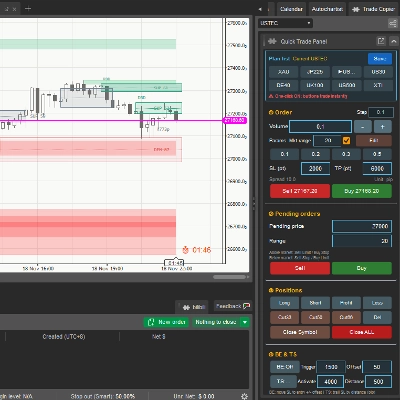
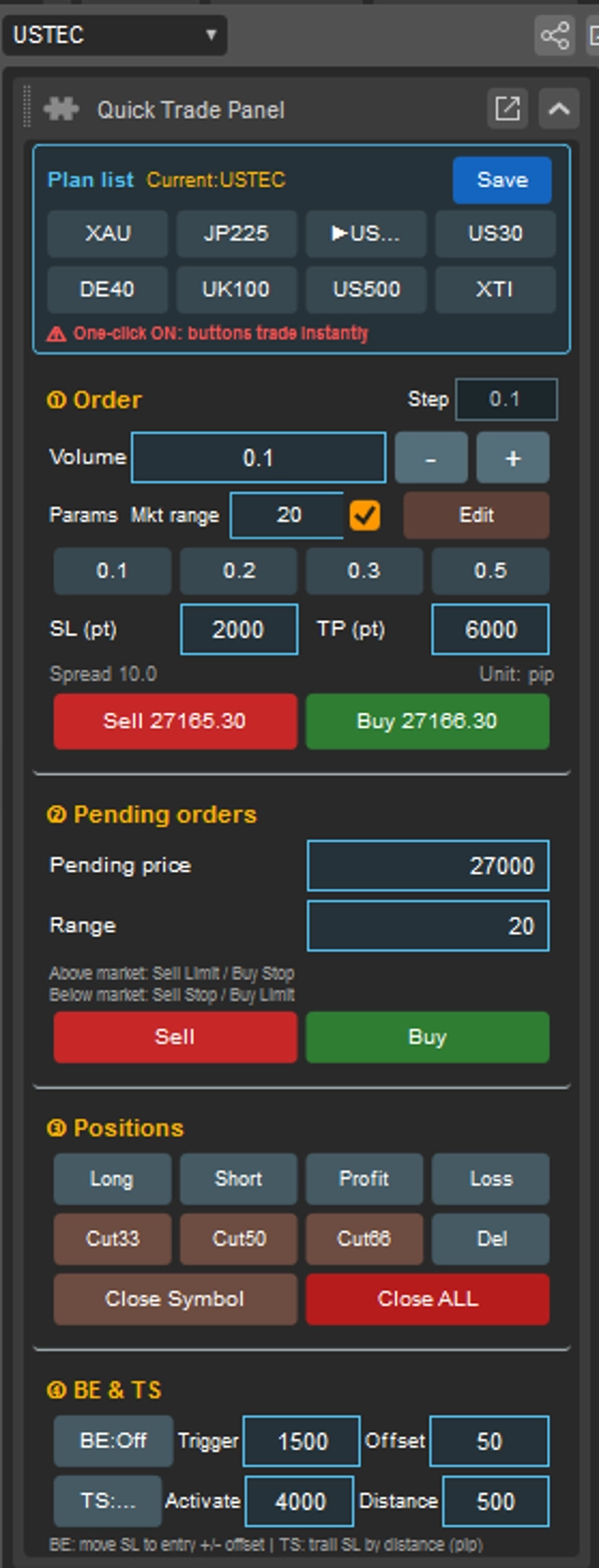
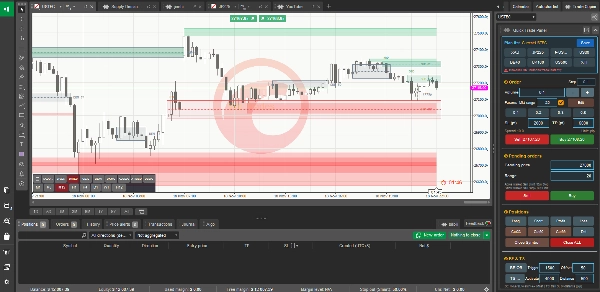
QuickTradePanel MultiLang adds a compact, detachable quick-trading panel to the cTrader Active Symbol Panel (ASP). It is a technical execution tool for placing and managing orders quickly — it is not an investment-advice or signal product.
MULTI-LANGUAGE INTERFACE
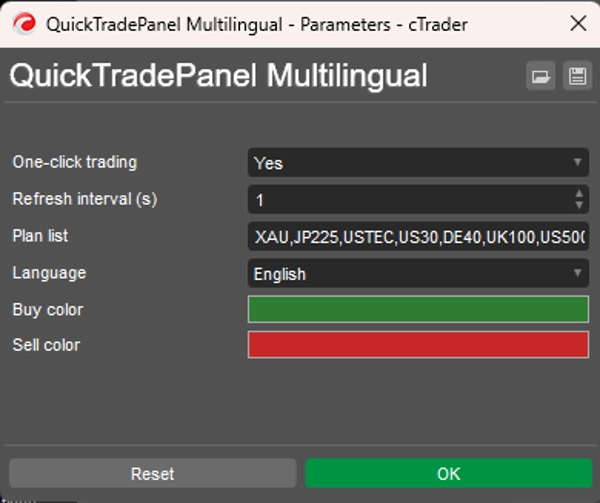
- Six languages: English (default), 简体中文, Deutsch, Español, Français and 日本語.
- Select "Language" in the plugin parameters and restart; every title, label, button, status line and message box switches language.
- English is the reference terminology. Other languages are translations for reference only, and common abbreviations (BE, TS, SL, TP) stay in English in all languages to avoid ambiguity.
WHAT THE PANEL DOES
The panel is organized into four modules:
1. Order — enter volume, use four quick-lot presets, set SL/TP in pips, and place market SELL/BUY orders at the live price shown on each button.
2. Pending orders — set a pending price and range, with on-screen guidance for Sell Limit / Buy Stop / Sell Stop / Buy Limit, then place the order.
3. Positions — close long/short, profitable/losing positions, partially reduce by 33% / 50% / 66%, delete pending orders, close all positions of the current symbol, or close every position in the account (red button).Modifiable lightening parameters.
4. BE & TS — automatic break-even and trailing stop (details below).
-Click Edit to enter the full-parameter editing mode, where you can adjust the values behind the buttons in each section — the quick-lot presets, the reduce percentages, the stop-loss / take-profit distances, and the break-even / trailing-stop settings. Click Done to finish editing; the new values are staged in the current draft. Then click Save at the top of the panel to record them into the active plan.
BREAK-EVEN (BE)
- While BE is on, the panel monitors the current symbol every second. When a position's floating profit reaches the Trigger pips and it has no stop-loss, the stop-loss is set once to entry price ± Offset pips.
- Existing stop-losses are never overwritten. If you remove a stop-loss manually, toggle BE off and on to re-apply it.
- BE changes only the stop-loss; an existing take-profit is left completely untouched.
- Offset is in pips: 0 = pure break-even at entry, 100 = entry + 100 pips, 500 = entry + 500 pips.
TRAILING STOP (TS)
- When floating profit reaches the Activate pips, the stop-loss is set once to (current price ∓ Distance pips) and cTrader's built-in server-side trailing stop is enabled — the same as ticking "Trailing Stop" in the order.
- This is done once per position; thereafter the server trails the stop and the plugin does not touch the order again. Switching TS off also disables server trailing on this symbol.
PLANS
- Up to 20 plans. Default list: XAU, NAS, JP, DE, UK, A, B, C, D, E.
- Plan names should be 3 characters or fewer (buttons are equal width). First 8 plans appear as buttons, the rest in a dropdown.
- Switch plans by clicking a button or using the dropdown. Per-symbol auto-switching is not guaranteed — switch manually in the plan panel when needed.
- Settings are saved automatically on each Save into the plugin's own data folder and reloaded at startup; no manual import is needed.
SCOPE AND LIMITATIONS
- All position-management buttons except Close ALL act only on the current symbol; Close ALL affects the whole account.
- BE and TS also act on the current symbol's positions only. If both are enabled they compete for the same stop-loss — use one at a time.
- Backend parameter changes (including Language) require stopping and restarting the plugin.
- The plugin requests only AccessRights.None — no full-access permission.
ONE-CLICK TRADING — RISK WARNING
- Default "No" is the safe mode: every quick button asks for confirmation before sending anything.
- Setting it to "Yes" makes all quick buttons execute immediately with no confirmation. A single misclick can place, close or modify a live order instantly. A red warning stays on the panel whenever this mode is active.
- Enable it only if you fully understand the behaviour and accept full responsibility. Keep it off when others can access your workstation.
-We recommend testing all features on a demo account first before using them on a live account.
DISCLAIMER
This is a technical trading-execution tool. It does not provide investment advice, does not recommend or evaluate any financial instrument, does not forecast prices and does not promise any return. Past performance or backtest results do not indicate future results. Trading involves risk, including loss. Test thoroughly on a demo account before live use; you are solely responsible for trades placed with this tool.