Description
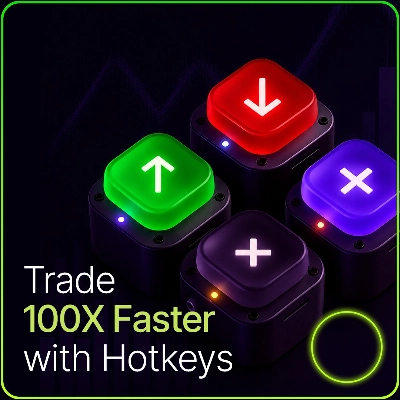
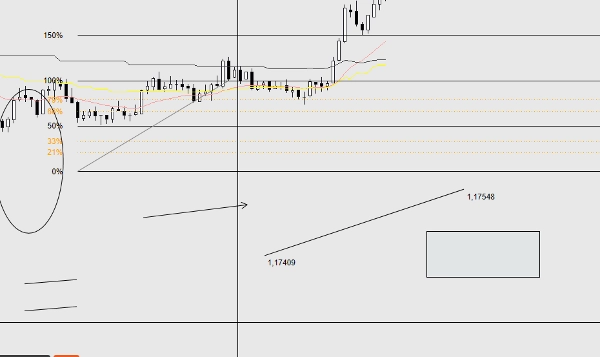
OptimizedDrawingHotkeys is a cTrader Automate cBot that speeds up chart annotation by letting you create drawing tools via keyboard hotkeys and mouse clicks. It includes a live “ghost” placement preview, snapping (to bar High/Low or OHLC with optional tick rounding), an on-chart HUD, undo for the last drawing, digits-correct price labels, right-extension in bars, and a custom Fib retracement system that can automatically rebuild missing fib level lines/labels (and filled-rectangle layers) after timeframe changes.
OptimizedDrawingHotkeys cBot — User Manual
What this cBot does
OptimizedDrawingHotkeys is a drawing assistant for cTrader charts. It lets you quickly place common drawing objects using keyboard hotkeys + mouse clicks, with optional ghost previews, snapping, an on-chart HUD, Undo, and a self-healing system that rebuilds Fib level lines/labels (and filled-rectangle layers) if they disappear after timeframe changes.
- It does not place trades (AccessRights.None).
- It draws chart objects and manages related “child” objects (labels, fib levels, rectangle fill layer, etc.).
Quick start (typical workflow)
- Attach the cBot to a chart (cTrader Automate).
- Press a hotkey (e.g., F for Fib, R for Rectangle).
- Click on the chart to place the required points.
- Press Esc to cancel an in-progress drawing.
- Press Z (default) to undo the last completed drawing.
- Press U (default) to show/hide the HUD.
Hotkeys and drawing modes
Default hotkeys
- H = Horizontal line (1 click)
- V = Vertical line (1 click)
- T = Trend line (2 clicks)
- R = Rectangle (2 clicks)
- E = Ellipse (2 clicks)
- F = Fib retracement (2 clicks)
- A = Arrow (2 clicks)
- X = Text (1 click)
- C = Equidistant channel (3 clicks)
- Z = Undo last drawing
- U = Toggle HUD
- Esc = Cancel current drawing mode (while placing)
If a hotkey parameter is blank/whitespace, that hotkey is effectively disabled.
How many clicks each tool needs
- 1-click tools: Horizontal, Vertical, Text
- 2-click tools: TrendLine, Rectangle, Ellipse, FibRetracement, Arrow
- 3-click tools: Channel
- Click 1: start point
- Click 2: end point (baseline)
- Click 3: height point (distance from baseline; height uses absolute distance)
HUD (on-chart status)
If enabled, the HUD shows:
- Current mode (or Idle)
- Progress like (1/2) while placing
- Current style profile & snapping mode
- Hotkey reminders
Controls:
- Show HUD parameter sets initial visibility.
- Toggle HUD hotkey toggles it on/off.
Placement preview (“ghost preview”)
If Enable Placement Preview = true, multi-point tools show a live preview while you move the mouse between clicks:
- TrendLine, Rectangle, Ellipse, Arrow: preview after the first click
- Channel: preview after click 1, then channel preview after click 2
- Fib: preview baseline + levels after the first click
Temporary preview objects are automatically removed when you finish or cancel.
Snapping
Snapping adjusts the clicked Y-price before placing points.
Snap modes
- None: no snapping
- Tick: (not used directly as a mode in code; rounding happens via “Snap Then Tick” when Snap != None)
- HighLow: snaps to nearest High or Low of the bar nearest your click time
- OHLC: snaps to nearest Open/High/Low/Close of that bar
Snap Then Tick
If Snap Then Tick = true and Snap mode is not None, the snapped price is additionally rounded to the nearest Symbol.TickSize.
Style system
Style Profile
Style Profile changes default thickness/color behavior:
- Custom: uses your Default Color and Base Thickness
- Scalping: thinner + dimmer defaults (fast/clean)
- Swing: thicker defaults (more visible)
Tool Colors
Each tool can optionally override color via its own “Tool Colors” parameter.
- Leave blank to use the profile/default color.
- If a color name is invalid, it falls back to the profile/default.
Labels and extensions
Digits-correct prices
Price labels use Symbol.Digits formatting (e.g., 5-digit symbols show 1.23456).
Right Extension (Bars)
Right Extension (Bars) controls where “right-side labels” and extended fib lines reach.
- The cBot converts “bars” into time using the current bar spacing on your timeframe.
Rectangle fill (color + opacity)
Filled vs outline rectangles
- If Rectangle Filled = false: a normal outline rectangle is drawn.
- If Rectangle Filled = true: the cBot draws two rectangles:
- Fill underlay (*_fill): non-interactive, filled, semi-transparent
- Border overlay (*_border): interactive, outline only
This is done because cTrader’s rectangle object styling doesn’t reliably support independent border/fill styling in a single object.
Fill Color / Fill Opacity %
- Fill Color: color name (e.g., DodgerBlue)
- Fill Opacity %: 0–100
- 0 = fully transparent
- 100 = fully opaque
Important behavior:
- Dragging/resizing is done via the border layer (interactive).
- If you delete either the fill or border layer, the cBot will remove the whole filled-rectangle group (to prevent orphaned layers).
Fib retracement tool (custom implementation)
What gets created
When you place a Fib:
- A baseline trendline is created: ..._base (interactive)
- For each enabled level:
- A line object (..._lvl_i) and a text label (..._lvl_i_lab) are created as children
- Children are non-interactive by design (the baseline is what you move)
Extend Fib Levels
- If Extend Fib Levels = true: each level is drawn as a TrendLine from baseline start to the computed right extension time.
- If Extend Fib Levels = false: each level is a HorizontalLine.
The cBot remembers “extend vs not extend” per fib group (so older fibs keep their style even if you change the parameter later).
Fib Label Left Offset (Bars)
Moves fib percent labels left of the baseline start by N bars (clamped so it won’t go earlier than the first bar).
Auto-repair / self-healing behavior
Fib levels disappearing on timeframe change
Some cTrader builds remove certain non-interactive/child objects on timeframe changes. This cBot can rebuild them.
- Controlled by Auto-Repair Fib Levels
- Runs:
- OnStart
- Every 1 second when idle (not while you are placing a new drawing)
Key rule:
- It recreates fib level lines/labels only if none of the level lines exist for that fib.
This avoids fighting your manual deletions (e.g., if you intentionally removed a single level line).
Filled rectangle layer repair
Filled rectangles are also checked and repaired:
- If the border exists but the fill is missing → fill is recreated.
- If the fill exists but the border is missing → border is recreated (using current rectangle border color/thickness parameters).
Undo and deletion behavior
Undo last drawing
- Hotkey: Undo Last (default Z)
- Removes the last created “owner group”:
- Single objects: removed directly
- TrendLine labels: removed with the line
- Fib: baseline + all levels + all fib labels removed together
- Filled rectangle: both fill and border removed together
Undo is “stack-based”: it only removes what the cBot created last, not arbitrary manual edits.
Deleting objects manually
- Deleting an “owner” object deletes its children where applicable.
- For filled rectangles, deleting either layer causes the cBot to remove the other layer as well.
Parameter reference (by group)
Hotkeys
- Horizontal, Vertical, Trend Line, Rectangle, Ellipse, Fib Retracement, Arrow, Text, Channel
- Undo Last
- Toggle HUD
UX
- Show HUD (initial HUD state)
- Enable Placement Preview
- Auto-Repair Fib Levels
Style
- Style Profile (Custom, Scalping, Swing)
- Base Thickness
- Default Color
Tool Colors
Optional per-tool overrides (blank = use profile/default):
- Horizontal, Vertical, TrendLine, Rectangle, Ellipse, Arrow, Text, Channel, Fib Base
Text
- Text Content
- Text Font Size
Note: also used for various labels (fib labels, line endpoint labels, etc.).
Rectangle
- Rectangle Filled
- Fill Color
- Fill Opacity %
Time/Labels
- Right Extension (Bars)
Snapping
- Snap Mode (None, HighLow, OHLC)
- Snap Then Tick
Fib
- Extend Fib Levels
- Fib Label Left Offset (Bars)
Fib Levels
For each level:
- Show toggle
- Percent value
- Color
- Line style
Tips, gotchas, troubleshooting
Hotkeys don’t work
- Make sure the chart is focused (click the chart once).
- Ensure no hotkey is duplicated (two actions bound to the same key can behave unpredictably).
- Try using single characters for hotkeys.
Fib levels/labels changed after you changed parameters
- Existing fib groups remember “extend vs not extend”, but:
- If levels were fully missing and had to be recreated, the cBot uses your current fib level settings (colors/styles/visibility).
- This is expected: it “rehydrates” from your current configuration.
Filled rectangle color/opacity seems global
- It is global: Fill Color and Fill Opacity % are parameters, not stored per rectangle.
- If a fill layer disappears and is recreated later, it will use your current fill settings.
Objects still disappear on timeframe changes
- Confirm Auto-Repair Fib Levels = true.
- Note: the bot only rebuilds fib levels if all level lines are missing for a fib.
Summary
Key features include a live “ghost” preview of drawings before placement, snapping options to bar High/Low or OHLC prices with optional tick rounding, and an on-chart heads-up display (HUD) that shows current mode, progress, style profile, snapping mode, and hotkey reminders. The cBot offers undo functionality for the last drawing and manages related child objects such as labels and filled rectangle layers.
The Fibonacci retracement tool is a custom implementation that creates interactive baselines with non-interactive child level lines and labels. It includes an auto-repair system that rebuilds missing Fibonacci levels and filled rectangle layers after timeframe changes, ensuring chart annotations remain intact.
Users can configure style profiles (Custom, Scalping, Swing), colors, line thickness, fill opacity, snapping modes, and hotkeys. The cBot does not execute trades; it solely facilitates efficient and precise chart drawing across markets including Forex, indices, commodities, crypto, and stocks.
Customer reviews
5 | 0 % | |
4 | 100 % | |
3 | 0 % | |
2 | 0 % | |
1 | 0 % |