Description
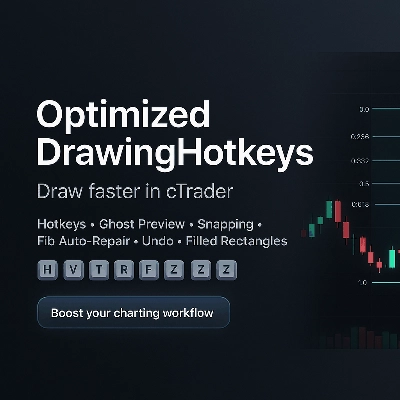
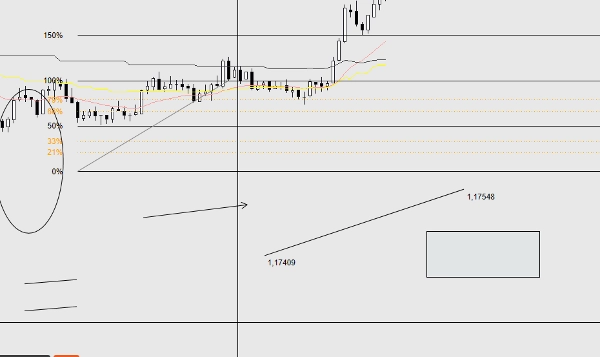
OptimizedDrawingHotkeys est un cBot cTrader Automate qui accélère l’annotation des graphiques en vous permettant de créer des outils de dessin via des raccourcis clavier et des clics de souris. Il inclut un aperçu en direct de placement « fantôme », un aimant (sur le plus haut/bas de la barre ou OHLC avec arrondi optionnel des ticks), un HUD sur le graphique, une annulation du dernier dessin, des étiquettes de prix avec correction des décimales, une extension à droite en barres, et un système personnalisé de retracement Fib qui peut automatiquement reconstruire les lignes/étiquettes de niveaux fib manquants (et les couches de rectangles remplis) après des changements de période.
Manuel utilisateur du cBot OptimizedDrawingHotkeys
Ce que fait ce cBot
OptimizedDrawingHotkeys est un assistant de dessin pour les graphiques cTrader. Il vous permet de placer rapidement des objets de dessin courants en utilisant des raccourcis clavier + clics de souris, avec en option des aperçus fantômes, l’aimant, un HUD sur le graphique, une fonction Annuler, et un système auto-réparateur qui reconstruit les lignes/étiquettes de niveaux Fib (et les couches de rectangles remplis) si elles disparaissent après un changement de période.
- Il ne place pas de trades (AccessRights.None).
- Il dessine des objets sur le graphique et gère les objets « enfants » associés (étiquettes, niveaux fib, couche de remplissage rectangle, etc.).
Démarrage rapide (flux de travail typique)
- Attachez le cBot à un graphique (cTrader Automate).
- Appuyez sur un raccourci (par ex., F pour Fib, R pour Rectangle).
- Cliquez sur le graphique pour placer les points requis.
- Appuyez sur Échap pour annuler un dessin en cours.
- Appuyez sur Z (par défaut) pour annuler le dernier dessin terminé.
- Appuyez sur U (par défaut) pour afficher/masquer le HUD.
Raccourcis et modes de dessin
Raccourcis par défaut
- H = Ligne horizontale (1 clic)
- V = Ligne verticale (1 clic)
- T = Ligne de tendance (2 clics)
- R = Rectangle (2 clics)
- E = Ellipse (2 clics)
- F = Retracement Fib (2 clics)
- A = Flèche (2 clics)
- X = Texte (1 clic)
- C = Canal équidistant (3 clics)
- Z = Annuler le dernier dessin
- U = Basculer HUD
- Échap = Annuler le mode de dessin actuel (pendant le placement)
Si un paramètre de raccourci est vide ou contient uniquement des espaces, ce raccourci est effectivement désactivé.
Nombre de clics nécessaires par outil
- Outils à 1 clic : Horizontal, Vertical, Texte
- Outils à 2 clics : Ligne de tendance, Rectangle, Ellipse, Retracement Fib, Flèche
- Outils à 3 clics : Canal
-
- Clic 1 : point de départ
- Clic 2 : point final (ligne de base)
- Clic 3 : point de hauteur (distance depuis la ligne de base ; la hauteur utilise la distance absolue)
HUD (statut sur le graphique)
Si activé, le HUD affiche :
- Mode actuel (ou Inactif)
- Progression comme (1/2) pendant le placement
- Profil de style actuel & mode d’aimant
- Rappels des raccourcis
Contrôles :
- Le paramètre Afficher HUD définit la visibilité initiale.
- Le raccourci bascule HUD l’active/désactive.
Aperçu de placement (« aperçu fantôme »)
Si Activer l’aperçu de placement = vrai, les outils multipoints affichent un aperçu en direct pendant que vous déplacez la souris entre les clics :
- Ligne de tendance, Rectangle, Ellipse, Flèche : aperçu après le premier clic
- Canal : aperçu après le clic 1, puis aperçu du canal après le clic 2
- Fib : aperçu de la ligne de base + niveaux après le premier clic
Les objets d’aperçu temporaires sont automatiquement supprimés lorsque vous terminez ou annulez.
Aimant
L’aimant ajuste le prix Y cliqué avant de placer les points.
Modes d’aimant
- Aucun : pas d’aimant
- Tick : (non utilisé directement comme mode dans le code ; l’arrondi se fait via « Snap Then Tick » lorsque Snap ≠ Aucun)
- HighLow : s’aligne sur le plus haut ou le plus bas le plus proche de la barre la plus proche de votre temps de clic
- OHLC : s’aligne sur l’ouverture/plus haut/plus bas/fermeture la plus proche de cette barre
Snap Then Tick
Si Snap Then Tick = vrai et que le mode Snap n’est pas Aucun, le prix ajusté est en plus arrondi à la taille de tick la plus proche du symbole.
Système de style
Profil de style
Le profil de style modifie le comportement par défaut de l’épaisseur/couleur :
- Personnalisé : utilise votre couleur par défaut et épaisseur de base
- Scalping : valeurs par défaut plus fines et plus ternes (rapide/net)
- Swing : valeurs par défaut plus épaisses (plus visibles)
Couleurs des outils
Chaque outil peut optionnellement remplacer la couleur via son propre paramètre « Couleurs des outils ».
- Laissez vide pour utiliser la couleur du profil/par défaut.
- Si un nom de couleur est invalide, il revient à la couleur du profil/par défaut.
Étiquettes et extensions
Prix avec correction des décimales
Les étiquettes de prix utilisent le format Symbol.Digits (par ex., les symboles à 5 décimales affichent 1.23456).
Extension droite (barres)
L’extension droite (barres) contrôle jusqu’où atteignent les « étiquettes côté droit » et les lignes fib étendues.
- Le cBot convertit les « barres » en temps en utilisant l’espacement actuel des barres sur votre période.
Remplissage du rectangle (couleur + opacité)
Rectangles remplis vs contours
- Si Rectangle Rempli = faux : un rectangle contour normal est dessiné.
- Si Rectangle Rempli = vrai : le cBot dessine deux rectangles :
-
- Remplissage de fond (*_fill) : non interactif, rempli, semi-transparent
- Superposition de bordure (*_border) : interactif, contour uniquement
Cela est fait parce que le style de l’objet rectangle de cTrader ne supporte pas de manière fiable un style indépendant de bordure/remplissage dans un seul objet.
Couleur de remplissage / Opacité de remplissage %
- Couleur de remplissage : nom de couleur (par ex., DodgerBlue)
- Opacité de remplissage % : 0–100
-
- 0 = totalement transparent
- 100 = totalement opaque
Comportement important :
- Le déplacement/redimensionnement se fait via la couche de bordure (interactif).
- Si vous supprimez la couche de remplissage ou la couche de bordure, le cBot supprimera tout le groupe de rectangles remplis (pour éviter des couches orphelines).
Outil de retracement Fib (implémentation personnalisée)
Ce qui est créé
Lorsque vous placez un Fib :
- Une ligne de tendance de base est créée : ..._base (interactif)
- Pour chaque niveau activé :
-
- Un objet ligne (..._lvl_i) et une étiquette texte (..._lvl_i_lab) sont créés en tant que enfants
- Les enfants sont non interactifs par conception (c’est la ligne de base que vous déplacez)
Étendre les niveaux Fib
- Si Étendre les niveaux Fib = vrai : chaque niveau est dessiné comme une ligne de tendance de la base au temps d’extension droite calculé.
- Si Étendre les niveaux Fib = faux : chaque niveau est une ligne horizontale.
Le cBot se souvient de « étendre ou ne pas étendre » par groupe fib (ainsi les fibs plus anciens gardent leur style même si vous changez le paramètre plus tard).
Décalage gauche de l’étiquette Fib (barres)
Décale les étiquettes de pourcentage fib à gauche du début de la ligne de base de N barres (limité pour ne pas aller avant la première barre).
Comportement d’auto-réparation / auto-guérison
Niveaux Fib disparaissant après changement de période
Certaines versions de cTrader suppriment certains objets non interactifs/enfants lors des changements de période. Ce cBot peut les reconstruire.
- Contrôlé par Auto-Réparation des niveaux Fib
- S’exécute :
-
- Au démarrage
- Toutes les 1 seconde en veille (pas pendant que vous placez un nouveau dessin)
Règle clé :
- Il recrée les lignes/étiquettes de niveaux fib uniquement si aucune des lignes de niveau n’existe pour ce fib.
Cela évite de contrecarrer vos suppressions manuelles (par ex., si vous avez intentionnellement supprimé une seule ligne de niveau).
Réparation de la couche de rectangle rempli
Les rectangles remplis sont également vérifiés et réparés :
- Si la bordure existe mais que le remplissage est manquant → le remplissage est recréé.
- Si le remplissage existe mais que la bordure est manquante → la bordure est recréée (en utilisant les paramètres actuels de couleur/épaisseur de bordure du rectangle).
Comportement d’annulation et de suppression
Annuler le dernier dessin
- Raccourci : Annuler dernier (par défaut Z)
- Supprime le dernier « groupe propriétaire » créé :
-
- Objets uniques : supprimés directement
- Étiquettes de ligne de tendance : supprimées avec la ligne
- Fib : ligne de base + tous les niveaux + toutes les étiquettes fib supprimés ensemble
- Rectangle rempli : remplissage et bordure supprimés ensemble
L’annulation est « basée sur une pile » : elle ne supprime que ce que le cBot a créé en dernier, pas des modifications manuelles arbitraires.
Suppression manuelle des objets
- Supprimer un objet « propriétaire » supprime ses enfants le cas échéant.
- Pour les rectangles remplis, supprimer une couche entraîne la suppression de l’autre couche par le cBot.
Référence des paramètres (par groupe)
Raccourcis
- Horizontal, Vertical, Ligne de tendance, Rectangle, Ellipse, Retracement Fib, Flèche, Texte, Canal
- Annuler dernier
- Basculer HUD
UX
- Afficher HUD (état initial du HUD)
- Activer l’aperçu de placement
- Auto-Réparation des niveaux Fib
Style
- Profil de style (Personnalisé, Scalping, Swing)
- Épaisseur de base
- Couleur par défaut
Couleurs des outils
Remplacements optionnels par outil (vide = utiliser profil/par défaut) :
- Horizontal, Vertical, Ligne de tendance, Rectangle, Ellipse, Flèche, Texte, Canal, Base Fib
Texte
- Contenu du texte
- Taille de la police du texte
Note : également utilisée pour diverses étiquettes (étiquettes fib, étiquettes de point final de ligne, etc.).
Rectangle
- Rectangle rempli
- Couleur de remplissage
- Opacité de remplissage %
Temps/Étiquettes
- Extension droite (barres)
Aimant
- Mode d’aimant (Aucun, HighLow, OHLC)
- Snap Then Tick
Fib
- Étendre les niveaux Fib
- Décalage gauche de l’étiquette Fib (barres)
Niveaux Fib
Pour chaque niveau :
- Afficher le bouton de bascule
- Valeur en pourcentage
- Couleur
- Style de ligne
Conseils, pièges, dépannage
Les raccourcis ne fonctionnent pas
- Assurez-vous que le graphique est focalisé (cliquez une fois sur le graphique).
- Vérifiez qu’aucun raccourci n’est dupliqué (deux actions liées à la même touche peuvent se comporter de manière imprévisible).
- Essayez d’utiliser des caractères simples pour les raccourcis.
Les niveaux/étiquettes Fib ont changé après modification des paramètres
- Les groupes fib existants se souviennent de « étendre ou ne pas étendre », mais :
-
- Si les niveaux étaient complètement manquants et ont dû être recréés, le cBot utilise vos paramètres actuels de niveau fib (couleurs/styles/visibilité).
- C’est attendu : il « réhydrate » à partir de votre configuration actuelle.
La couleur/opacité du rectangle rempli semble globale
- Elle est globale : la couleur de remplissage et l’opacité de remplissage % sont des paramètres, non stockés par rectangle.
- Si une couche de remplissage disparaît et est recréée plus tard, elle utilisera vos paramètres de remplissage actuels.
Les objets disparaissent toujours lors des changements de période
- Confirmez que Auto-Réparation des niveaux Fib = vrai.
- Note : le bot ne reconstruit les niveaux fib que si toutes les lignes de niveau sont manquantes pour un fib.
Résumé
Key features include a live “ghost” preview of drawings before placement, snapping options to bar High/Low or OHLC prices with optional tick rounding, and an on-chart heads-up display (HUD) that shows current mode, progress, style profile, snapping mode, and hotkey reminders. The cBot offers undo functionality for the last drawing and manages related child objects such as labels and filled rectangle layers.
The Fibonacci retracement tool is a custom implementation that creates interactive baselines with non-interactive child level lines and labels. It includes an auto-repair system that rebuilds missing Fibonacci levels and filled rectangle layers after timeframe changes, ensuring chart annotations remain intact.
Users can configure style profiles (Custom, Scalping, Swing), colors, line thickness, fill opacity, snapping modes, and hotkeys. The cBot does not execute trades; it solely facilitates efficient and precise chart drawing across markets including Forex, indices, commodities, crypto, and stocks.
Avis clients
5 | 0 % | |
4 | 100 % | |
3 | 0 % | |
2 | 0 % | |
1 | 0 % |