


Description
CTRADER JOURNAL - LESS LOGGING. MORE LEARNING.
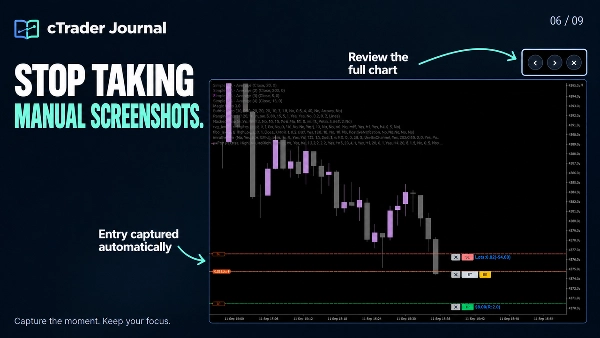
Stop spending your review time rebuilding what happened. cTrader Journal automatically records your trades and captures entry and exit screenshots, so you can focus on understanding your decisions, spotting patterns and improving your process.
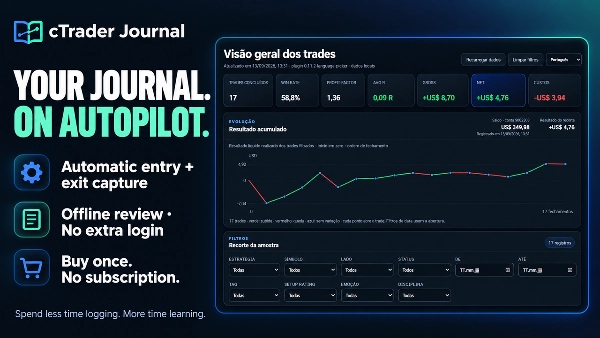
One-time purchase. No Journal subscription. No extra Journal login. Simplicity is key!
✅ TURN YOUR TRADING HISTORY INTO SOMETHING USEFUL
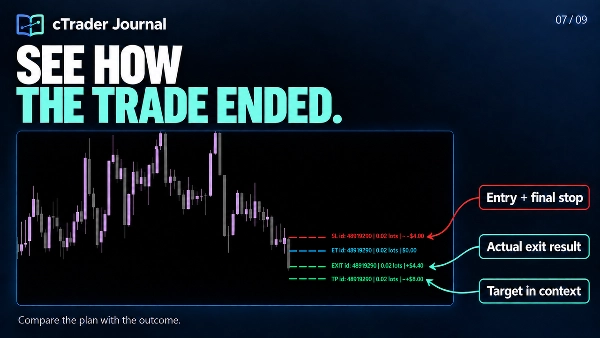
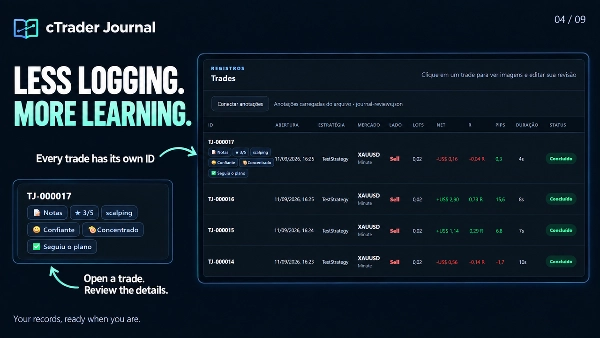
- Save time: automatic entry and exit capture keeps records and screenshots linked to each trade ID, including multiple positions.
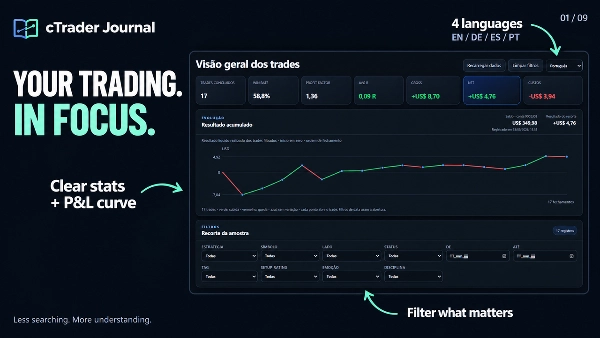
- See what deserves attention: clear statistics, a cumulative realized P&L curve and focused filters help you review the sample that matters.
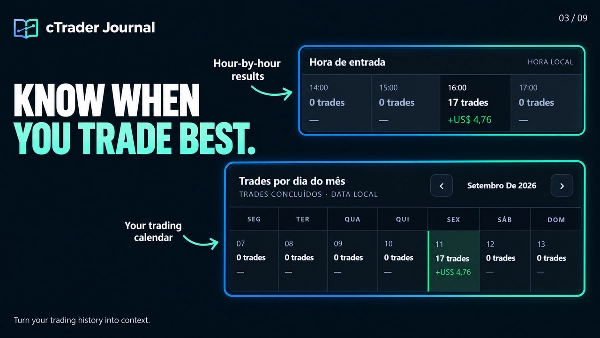
- Compare your approach: review strategies, sessions, entry hours and trading days. Examine costs, execution slippage and MFE/MAE to support your analysis.
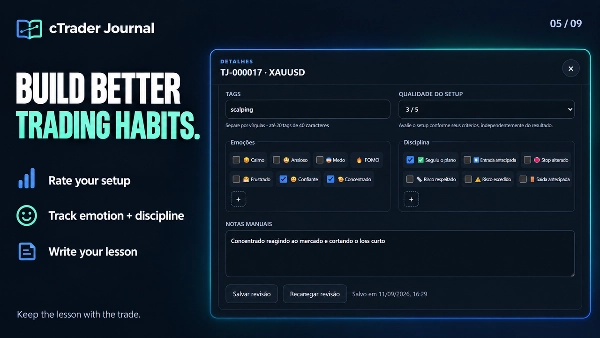
- Learn from your decisions: add personal notes, setup ratings, tags, emotions and discipline markers to individual trades. Create your own emotion and discipline options.
- Review the full picture: enlarge screenshots and switch between entry and exit without leaving the viewer.
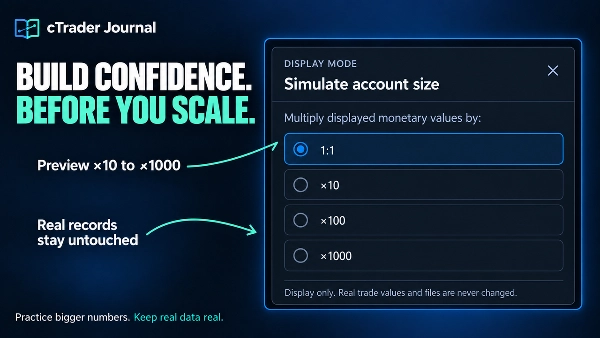
- Simulate larger account sizes without changing saved trade data.
- Add screenshots, annotate charts and update trade checklists.
- Navigate records and explore the cumulative curve faster.
- Recover interrupted captures through safer automatic retries.
- Keep reviews, screenshots and notes stored locally.
✅Set Your Limits. Protect Your Process.
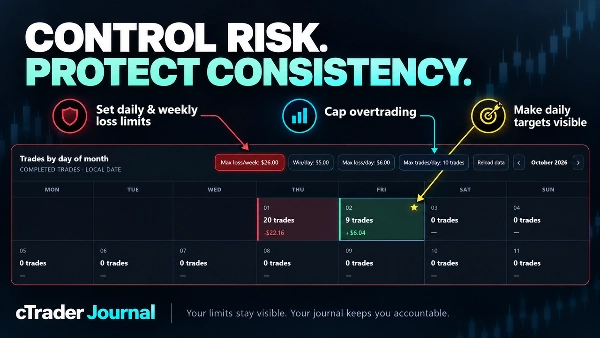
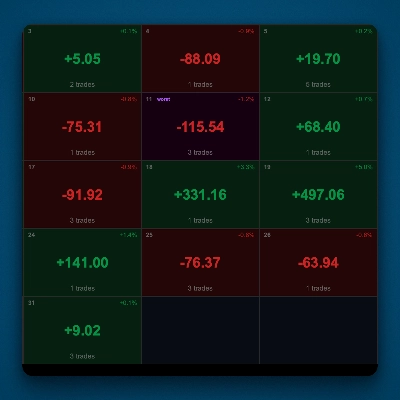
- Build stronger trading discipline with persistent risk controls directly inside your journal calendar.
- Set daily and weekly loss limits by monetary value or losing-trade count.
- Prevent overtrading with a maximum number of trades per day.
- Define a daily profit target and instantly see achieved days marked with a gold star.
- Keep limits and active warnings across reloads and browser refreshes.
🖥️ YOUR JOURNAL, WITH ROOM TO THINK
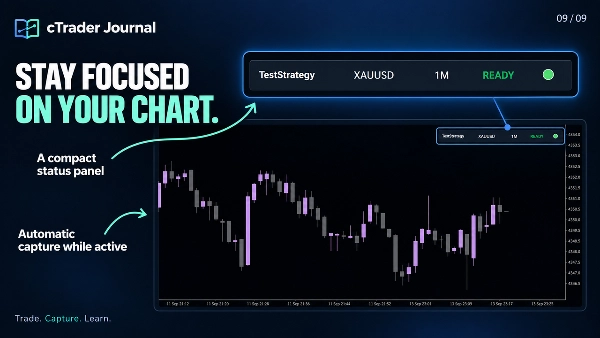
- The journal opens locally in your browser, giving charts, statistics, screenshots and personal reviews the space of a full browser window. A compact panel stays on your cTrader chart.
- Your journal files stay on your computer. Review saved data offline, without hosting a server or signing into a separate journal service.
- The interface supports English, Portuguese, German and Spanish. English is the default; write your notes and custom labels in any language.
📂 WHERE TO FIND YOUR JOURNAL
Click "Open Journal" on the compact panel to access its local address. If the browser does not open automatically, select the displayed address, copy it with Ctrl+A / Ctrl+C and paste it into the address bar of Edge or Chrome.
The generated page is journal .html. A typical Windows location is:
Documents\cAlgo\Data\Plugins\CTrader Jornal\jornal\journal.html
The exact location depends on your Documents/OneDrive configuration, installed plugin name and Journal Subfolder setting. Use the address shown by your plugin.
✍️ CONNECT YOUR PERSONAL REVIEWS
- Open journal .html in Microsoft Edge or Google Chrome.
- Click Connect annotations.
- Select journal-reviews .json from the SAME journal folder and allow the browser to save changes.
- Open a trade, add your review and click Save review.
Example: rate the setup 3/5, select “Anxious”, add an early-entry discipline marker and write: “I entered before confirmation. Wait for the candle close next time.”
Important: This connects the existing review file; you do not need to import trades manually. Keep journal-reviews .json with your journal and include it when backing up the folder. If the browser asks you to reconnect later, select that same file.
🌐 CHOOSE EDGE OR CHROME FOR THE COMPLETE EXPERIENCE
The journal is optimized for Microsoft Edge and Google Chrome, whose file-access features support saving your reviews directly to the local JSON file.
In Firefox and browsers without the required support, you can still view the dashboard, statistics and screenshots. Creating or editing reviews—including notes, ratings, emotions, discipline and tags—is unavailable in that workflow. Without a connected review file, displayed annotations reflect the last generated dashboard snapshot.
⚙️ CAPTURE SCOPE
Keep the plugin active and the original chart visible for screenshots. Automatic registration covers new positions on the active chart’s symbol; registered trades continue to be tracked by ID when you change charts. Positions already open before registration are not automatically imported. The journal records and reviews trades; it does not place or manage orders.
Summary
Users can add personal notes, setup ratings, tags, emotions, and discipline markers to individual trades, with customizable options to support personalized analysis. The journal interface opens locally in a web browser (optimized for Microsoft Edge and Google Chrome) and stores all data on the user's computer, allowing offline access without requiring subscriptions or external servers. A compact panel integrates with the cTrader chart for easy access.
The plugin supports multiple languages for the interface and allows connection of personal review files for annotation and editing directly within the browser. It captures trades only from the active chart symbol while the plugin is active and visible, but does not place or manage orders. This tool is intended to enhance trading review efficiency and insight through automated data capture and comprehensive trade journaling.
Discussion
Customer reviews
5 | 0 % | |
4 | 100 % | |
3 | 0 % | |
2 | 0 % | |
1 | 0 % |
FAQ















Price