Penerangan
SmartOrderPro : Drag your risk. Lock your profit.
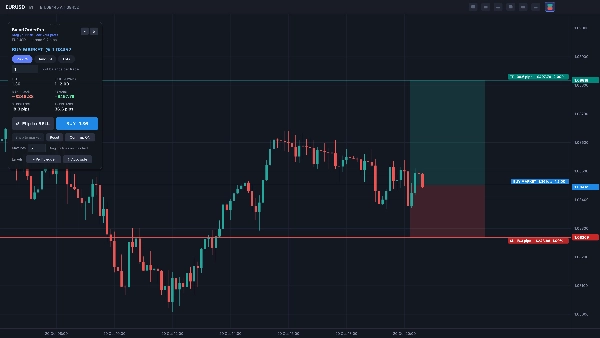
Plan and place trades visually, right on your cTrader chart. Instead of typing prices and calculating lot sizes, you drag three lines – Entry, Stop Loss and Take Profit – and SmartOrderPro shows your risk, reward, R:R, pips and position size live. When the trade looks right, place it with one click.
VISUAL ORDER PLANNING
• Entry (grey), Stop Loss (red) and Take Profit (green) lines you can drag anywhere
• Shaded risk and reward zones on the live candle, like a position tool
• Labels on every line show pips, money at risk or reward, % of balance and R multiple
• Drag the entry and the whole setup moves with it, keeping your R:R
• Drag the SL or TP across the entry to flip between Buy and Sell instantly
SMART ORDER TYPES
• Entry at current price = Market order
• Drag the entry away from price and SmartOrderPro picks Limit or Stop automatically
• "Snap to market" brings a pending setup back to a market order in one click
• For market orders, SL and TP are set to the exact prices you dragged
POSITION SIZING
• Risk %: risk a percentage of your balance per trade
• Amount: risk a fixed amount of money per trade
• Lots: trade a fixed lot size
• Lot size is rounded down to your broker's lot step, so you never risk more than planned
• Max-lots safety cap
• If even the minimum lot would risk more than your setting, the order is blocked and the panel tells you why
ORDER PANEL
• Floating panel you can drag anywhere on the chart, or collapse
• Big Buy and Sell buttons with the lot size shown
• Optional confirm step: click once to arm, click CONFIRM to send – or switch it off for one-click trading
• Clear warnings for invalid setups: SL or TP on the wrong side, SL inside the spread, size above broker or your own limits
• Reset button for a fresh default setup
LIVE TRADE LABELS
For positions and pending orders placed with SmartOrderPro:
• Entry label: live P/L, pips and R
• SL and TP labels: money and R at stake if the level is hit
• When your SL is moved into profit, its label shows the profit it locks in
• Labels update when you modify SL or TP
CUSTOMIZATION
• Label position: right edge of the chart, next to the live candle, or left edge
• Label side: automatic, always above the line, or always below
• All settings are saved and restored the next time you use it
BUILT FOR REAL USE
• Keeps your setup when you switch timeframes
• Stays open when you click outside cTrader or on another chart – closes only when you choose
• Toolbar button on a different chart moves the preview there
• Detailed log (filter by "[SOP]") for quick support
HOW TO INSTALL
- Get SmartOrderPro from the cTrader Store – it is added to your cTrader automatically.
- Open cTrader Desktop and go to Algo › Plugins. Make sure SmartOrderPro is enabled.
- Open any chart. A SmartOrderPro button appears in the chart toolbar.
HOW TO USE
- Click the SmartOrderPro button in the chart toolbar to open the order preview.
- Choose your sizing mode (Risk %, Amount or Lots) and enter your value.
- Drag the SL and TP lines to your levels. Drag the entry line for a Limit or Stop order.
- Check risk, reward and R:R in the panel and on the chart.
- Click Buy or Sell (then CONFIRM, if the confirm step is on). If cTrader asks for trading permission, allow it.
- Close the preview with the × on the panel or the toolbar button.
REQUIREMENTS
• cTrader Desktop 5.2 or newer
• Works with any symbol your broker offers
PLEASE NOTE
• Risk figures are based on your SL distance and do not include commission or swap.
• Your broker's minimum stop distance still applies; if a stop is too tight, the broker rejects the order and SmartOrderPro shows the reason.
• Trading involves risk. Always test on a demo account first.
Ringkasan
SmartOrderPro supports market, limit, and stop orders, automatically selecting the order type based on the entry line position relative to the current price. The interface includes a floating, draggable order panel with large Buy and Sell buttons, optional confirmation steps, and clear warnings for invalid setups such as improper SL/TP placement or exceeding size limits.
Live trade labels update in real time to show profit/loss, pips, and risk multiples for open positions and pending orders. Customization options allow label positioning and display preferences, with all settings saved between sessions. The plugin maintains setups across timeframes and chart changes, enhancing trade management efficiency for any symbol offered by the broker.