Description
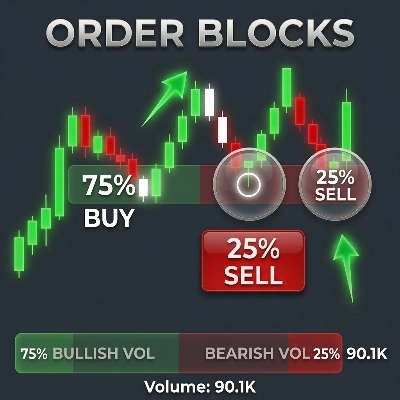
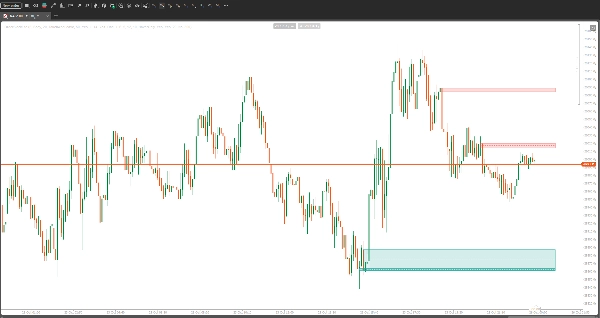
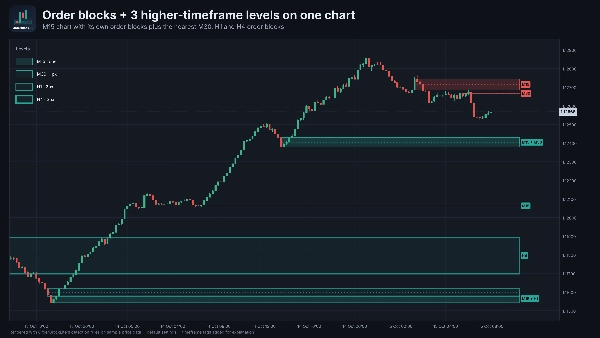
OrderBlockLite marks institutional order blocks on your chart and shows the order blocks of up to three higher timeframes at the same time, so you always see where the bigger players left their footprint.
It is built to stay clean: only the zones nearest to price are drawn, zones are removed once price has used them, and every detail is in a hover tooltip instead of cluttered labels.
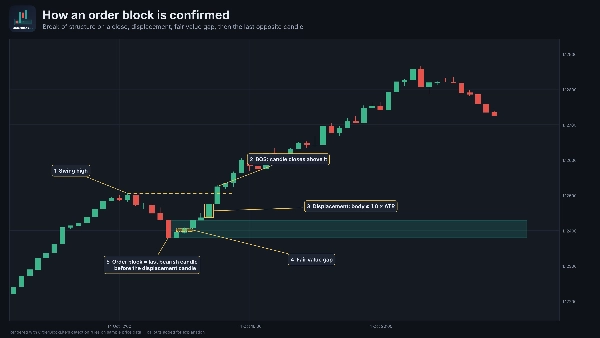
HOW AN ORDER BLOCK IS DETECTED
1. Structure first: a candle must CLOSE beyond the most recent confirmed swing high or low (break of structure). A wick through the swing is not enough.
2. Displacement: the move away must contain a strong candle (body of at least 1.0 x ATR by default).
3. Imbalance: the move must leave a fair value gap (FVG).
4. The order block is the last opposite candle before the displacement candle: the last bearish candle before a bullish move, or the last bullish candle before a bearish move.
5. The zone is drawn on that candle's body (or full wick range, if you choose) and extends to the right of current price.
Detection runs on closed candles only, so zones do not repaint.
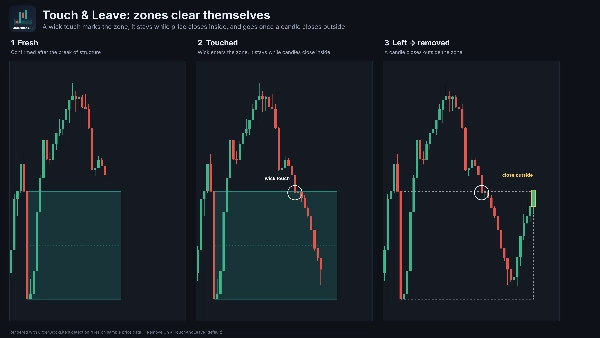
ZONE LIFECYCLE
- Fresh: confirmed, never touched since the break of structure.
- Touched: a wick has entered the zone. The zone stays while candles keep closing inside it.
- Removed: depends on the "Remove On" setting (see below). By default the zone is removed when, after the touch, a candle closes outside the zone. Price has touched the block and left it, so the block is mitigated.
Higher-timeframe zones follow their own candles. An H4 zone is only removed on an H4 close, never by a noisy M15 candle.
MULTI-TIMEFRAME LEVELS
Timeframe ladder: M1 > M5 > M15 > M30 > H1 > H4 > D1 > W1 > MN
"HTF Levels" sets how many steps above your chart are shown:
- M15 chart, 3 levels: M30, H1, H4
- H1 chart, 3 levels: H4, D1, W1
- H4 chart, 3 levels: D1, W1, MN
Higher-timeframe zones use a very light fill and a border that gets thicker with each level (1px, 2px, 3px), so they stay readable behind price. Charts that are not on the ladder (M10, H2, ...) start from the next ladder timeframe above. Tick, Renko and Range charts start from M5.
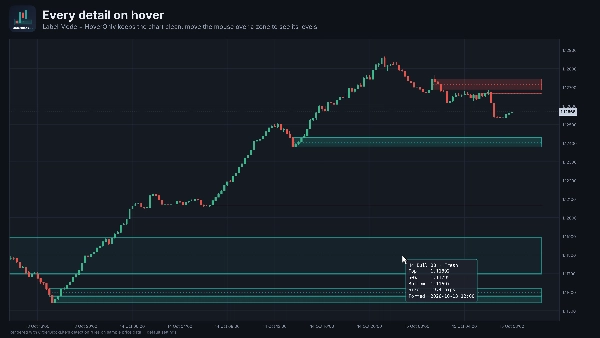
HOVER TOOLTIP
Move the mouse over any zone to see:
timeframe, direction and state, top, 50% level, bottom, zone size in pips, the time the order block formed, and the time it was touched.
SETTINGS
Detection
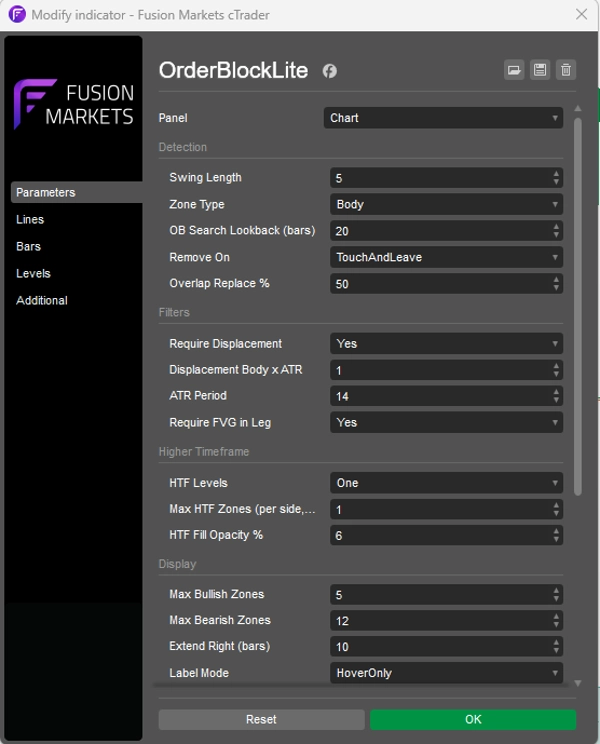
- Swing Length (default 5): bars on each side needed to confirm a swing high or low. Lower = more, faster swings. Higher = fewer, more significant swings.
- Zone Type (default Body): Body draws the zone from the order block candle's open to close. Wick draws it from its high to low.
- OB Search Lookback (default 20 bars): how far back from the displacement candle to search for the order block candle.
- Remove On (default TouchAndLeave):
TouchAndLeave: removed when price has touched the zone and a later candle closes outside it.
FirstTouch: removed the moment a wick touches the zone.
CloseBeyond: kept after a touch (shown grey). Turns "Weak" (dashed border) on a close past the 50% level. Removed on a close beyond the far edge.
ClosePast50: kept after a touch (shown grey). Removed on a close past the 50% level.
- Overlap Replace % (default 50): when a new order block overlaps an existing one of the same direction by at least this much, the new one replaces the old one.
Filters
- Require Displacement (default On): the move must contain a strong candle.
- Displacement Body x ATR (default 1.0): minimum body size of that candle, as a multiple of ATR.
- ATR Period (default 14): ATR length used for the displacement check.
- Require FVG in Leg (default On): the move must leave a fair value gap.
Higher Timeframe
- HTF Levels (default Three): Off, One, Two or Three levels above the chart timeframe.
- Max HTF Zones (per side, per level) (default 1): how many bullish and bearish zones each higher timeframe shows. Nearest to price first.
- HTF Fill Opacity % (default 6): fill strength of higher-timeframe zones.
Display
- Max Bullish Zones (default 3): bullish zones shown for the chart timeframe, nearest to price first.
- Max Bearish Zones (default 3): bearish zones shown for the chart timeframe, nearest to price first.
- Extend Right (default 10 bars): how far zones extend past the current bar.
- Label Mode (default HoverOnly): HoverOnly shows the tooltip only. Always shows text labels on the chart. Both shows labels and the tooltip.
- Show Mean Line (50%) (default On): dotted line at the middle of each zone.
- Show Border (default On): border around chart-timeframe zones. Higher-timeframe zones always have a border.
Colors
- Bullish Color (default teal)
- Bearish Color (default red)
- Mitigated Color (default grey): used for touched zones in the CloseBeyond and ClosePast50 modes.
- Fill Opacity % (default 20): fill strength of chart-timeframe zones.
Debug
- Debug Log (default Off): writes detection, state changes and timing to the cTrader log. Useful for checking why a zone was or was not drawn.
- Debug Log Last N Bars (default 300): limits logging to the most recent bars.
HOW TO TRADE WITH ORDERBLOCKLITE
1. Start with the higher timeframe.
Higher-timeframe order blocks carry more weight. If a lower-timeframe order block sits inside or right below/above an opposing higher-timeframe order block, the lower one may not hold. Price will often run through it to reach the higher-timeframe zone.
Example: a bullish M15 order block directly under a fresh bearish H4 order block is a weak long. A bullish M15 order block sitting inside a bullish H4 order block is a strong long.
2. Wait for price to return to the zone.
Do not chase the move that created the order block. Let price come back and touch the zone.
3. Do not enter on the touch alone. Wait for a confirmation candle:
- Rejection: a candle that wicks into the zone and closes back out of it in the order block's direction (pin bar, engulfing candle).
- Break: on a lower timeframe, price breaks the most recent minor swing in the order block's direction.
No confirmation, no trade.
4. Manage risk around the zone.
- Stop loss beyond the far edge of the order block (below a bullish zone, above a bearish zone).
- Targets at the next opposing order block, a recent swing high/low, or a liquidity level.
- A candle closing deep past the 50% line is a warning that the zone is failing.
Tip: with the default TouchAndLeave mode, a zone is removed when a candle closes outside it, which is often your rejection candle. Hover the zone before it goes to note its levels, or switch "Remove On" to CloseBeyond to keep touched zones on the chart (in grey) until they are invalidated.
NOTES
- No alerts. A pure visual tool.
- Works on any symbol and any timeframe.
- No repaint: detection and close-based removal use closed candles only.
- Requires no special access rights.
Trading involves risk. OrderBlockLite is an analysis tool and does not give trading advice. Always test on a demo account first.
Summary
The indicator supports multi-timeframe analysis by showing up to three higher timeframe order block levels simultaneously, with distinct visual styles to differentiate levels. Zones are dynamically managed: fresh zones appear after confirmation, become touched when price enters them, and are removed based on configurable rules once price closes outside or beyond the zone.
OrderBlockLite features a clean interface with minimal on-chart clutter, using hover tooltips to provide detailed zone information such as timeframe, direction, size, and timestamps. It includes customizable settings for swing length, zone drawing style, displacement requirements, zone lifecycle behavior, and display options including colors and opacity.
The tool works on any symbol and timeframe, uses only closed candles to avoid repainting, and requires no special access rights. It is a visual analysis tool without alerts, intended to assist traders in identifying key institutional price levels for decision-making.






!["[Stellar Strategies] MARSI Signal Plotter" logo](https://cdn.ctrader.com/image/webp/7b2b8da6-8f8e-4646-8d4a-4710c516c01e_25567)