Descrição
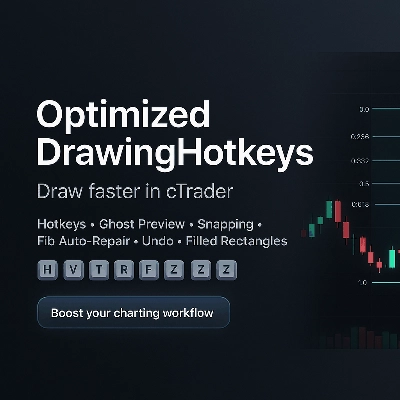
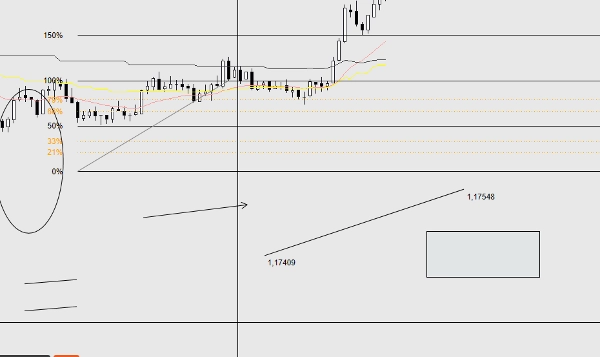
OptimizedDrawingHotkeys é um cBot do cTrader Automate que acelera a anotação de gráficos permitindo que você crie ferramentas de desenho via teclas de atalho do teclado e cliques do mouse. Inclui uma pré-visualização ao vivo de posicionamento “fantasma”, encaixe (no máximo/mínimo da barra ou OHLC com arredondamento opcional de ticks), um HUD no gráfico, desfazer para o último desenho, etiquetas de preço com dígitos corretos, extensão à direita em barras e um sistema personalizado de retração de Fib que pode reconstruir automaticamente linhas/etiquetas de níveis fib ausentes (e camadas de retângulo preenchido) após mudanças de período.
Manual do Usuário do cBot OptimizedDrawingHotkeys
O que este cBot faz
OptimizedDrawingHotkeys é um assistente de desenho para gráficos do cTrader. Permite que você coloque rapidamente objetos de desenho comuns usando teclas de atalho do teclado + cliques do mouse, com pré-visualizações fantasma opcionais, encaixe, um HUD no gráfico, Desfazer e um sistema auto-regenerativo que reconstrói linhas/etiquetas de níveis Fib (e camadas de retângulo preenchido) se desaparecerem após mudanças de período.
- Ele não realiza operações (AccessRights.None).
- Desenha objetos no gráfico e gerencia objetos “filhos” relacionados (etiquetas, níveis fib, camada de preenchimento de retângulo, etc.).
Início rápido (fluxo de trabalho típico)
- Anexe o cBot a um gráfico (cTrader Automate).
- Pressione uma tecla de atalho (ex.: F para Fib, R para Retângulo).
- Clique no gráfico para posicionar os pontos necessários.
- Pressione Esc para cancelar um desenho em andamento.
- Pressione Z (padrão) para desfazer o último desenho concluído.
- Pressione U (padrão) para mostrar/ocultar o HUD.
Teclas de atalho e modos de desenho
Teclas de atalho padrão
- H = Linha horizontal (1 clique)
- V = Linha vertical (1 clique)
- T = Linha de tendência (2 cliques)
- R = Retângulo (2 cliques)
- E = Elipse (2 cliques)
- F = Retração Fib (2 cliques)
- A = Seta (2 cliques)
- X = Texto (1 clique)
- C = Canal equidistante (3 cliques)
- Z = Desfazer último desenho
- U = Alternar HUD
- Esc = Cancelar modo de desenho atual (enquanto posiciona)
Se um parâmetro de tecla de atalho estiver em branco/espaço, essa tecla de atalho fica efetivamente desativada.
Quantos cliques cada ferramenta precisa
- Ferramentas de 1 clique: Horizontal, Vertical, Texto
- Ferramentas de 2 cliques: Linha de Tendência, Retângulo, Elipse, Retração Fib, Seta
- Ferramentas de 3 cliques: Canal
-
- Clique 1: ponto inicial
- Clique 2: ponto final (linha base)
- Clique 3: ponto de altura (distância da linha base; altura usa distância absoluta)
HUD (status no gráfico)
Se ativado, o HUD mostra:
- Modo atual (ou Inativo)
- Progresso tipo (1/2) enquanto posiciona
- Perfil de estilo atual e modo de encaixe
- Lembretes de teclas de atalho
Controles:
- O parâmetro Mostrar HUD define a visibilidade inicial.
- A tecla de atalho Alternar HUD liga/desliga o HUD.
Pré-visualização de posicionamento (“pré-visualização fantasma”)
Se Ativar Pré-visualização de Posicionamento = true, ferramentas multiponto mostram uma pré-visualização ao vivo enquanto você move o mouse entre cliques:
- Linha de Tendência, Retângulo, Elipse, Seta: pré-visualização após o primeiro clique
- Canal: pré-visualização após o clique 1, depois pré-visualização do canal após o clique 2
- Fib: pré-visualização da linha base + níveis após o primeiro clique
Objetos de pré-visualização temporários são removidos automaticamente quando você termina ou cancela.
Encaixe
O encaixe ajusta o preço Y clicado antes de posicionar os pontos.
Modos de encaixe
- Nenhum: sem encaixe
- Tick: (não usado diretamente como modo no código; arredondamento ocorre via “Encaixar e depois Tick” quando Encaixe != Nenhum)
- HighLow: encaixa no máximo ou mínimo mais próximo da barra mais próxima do tempo do clique
- OHLC: encaixa no Abertura/Máximo/Mínimo/Fechamento mais próximo dessa barra
Encaixar e depois Tick
Se Encaixar e depois Tick = true e o modo de encaixe não for Nenhum, o preço encaixado é adicionalmente arredondado para o Symbol.TickSize mais próximo.
Sistema de estilo
Perfil de Estilo
O Perfil de Estilo altera o comportamento padrão de espessura/cor:
- Personalizado: usa sua Cor Padrão e Espessura Base
- Scalping: padrões mais finos + mais apagados (rápido/limpo)
- Swing: padrões mais grossos (mais visíveis)
Cores das Ferramentas
Cada ferramenta pode opcionalmente sobrescrever a cor via seu próprio parâmetro “Cores das Ferramentas”.
- Deixe em branco para usar a cor do perfil/padrão.
- Se um nome de cor for inválido, ele volta para o perfil/padrão.
Etiquetas e extensões
Preços com dígitos corretos
As etiquetas de preço usam a formatação Symbol.Digits (ex.: símbolos de 5 dígitos mostram 1.23456).
Extensão à Direita (Barras)
A Extensão à Direita (Barras) controla até onde as “etiquetas do lado direito” e linhas fib estendidas alcançam.
- O cBot converte “barras” em tempo usando o espaçamento atual da barra no seu período.
Preenchimento do retângulo (cor + opacidade)
Retângulos preenchidos vs contorno
- Se Retângulo Preenchido = false: é desenhado um retângulo normal de contorno.
- Se Retângulo Preenchido = true: o cBot desenha dois retângulos:
-
- Preenchimento inferior (*_fill): não interativo, preenchido, semi-transparente
- Sobreposição da borda (*_border): interativo, apenas contorno
Isso é feito porque o estilo do objeto retângulo do cTrader não suporta de forma confiável estilo independente de borda/preenchimento em um único objeto.
Cor do Preenchimento / Opacidade do Preenchimento %
- Cor do Preenchimento: nome da cor (ex.: DodgerBlue)
- Opacidade do Preenchimento %: 0–100
-
- 0 = totalmente transparente
- 100 = totalmente opaco
Comportamento importante:
- Arrastar/redimensionar é feito via a camada da borda (interativa).
- Se você deletar a camada de preenchimento ou a de borda, o cBot removerá todo o grupo de retângulo preenchido (para evitar camadas órfãs).
Ferramenta de retração Fib (implementação personalizada)
O que é criado
Quando você posiciona um Fib:
- Uma linha de tendência base é criada: ..._base (interativa)
- Para cada nível ativado:
-
- Um objeto linha (..._lvl_i) e uma etiqueta de texto (..._lvl_i_lab) são criados como filhos
- Filhos são não interativos por design (a linha base é o que você move)
Estender Níveis Fib
- Se Estender Níveis Fib = true: cada nível é desenhado como uma Linha de Tendência da linha base até o tempo de extensão direita calculado.
- Se Estender Níveis Fib = false: cada nível é uma Linha Horizontal.
O cBot lembra “estender vs não estender” por grupo fib (assim fibs antigos mantêm seu estilo mesmo se você mudar o parâmetro depois).
Deslocamento à Esquerda da Etiqueta Fib (Barras)
Move as etiquetas percentuais fib para a esquerda do início da linha base por N barras (limitado para não ir antes da primeira barra).
Comportamento de auto-reparo / auto-regeneração
Níveis Fib desaparecendo após mudança de período
Algumas versões do cTrader removem certos objetos não interativos/filhos em mudanças de período. Este cBot pode reconstruí-los.
- Controlado por Auto-Reparar Níveis Fib
- Executa:
-
- OnStart
- A cada 1 segundo quando inativo (não enquanto você está posicionando um novo desenho)
Regra principal:
- Ele recria linhas/etiquetas de níveis fib somente se nenhuma das linhas de nível existir para aquele fib.
Isso evita conflito com suas exclusões manuais (ex.: se você removeu intencionalmente uma linha de nível).
Reparo da camada de retângulo preenchido
Retângulos preenchidos também são verificados e reparados:
- Se a borda existir mas o preenchimento estiver faltando → o preenchimento é recriado.
- Se o preenchimento existir mas a borda estiver faltando → a borda é recriada (usando os parâmetros atuais de cor/espessura da borda do retângulo).
Comportamento de desfazer e exclusão
Desfazer último desenho
- Tecla de atalho: Desfazer Último (padrão Z)
- Remove o último “grupo proprietário” criado:
-
- Objetos únicos: removidos diretamente
- Etiquetas de Linha de Tendência: removidas junto com a linha
- Fib: linha base + todos os níveis + todas as etiquetas fib removidas juntas
- Retângulo preenchido: tanto o preenchimento quanto a borda removidos juntos
Desfazer é “baseado em pilha”: remove apenas o que o cBot criou por último, não edições manuais arbitrárias.
Exclusão manual de objetos
- Excluir um objeto “proprietário” exclui seus filhos quando aplicável.
- Para retângulos preenchidos, excluir qualquer camada faz o cBot remover a outra camada também.
Referência de parâmetros (por grupo)
Teclas de atalho
- Horizontal, Vertical, Linha de Tendência, Retângulo, Elipse, Retração Fib, Seta, Texto, Canal
- Desfazer Último
- Alternar HUD
UX
- Mostrar HUD (estado inicial do HUD)
- Ativar Pré-visualização de Posicionamento
- Auto-Reparar Níveis Fib
Estilo
- Perfil de Estilo (Personalizado, Scalping, Swing)
- Espessura Base
- Cor Padrão
Cores das Ferramentas
Sobrescritas opcionais por ferramenta (em branco = usar perfil/padrão):
- Horizontal, Vertical, Linha de Tendência, Retângulo, Elipse, Seta, Texto, Canal, Base Fib
Texto
- Conteúdo do Texto
- Tamanho da Fonte do Texto
Nota: também usado para várias etiquetas (etiquetas fib, etiquetas de ponto final da linha, etc.).
Retângulo
- Retângulo Preenchido
- Cor do Preenchimento
- Opacidade do Preenchimento %
Tempo/Etiquetas
- Extensão à Direita (Barras)
Encaixe
- Modo de Encaixe (Nenhum, HighLow, OHLC)
- Encaixar e depois Tick
Fib
- Estender Níveis Fib
- Deslocamento à Esquerda da Etiqueta Fib (Barras)
Níveis Fib
Para cada nível:
- Alternar exibição
- Valor percentual
- Cor
- Estilo da linha
Dicas, armadilhas, solução de problemas
Teclas de atalho não funcionam
- Certifique-se de que o gráfico está focado (clique no gráfico uma vez).
- Garanta que nenhuma tecla de atalho esteja duplicada (duas ações vinculadas à mesma tecla podem se comportar de forma imprevisível).
- Tente usar caracteres únicos para as teclas de atalho.
Níveis/etiquetas Fib mudaram depois que você alterou os parâmetros
- Grupos fib existentes lembram “estender vs não estender”, mas:
-
- Se os níveis estavam totalmente ausentes e tiveram que ser recriados, o cBot usa suas configurações atuais de nível fib (cores/estilos/visibilidade).
- Isso é esperado: ele “reidrata” a partir da sua configuração atual.
Cor/opacidade do retângulo preenchido parece global
- É global: Cor do Preenchimento e Opacidade do Preenchimento % são parâmetros, não armazenados por retângulo.
- Se uma camada de preenchimento desaparecer e for recriada depois, ela usará suas configurações de preenchimento atuais.
Objetos ainda desaparecem em mudanças de período
- Confirme que Auto-Reparar Níveis Fib = true.
- Nota: o bot só reconstrói níveis fib se todas as linhas de nível estiverem ausentes para um fib.
Resumo
Key features include a live “ghost” preview of drawings before placement, snapping options to bar High/Low or OHLC prices with optional tick rounding, and an on-chart heads-up display (HUD) that shows current mode, progress, style profile, snapping mode, and hotkey reminders. The cBot offers undo functionality for the last drawing and manages related child objects such as labels and filled rectangle layers.
The Fibonacci retracement tool is a custom implementation that creates interactive baselines with non-interactive child level lines and labels. It includes an auto-repair system that rebuilds missing Fibonacci levels and filled rectangle layers after timeframe changes, ensuring chart annotations remain intact.
Users can configure style profiles (Custom, Scalping, Swing), colors, line thickness, fill opacity, snapping modes, and hotkeys. The cBot does not execute trades; it solely facilitates efficient and precise chart drawing across markets including Forex, indices, commodities, crypto, and stocks.
Avaliações de clientes
5 | 0 % | |
4 | 100 % | |
3 | 0 % | |
2 | 0 % | |
1 | 0 % |