
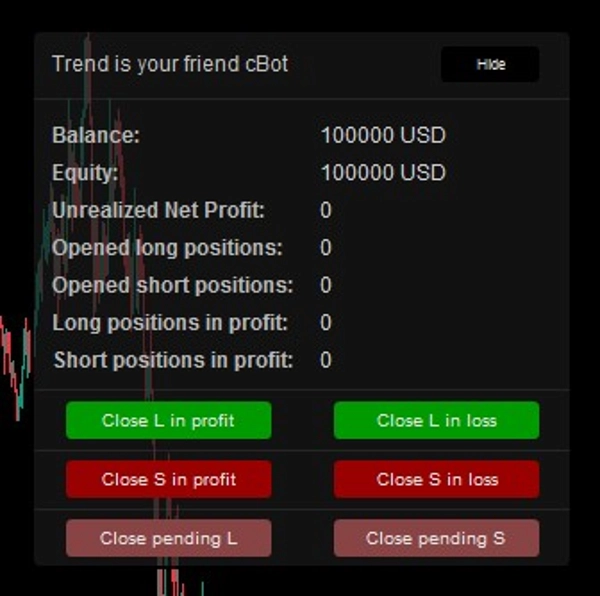
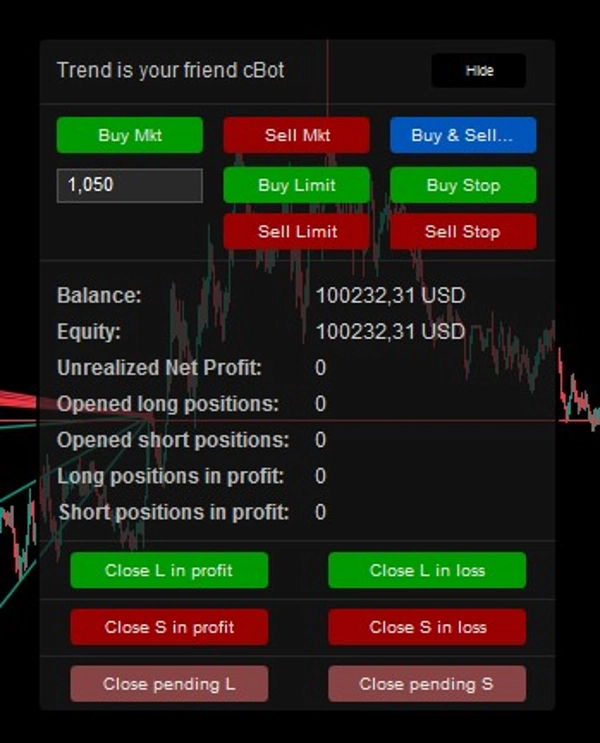
Manual Mode — Control Panel
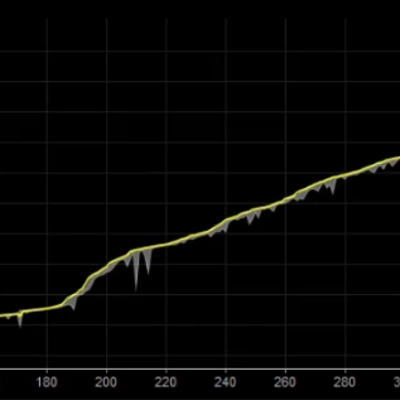
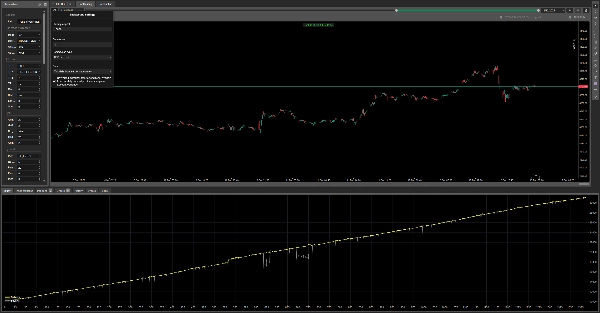
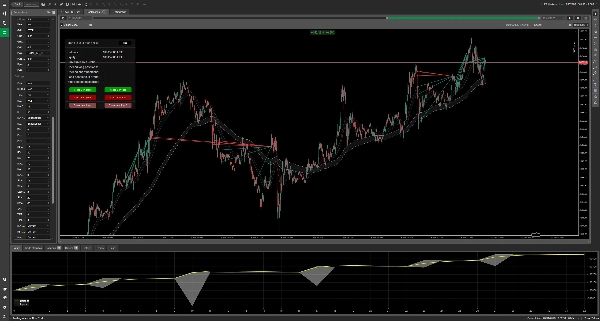
AUDCAD — H4 — Backtest from 01.01.2023 to 01.02.2026
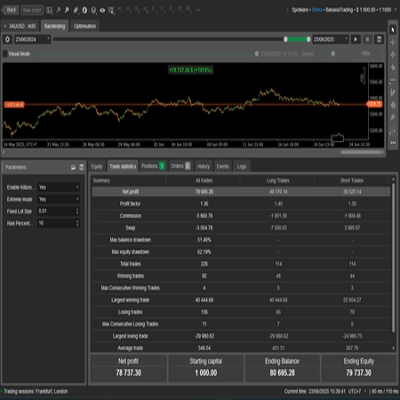
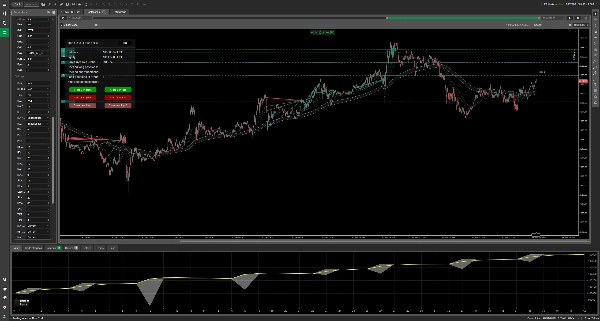
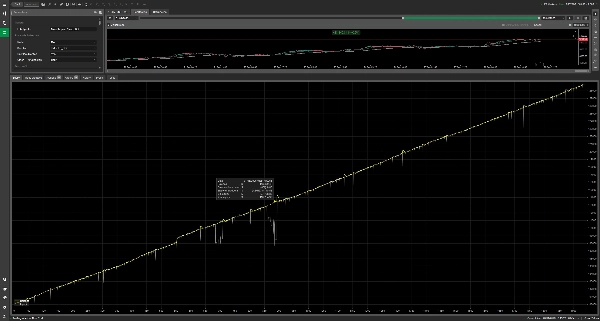
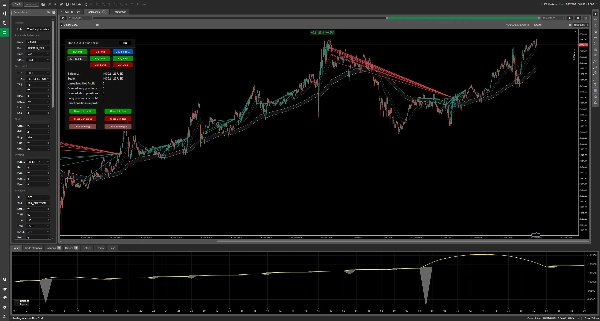
XAUUSD — M5 — Backtest from 01.01.2025 to 01.02.2026
1. Introduction
Trend Is Your Friend cBot is an advanced, multi-functional trading algorithm designed for the cTrader platform.
It combines several trading concepts into one configurable system:
- Trend-following entries
- Grid averaging
- Pyramid scaling
- Scalping-style signals
- Swing-trading setups
- Manual trading assistance
- Dynamic profit and risk management
- Basket management
- Multi-timeframe filtering
- Volatility filtering
- Price-level exits
The core idea behind the cBot is simple:
Follow the trend, manage exposure mathematically, and allow the strategy to adapt to different market conditions.
The cBot does not open trades randomly.
Every automatic entry is based on the selected signal mode, optional trend confirmation, distance filters, volatility filters, trading hours, direction rules, and position-management settings.
2. Core Philosophy
The strategy is built around three key ideas:
2.1 Follow Momentum
The cBot can identify trend direction using Moving Average logic.
When enabled, the bot can restrict entries only to the direction confirmed by the MA trend.
This can help reduce counter-trend entries and force the strategy to trade with the dominant market direction.
2.2 Manage Losing Positions with Grid Logic
If price moves against an initial position, the bot may open additional grid orders at predefined distances.
This can reduce the average entry price, but it also increases exposure and risk.
Grid logic should be used carefully, especially on accounts with strict drawdown limits.
2.3 Maximize Winning Trends with Pyramid Logic
If price moves in favor of an initial position, the bot can add more positions in the same direction.
This allows the strategy to benefit from strong market trends.
Pyramid logic is different from grid logic:
- Grid adds positions when price moves against the trade.
- Pyramid adds positions when price moves in favor of the trade.
3. Who Is This cBot For?
Beginners
Beginners can use Manual Mode and the on-chart control panel to open trades manually while the cBot helps with position handling, basket exits, visual information, and risk rules.
Scalpers
Scalpers can use lower timeframes such as M1-M15 with entry modes like:
- RSI
- Stochastic
- MA
- Same Candle Serie
These can be combined with tighter grid settings, small lot size, and strict take-profit rules.
Swing Traders
Swing traders can use higher timeframes such as H1-D1 with:
- MA mode
- MA Cross mode
- Pyramid mode
- Multi-timeframe MA trend filtering
This allows the bot to participate in larger directional moves.
Advanced and Professional Traders
Experienced users can customize:
- Multi-timeframe filters
- ATR volatility limits
- Grid distance and grid distance multiplier
- Pyramid re-entry logic
- Fixed, step, or martingale volume models
- Static and trailing protection
- MA-based stop loss
- Global price-level exits
- Trading sessions
- Basket take-profit logic
4. Important Risk Warning
Trading involves risk.
Grid and Martingale-based strategies can create large drawdowns and may lead to complete account loss if not managed carefully.
Before using this cBot on a live account:
- Test every setup on a demo account.
- Run long-term backtests.
- Avoid Martingale on strict drawdown accounts.
- Use fixed lot size for conservative setups.
- Always define clear maximum exposure.
- Use Stop Loss and/or Global Price-Level SL when necessary.
- Monitor margin usage carefully.
- Remember that past performance does not guarantee future results.
This cBot is a tool.
The final responsibility for settings, risk, and account protection belongs to the user.
5. General Operating Logic
The cBot follows this general workflow:
1. Checks whether trading is allowed according to trading-hour settings.
2. Checks volatility using ATR filters.
3. Checks MA distance filters if enabled.
4. Reads the selected entry mode signal.
5. Applies direction logic.
6. Applies optional MA trend confirmation.
7. Applies optional other-timeframe MA trend confirmation.
8. Opens the first position if all conditions are met.
9. Manages additional Grid orders if price moves against the position.
10. Manages Pyramid orders if price moves in favor of the position.
11. Monitors TP, SL, trailing stop, MA stop, global price levels, and session-end rules.
12. Closes positions when the configured exit condition is reached.
13. Can pause new entries after closing positions if Pause on Close is enabled.
6. Parameter Groups
The cBot settings are divided into the following groups:
1. General
2. Run Mode & Direction
3. Take Profit
4. Grid
5. Pyramid
6. Protection
7. Volume
8. Settings
9. Timer
7. General
Label Prefix
Defines the text label assigned to positions opened by this cBot.
The cBot uses this label to identify which positions belong to it.
This is important when:
- Running multiple cBot instances
- Trading multiple symbols
- Separating bot positions from manual trades
- Recovering existing positions after restart
Recommended practice:
Use a unique label for each symbol and each strategy setup.
Example:
Trend is your friend cBot EURUSD H1
8. Run Mode & Direction
This section controls when the cBot opens the first position and in which direction.
Mode
Defines the main entry engine.
Available modes:
MA
Opens trades based on Moving Average interaction.
MA_CROSS
Opens trades when MA channel crossover conditions are detected.
PIVOT
Opens trades near selected daily pivot levels.
RSI
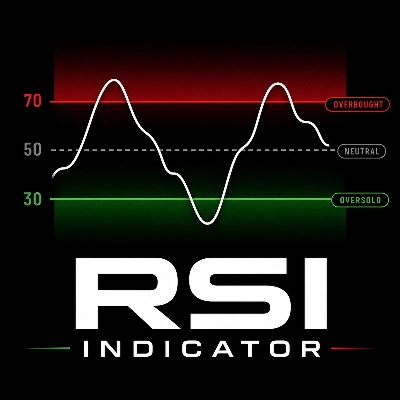
Opens trades based on RSI oversold/overbought conditions.
MACD
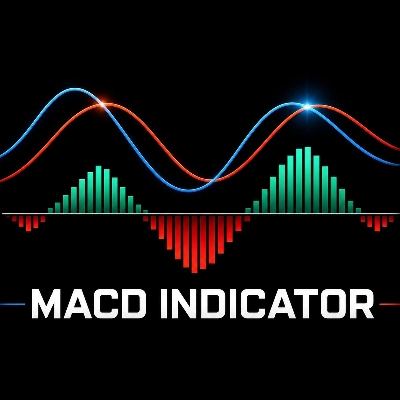
Opens trades based on MACD and Signal line crossover logic.
STOCHASTIC
Opens trades based on Stochastic crossover conditions.
SAME_CANDLE_SERIE
Opens trades after a sequence of candles in the same direction.
TIME
Opens trades at a specific configured time.
MANUAL
Disables automatic entries and allows manual control from the chart panel.
Direction
Controls allowed trading direction.
Available options:
LONG
Only Buy positions are allowed.
SHORT
Only Sell positions are allowed.
LONG_OR_SHORT
The bot may trade long or short, but generally follows one active side depending on signal logic and existing exposure.
BOTH_AT_ONCE
The bot may open both Buy and Sell exposure.
TRIGGER_SIDE
The bot follows the side of the active signal.
Only MA Direction
When enabled, the cBot opens trades only when the MA trend confirms the direction.
Example:
- A Buy signal from RSI will be accepted only if MA trend confirms an uptrend.
- A Sell signal from Stochastic will be accepted only if MA trend confirms a downtrend.
This filter can reduce false entries but may also reduce the number of trades.
Other TF MA Direction
Adds an additional Moving Average trend filter from another timeframe.
Example:
You can trade on M15, but require H1 trend confirmation.
If enabled, both the main MA trend logic and the selected additional timeframe MA trend must agree.
This can be useful for:
- Reducing counter-trend trades
- Filtering noisy signals
- Improving directional consistency
- Trading only with higher-timeframe momentum
9. Take Profit
This section controls how profitable positions are closed.
TP Type
Defines how the cBot decides when to close profitable positions.
Available options:
USD
Closes when net profit reaches the configured money amount.
PERCENT
Closes when a configured percentage of positions in the basket are profitable.
USD_OR_PERCENT
Uses USD TP first, but can switch to percentage-based basket closing after a configured number of Grid/Pyramid orders is reached.
Important Note About Percentage TP
The percentage TP is not a percentage of account balance.
It means:
The percentage of open positions in the basket that must be in profit.
Example:
If there are 10 open positions and TP percentage is set to 70%, the cBot can close the basket when approximately 70% of those positions are in profit.
If there is only one position, the cBot uses the USD TP value instead.
TP Scope
Defines whether profit is calculated separately per direction or globally.
Available options:
PER_DIRECTION
Buy and Sell baskets are managed separately.
GLOBAL
All cBot positions are calculated together.
TP $
The money amount at which the cBot closes positions.
Example:
If TP $ is set to 75, the cBot closes the relevant basket when net profit reaches at least 75 USD.
TP % of Grids in Profit
Defines how many positions in the basket must be profitable before the cBot closes the basket in percentage TP mode.
Example:
70 means approximately 70% of positions must be in profit.
Min Number of Grid Orders to Close by %
Defines how many averaging positions must exist before percentage TP logic can be used in hybrid mode.
In the source logic, both Grid and Pyramid positions can be counted for this threshold.
Disable $ TP When Min Grid Orders Opened
This parameter is important for USD_OR_PERCENT mode.
Behavior:
- If disabled, USD_OR_PERCENT behaves like USD TP.
- If enabled, the cBot uses USD TP until the minimum number of Grid/Pyramid orders is reached.
- After that threshold is reached, the cBot switches to percentage-based closing.
This can be useful when a basket becomes large and a fixed USD target may be harder to reach.
Long Price Level Global TP
Closes all Buy positions when price reaches or exceeds the specified level.
For long positions, the cBot checks the Bid price.
Set to 0 to disable.
Short Price Level Global TP
Closes all Sell positions when price reaches or falls below the specified level.
For short positions, the cBot checks the Ask price.
Set to 0 to disable.
10. Grid
Grid logic is used when price moves against the initial position.
The cBot opens additional positions at defined distances to average the entry price.
Grid Level Pips
Defines the base distance between grid orders.
Example:
If Grid Level is 22, the first grid order is opened after approximately 22 pips against the position.
Grid Level Martingale Multiplier
Controls how the distance between grid levels expands.
This parameter affects distance, not volume.
Example with Grid Level 20 and multiplier 2.0:
- First grid distance: 20 pips
- Second grid distance: 40 pips
- Third grid distance: 80 pips
If set to 1.0, grid distance remains fixed.
No Grid on Same Candle
When enabled, the cBot will not open more than one grid order on the same candle for the same direction.
This can help protect the account during:
- Very fast market moves
- News spikes
- Flash crashes
- High-volatility candles
Grid Orders Short
Maximum number of Sell grid orders.
Set to 0 to disable Sell grid expansion.
Grid Orders Long
Maximum number of Buy grid orders.
Set to 0 to disable Buy grid expansion.
11. Pyramid
Pyramid logic is used when price moves in favor of the initial position.
Instead of averaging losing positions, the bot adds to winning positions.
Pyramid Mode Run
Available modes:
STANDARD
Adds pyramid orders after price moves a configured number of pips in profit.
RE_ENTRY
Adds pyramid orders only when re-entry conditions are met again.
Re-entry Min Bars
Used in RE_ENTRY mode.
Defines how many candles must pass before the bot can add another pyramid position.
This prevents the cBot from opening too many pyramid positions too quickly.
Pyramid Level Pips
Used in STANDARD mode.
Defines how far price must move in favor of the position before the next pyramid order can be opened.
Pyramid Orders Short
Maximum number of Sell pyramid orders.
Set to 0 to disable Sell pyramiding.
Pyramid Orders Long
Maximum number of Buy pyramid orders.
Set to 0 to disable Buy pyramiding.
12. Protection
This section controls risk management and position protection.
SL Mode
Available options:
OFF
Stop Loss logic is disabled.
STATIC
Uses a fixed money-based Stop Loss.
STATIC_AND_TRAILING
Uses fixed money-based Stop Loss and dynamic Trailing Stop logic.
Static SL Scope
Defines how the static Stop Loss is calculated.
Available options:
PER_DIRECTION
Buy and Sell baskets are protected separately.
GLOBAL
All cBot positions are protected together.
Static SL $
Defines the maximum allowed loss in account currency.
Example:
If Static SL is set to 20, the cBot closes the relevant basket when net loss reaches -20 USD.
Trailing SL Trigger Pips
Defines how far price must move in favor of the position before the trailing stop becomes active.
Trailing SL Pips
Defines the offset from the selected MA wave used for trailing.
A negative value can place the trailing level behind the MA wave, allowing room for normal pullbacks.
Trailing SL Trigger Wave
Defines which MA wave is used for trailing stop calculations.
Available options:
FAST
Uses the fast MA wave.
SLOW
Uses the slow MA wave.
MA SL
Enables Moving Average based stop logic.
Available options:
OFF
MA Stop Loss disabled.
FAST
Uses the fast MA wave as an exit reference.
SLOW
Uses the slow MA wave as an exit reference.
For Buy positions:
The cBot checks if Bid falls below the selected MA level.
For Sell positions:
The cBot checks if Ask rises above the selected MA level.
Pause on Close Minutes
Defines how long the cBot pauses after closing positions due to TP, SL, global level, MA SL, trailing stop, or session logic.
This can prevent immediate re-entry after a close event.
Set to 0 to disable.
Long Price Level Global SL
Closes all Buy positions when Bid reaches or falls below the specified level.
Set to 0 to disable.
Short Price Level Global SL
Closes all Sell positions when Ask reaches or rises above the specified level.
Set to 0 to disable.
13. Volume
This section controls lot sizing for the initial position, grid orders, and pyramid orders.
First Order Fix Lot
Defines the lot size of the first position.
Example:
0.01 means the first position is opened with 0.01 lot.
Keep First Order Vol to Balance Ratio
When enabled, the cBot calculates the first order volume based on account balance instead of using only the fixed lot setting.
This creates a compounding-style effect.
Use carefully, because position size can increase as account balance grows.
Grid Volume Type
Defines how grid order volume is calculated.
Available options:
SAME_AS_ORDER
Uses the base order size.
STEP
Increases volume by a fixed step.
MARTINGALE
Multiplies volume using the martingale multiplier.
FIX_LOT
Uses a fixed grid lot size.
Grid Step Volume
Used when Grid Volume Type is set to STEP.
Each additional grid order can increase by this amount.
Grid Martingale Multiplier
Used when Grid Volume Type is set to MARTINGALE.
Example:
If initial lot is 0.01 and multiplier is 2.0, theoretical volumes may become:
- 0.01
- 0.02
- 0.04
- 0.08
Martingale is high risk and should be avoided on strict drawdown accounts.
Grid Fix Lot
Used when Grid Volume Type is set to FIX_LOT.
Grid positions use this lot size.
Pyramid Volume Type
Defines how pyramid order volume is calculated.
Available options:
SAME_AS_ORDER
Uses the initial position size.
STEP
Increases pyramid volume by a fixed step.
MARTINGALE
Multiplies pyramid volume by the configured multiplier.
FIX_LOT
Uses a fixed pyramid lot size.
Pyramid Step Volume
Used when Pyramid Volume Type is set to STEP.
Pyramid Martingale Multiplier
Used when Pyramid Volume Type is set to MARTINGALE.
Pyramid Fix Lot
Used when Pyramid Volume Type is set to FIX_LOT.
14. Settings
This section contains indicator settings, visual options, and filters.
Control Panel
Displays the cBot control panel on the chart.
In Manual Mode, the panel includes manual trade execution tools.
In automatic modes, the panel can display account and position information and position-management buttons.
BE Line
Displays the break-even line for baskets with more than one position.
The line helps visualize the approximate level where the basket reaches break-even, including estimated costs.
TSL Line
Displays the Trailing Stop Loss line when trailing stop logic is enabled.
MA Modes Channel Interaction
Defines whether the bot uses the fast or slow MA wave for MA interaction signals.
Available options:
FAST
Uses the fast MA wave.
SLOW
Uses the slow MA wave.
MA Fast Period
Period of the fast Moving Average.
MA Slow Period
Period of the slow Moving Average.
MA Fast Type
Moving Average type for the fast MA.
Example:
- Simple
- Exponential
- Weighted
- Other cTrader-supported MA types
MA Slow Type
Moving Average type for the slow MA.
Distance From MA Pips
Defines the allowed distance from the selected MA wave for entry.
If set to 0, the cBot internally uses a small effective tolerance.
This helps ensure that entries happen close to the selected MA wave instead of far away from it.
Pivot Start L
Defines which pivot level is used for long signals.
Available options:
- PP
- S1
- S2
- S3
Pivot Start S
Defines which pivot level is used for short signals.
Available options:
- PP
- R1
- R2
- R3
RSI Periods
Period used for RSI calculation.
RSI Buy Level
Oversold level for Buy signals.
Example:
30
RSI Sell Level
Overbought level for Sell signals.
Example:
70
MACD Fast Period
Fast period used by MACD.
MACD Slow Period
Slow period used by MACD.
MACD Smoothing
Signal smoothing period used by MACD.
Stochastic %K Periods
Main Stochastic %K period.
Stochastic %K Slowing
Slowing value for Stochastic %K.
Stochastic %D Periods
Signal line period for Stochastic %D.
Stochastic Buy Level
Oversold level used for Buy signals.
Example:
20
Stochastic Sell Level
Overbought level used for Sell signals.
Example:
80
Same Candle Serie Mode Length
Defines how many consecutive candles in the same direction are required for Same Candle Serie mode.
Example:
If set to 3, the bot looks for 3 candles in the same direction before triggering a signal.
TIME Mode Hour
Hour used by TIME mode.
TIME Mode Minute
Minute used by TIME mode.
MA Timeframe
Defines the timeframe used for MA calculations.
RSI Timeframe
Defines the timeframe used for RSI calculations.
MACD Timeframe
Defines the timeframe used for MACD calculations.
Stochastic Timeframe
Defines the timeframe used for Stochastic calculations.
Min MA Waves Distance Pips Filter
Minimum allowed distance between MA waves.
If the distance is smaller than this value, the bot will not open a new trade.
Max MA Waves Distance Pips Filter
Maximum allowed distance between MA waves.
If the distance is larger than this value, the bot will not open a new trade.
This can prevent entries during extremely extended trends.
Min ATR Filter
Minimum ATR required for new entries.
If ATR is below this value, the market may be considered too inactive.
Max ATR Filter
Maximum ATR allowed for new entries.
If ATR is above this value, the market may be considered too volatile or dangerous.
15. Timer
The Timer section controls when the cBot is allowed to open trades and how it should react after the trading session ends.
Open Trades in Certain Hour
Enables or disables trading-hour restrictions.
If disabled, the bot can trade at any time.
From Hour / From Minute
Defines the start of the allowed trading session.
To Hour / To Minute
Defines the end of the allowed trading session.
Timezone Difference Hours
Adjusts the time calculation relative to server time.
Example:
If your broker server time differs from your local time, use this parameter to align the session filter.
Close All After End
If enabled, the bot closes positions after the trading session ends.
Wait for BE After End
If enabled, the bot waits until the basket reaches break-even or better after the trading session ends, then closes it.
This is less aggressive than forced closing.
16. Entry Modes Explained
MA Mode
MA mode opens trades when price interacts with the selected MA wave.
Buy logic is based on price being above or near the selected MA wave.
Sell logic is based on price being below or near the selected MA wave.
The bot can additionally filter trades using:
- MA trend direction
- Other timeframe MA direction
- MA distance filter
- ATR filter
- Trading hours
MA Cross Mode
MA Cross mode detects changes in the MA channel structure.
Buy signal:
Fast MA Low crosses above Slow MA High.
Sell signal:
Fast MA High crosses below Slow MA Low.
This mode is more suitable for trend changes and swing-style setups.
Pivot Mode
Pivot mode calculates daily pivot levels using the previous daily candle:
- High
- Low
- Close
The bot then monitors selected support/resistance pivot levels for entry signals.
Long signals can use:
- PP
- S1
- S2
- S3
Short signals can use:
- PP
- R1
- R2
- R3
RSI Mode
RSI mode uses oversold and overbought conditions.
Buy signal:
RSI values are below the configured Buy level.
Sell signal:
RSI values are above the configured Sell level.
The bot checks recent RSI values and can combine the signal with MA direction filtering.
MACD Mode
MACD mode uses MACD and Signal line crossover logic.
In the implemented logic, the bot checks MACD crossover conditions on the selected MACD timeframe and then applies direction filters, MA filters, ATR filter, and trading-hour rules.
This mode can be used for momentum or reversal-style setups depending on the selected settings and market context.
Stochastic Mode
Stochastic mode uses %K and %D crossover conditions.
Buy signal:
%K crosses above %D while the oscillator is below the configured Buy level.
Sell signal:
%K crosses below %D while the oscillator is above the configured Sell level.
Same Candle Serie Mode
This mode detects a sequence of candles moving in the same direction.
Example:
If the required length is 3, the bot checks whether the last 3 candles were bullish or bearish.
A bullish sequence can trigger Buy logic.
A bearish sequence can trigger Sell logic.
TIME Mode
TIME mode opens trades only at the configured hour and minute.
The trade direction depends on the selected Direction mode and MA trend conditions.
Only one trade event per adjusted date is allowed by this mode.
MANUAL Mode
Manual Mode disables automatic entries.
The user can open trades from the on-chart control panel.
The cBot can then manage positions according to the configured rules, including:
- Grid handling
- Take Profit
- Stop Loss
- Trailing Stop
- MA Stop Loss
- Global level exits
- Position-closing tools
17. Manual Mode Control Panel
The Manual Mode panel provides quick chart-based controls.
Main functions include:
- Buy market execution
- Sell market execution
- Pending Buy Limit placement
- Pending Sell Limit placement
- Pending Buy Stop placement
- Pending Sell Stop placement
- Closing long positions in profit
- Closing long positions in loss
- Closing short positions in profit
- Closing short positions in loss
- Closing pending Buy orders
- Closing pending Sell orders
- Account and position statistics
Displayed account information includes:
- Balance
- Equity
- Unrealized net profit
- Number of opened long positions
- Number of opened short positions
- Number of long positions in profit
- Number of short positions in profit
Important note:
The control panel also includes a quick emergency closing function for cBot positions.
Always test the panel on demo first and make sure you understand each button before using it live.
18. Grid vs Pyramid
Grid Logic
Grid is used when price moves against the first position.
Example for Buy:
1. Bot opens Buy.
2. Price falls.
3. Bot opens another Buy after the configured grid distance.
4. Average entry price decreases.
5. Basket can close when TP conditions are reached.
Grid can be powerful, but it increases exposure.
Use conservative settings when trading accounts with strict drawdown limits.
Pyramid Logic
Pyramid is used when price moves in favor of the first position.
Example for Buy:
1. Bot opens Buy.
2. Price rises.
3. Bot opens another Buy after conditions are met.
4. Bot builds exposure into a winning trend.
Pyramid can help capture large moves without averaging into losses.
19. Position Recovery
When the cBot starts, it searches for existing open positions with the configured label prefix.
It can recover positions classified by labels such as:
- Initial
- Grid
- Pyramid
This allows the cBot to continue managing previously opened positions after restart, provided the labels match.
Using a unique and consistent label prefix is strongly recommended.
20. Chart Objects
The cBot can draw helpful chart lines.
Available visual lines include:
BE Line
Shows the calculated basket break-even level.
TSL Line
Shows the active trailing stop level.
Global TP Line
Shows configured global take-profit price levels.
Global SL Line
Shows configured global stop-loss price levels.
Labels may also show estimated profit or loss at the selected price level.
21. Conservative Setup Guidelines
There are no universal settings that work perfectly on every symbol, timeframe, broker, and market condition.
Every setup should be tested individually.
However, for conservative testing, especially on strict drawdown accounts, consider:
- Avoid Martingale volume.
- Use fixed lot size.
- Start with 0.01 lot.
- Limit the number of grid orders.
- Use wider grid spacing on volatile symbols.
- Use ATR filters.
- Use MA direction confirmation.
- Use higher-timeframe confirmation.
- Use static SL or global price-level SL.
- Avoid trading during major news events.
- Backtest over long periods, not only selected profitable months.
- Monitor maximum drawdown, not only total profit.
- Monitor margin usage.
- Test different market regimes.
For prop-firm style rules, where maximum drawdown may be limited, aggressive Grid and Martingale configurations are usually unsuitable.
22. Prop Firm Considerations
If you want to test the cBot for funded or prop-firm accounts, risk control must be the priority.
Avoid Martingale
Martingale can grow exposure too quickly and violate drawdown limits.
Prefer:
- FIX_LOT
- SAME_AS_ORDER
- Very small STEP, if used carefully
Limit Grid Orders
A high number of grid orders can create large floating drawdown.
For strict drawdown accounts, test with low grid limits first.
Use Fixed Lot
A fixed lot such as 0.01 is usually safer during early testing.
Use Stop Protection
Consider using:
- Static SL
- Global SL
- Price-level SL
- MA SL
- Session-end rules
Backtest Realistically
Backtests should include:
- Trend periods
- Range periods
- High-volatility periods
- News-like spikes
- Long sideways markets
Do not judge a setup only by total profit.
Always check:
- Max drawdown
- Margin usage
- Number of positions
- Worst losing period
- Recovery time
- Stability across market regimes
23. Frequently Asked Questions
Can I use this cBot manually?
Yes.
Set Mode to MANUAL.
You can open trades from the on-chart panel, while the cBot handles management features such as TP, SL, Grid, and position controls.
Does the cBot trade randomly?
No.
The cBot opens positions only when the selected signal mode and configured filters allow it.
Depending on settings, it may require:
- Indicator signal
- MA trend confirmation
- Other timeframe confirmation
- ATR filter approval
- MA distance filter approval
- Trading-hours approval
What is the safest volume mode?
The most conservative modes are generally:
- FIX_LOT
- SAME_AS_ORDER
The riskiest mode is usually:
- MARTINGALE
Is Martingale recommended?
Martingale can produce high returns in some backtests, but it can also destroy the account during strong adverse market moves.
It is not recommended for strict drawdown accounts.
What is the difference between Grid and Pyramid?
Grid adds positions when the market moves against your trade.
Pyramid adds positions when the market moves in your favor.
What does TP Percentage mean?
It means the percentage of open positions in the basket that must be profitable.
It does not mean account percentage profit.
Can I trade only during specific sessions?
Yes.
Use the Timer section to restrict trading to specific hours.
You can also choose whether the bot should close trades after the session or wait for break-even.
Can I use different timeframes for indicators?
Yes.
The cBot allows separate timeframe settings for:
- MA
- RSI
- MACD
- Stochastic
You can also use another timeframe for MA direction confirmation.
Does the bot support both Buy and Sell positions?
Yes.
Depending on Direction settings, it can trade:
- Only Buy
- Only Sell
- Either Buy or Sell
- Both directions
- Signal-triggered direction
Can the bot recover positions after restart?
Yes, if positions have matching labels.
The cBot checks labels containing the configured Label Prefix and attempts to classify positions as Initial, Grid, or Pyramid.
24. Support Policy
Direct instant support through private messaging apps may not always be available.
The author can reply when possible, but users should not expect permanent one-on-one live support.
Users are encouraged to:
- Read the manual carefully.
- Test settings on demo first.
- Run multiple backtests.
- Understand the risk of each parameter.
- Avoid using settings they do not understand.
- Start with the smallest lot size.
- Monitor open positions and drawdown.
25. Final Notes
Trend Is Your Friend cBot is a flexible and powerful trading tool.
Its performance depends heavily on:
- Symbol
- Timeframe
- Broker conditions
- Spread
- Volatility
- Risk settings
- Grid distance
- Grid multiplier
- Lot size
- Position limits
- Market regime
- User configuration
The cBot can be adapted for many trading styles, but there is no universal preset that works safely everywhere.
The best results come from careful testing, conservative risk management, and a clear understanding of how each parameter affects exposure.
26. Short Practical Checklist
Before running the cBot live:
- Choose the symbol and timeframe.
- Select entry mode.
- Define allowed direction.
- Decide whether MA direction filter is required.
- Decide whether other-timeframe confirmation is required.
- Set Grid limits.
- Set Pyramid limits.
- Choose a safe volume model.
- Configure TP.
- Configure SL.
- Configure global TP/SL levels if needed.
- Enable ATR filters if needed.
- Configure trading hours if needed.
- Run a long backtest.
- Run demo forward testing.
- Start with the smallest lot size.
- Monitor drawdown carefully.
- Monitor margin usage.
- Avoid settings you do not fully understand.
27. Risk Disclaimer
Trading Forex, CFDs, metals, indices, cryptocurrencies, and other leveraged instruments involves substantial risk.
Grid, averaging, and Martingale strategies can increase exposure quickly and may cause large losses.
Backtest results, including profitable historical tests, do not guarantee future performance.
Use this cBot only if you fully understand the risks.
You are fully responsible for your trading decisions, strategy settings, account risk, and money management.
® cGuru 2026